
Brands uses the Tag icon in CentriPOS navigation. Each product can reference one brand or None. Brand names are unique within the business. Renaming updates the shared brand; deleting is immediate with no confirmation, sets assigned products’ brand to None, and removes brand-based promotion filter rows. Audit both products and promotions before deletion.
Before you beginSearch first to avoid duplicate products or reference values. Confirm whether the change is business-wide or location-specific.
Step by step
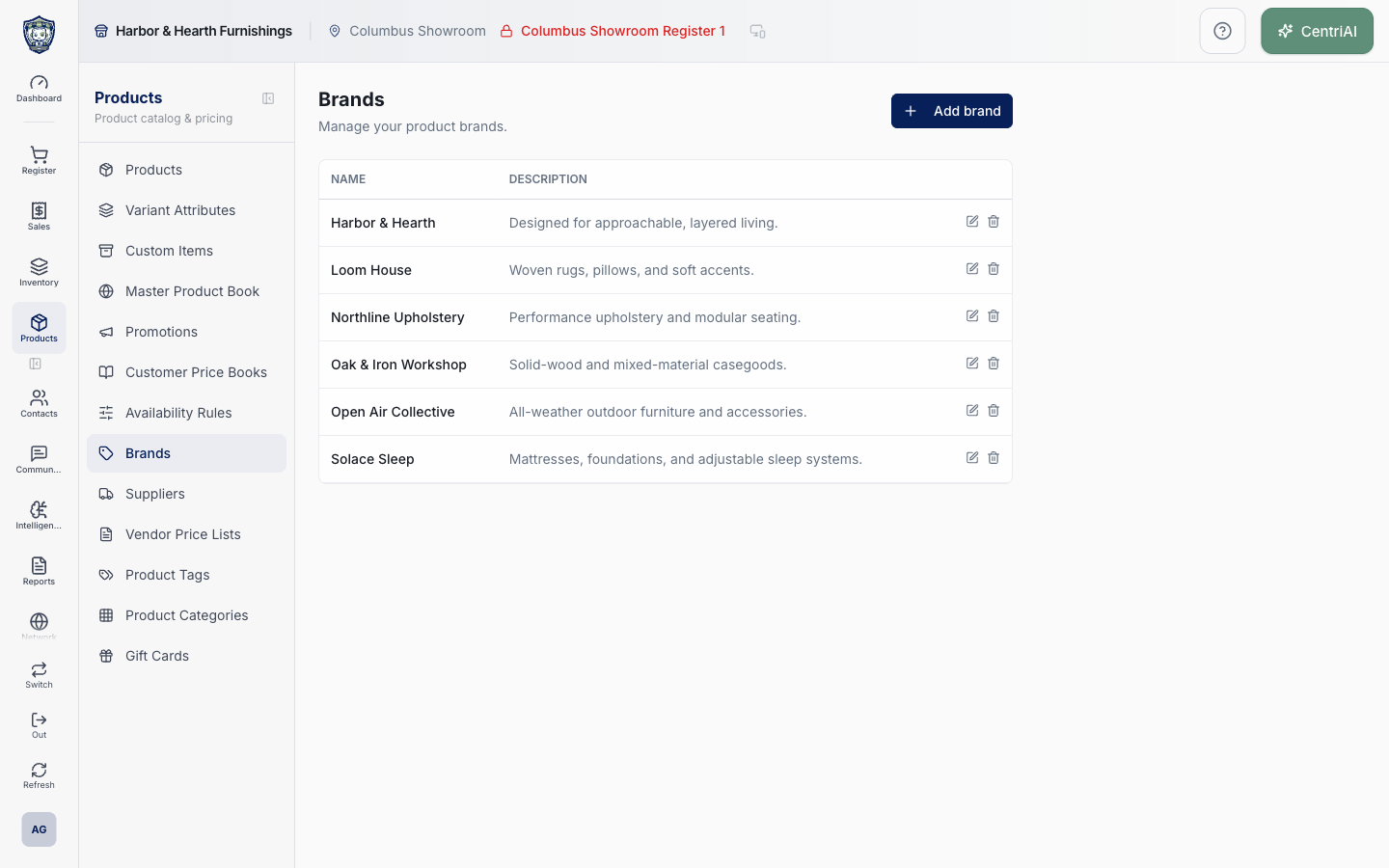
- Go to Products → Brands. Wait for loading to finish, then review the alphabetized Name and Description table for the current business.
- Before creating a brand, scan for spelling, punctuation, capitalization, abbreviations, or legal-name variants of the same label. The page has no search, merge, assignment count, or duplicate-cleanup control.
- Choose Add brand. Enter the required Name and an optional concise Description. Both values are trimmed; an empty description is stored as no description and displays as a dash in the list.
- Choose Add brand once and wait for Brand added. An exact duplicate tenant/name value is rejected; read the error toast rather than creating a near-duplicate spelling. Creating a brand does not assign it to any product.
- To assign the brand, open Products, create or edit the exact product, and choose the brand under Product Details → General → Brand. One product can select one brand or None. Save the product and verify its details afterward.
- To correct shared brand text, choose the brand row or Edit pencil, update Name or Description, and choose Save. Wait for Brand updated. The existing brand ID remains linked to its products, so the new name is reflected through that relationship.
- Remember that brand Description belongs to the brand-management record; it is not the product’s rich-text Description, an online merchandising guarantee, or a substitute for product-specific copy.
- Before deletion, audit every assigned product and every active or scheduled promotion that filters by this brand. The Brands list does not show either relationship. Reassign products and replace promotion criteria first when the business still needs them.
- Choose the trash icon only when the brand should be removed. The delete runs immediately without a confirmation dialog or visible undo. On success, Brand deleted appears; product brand_id relationships are set to null and brand-targeted promotion filter rows are deleted by their database relationships.
- After add, rename, assignment, or deletion, verify representative Product Details, Products filters/search where supported, promotion targeting, exports, and reports that depend on the brand. A brand selection does not by itself change price, tax, stock, supplier, category, product type, POS availability, or online publication.
- Use Product Tags for flexible many-to-many labels and Categories for hierarchical grouping. Do not create brands merely to reproduce those structures.
Screen and contract reference
| Control or area | What it means |
|---|---|
| Tag icon | Exact CentriPOS navigation icon for Brands. |
| Name | Required trimmed canonical brand name, unique within the current business. |
| Description | Optional plain-text brand-management description; a missing value displays as a dash. |
| Add brand | Opens /catalog/brands/new and creates the shared record after validation. |
| Brand row | Opens the existing brand editor. |
| Edit pencil | Opens the same editor without triggering the row action. |
| Save | Updates the existing brand record, preserving its ID and current product relationships. |
| Trash icon | Immediately deletes the brand with no confirmation or visible restore. |
| Product Details → Brand | Single-select product relationship with a None option. |
| Product deletion effect | Deleting a brand sets assigned products’ brand reference to None; it does not delete those products. |
| Promotion deletion effect | Deleting a brand removes promotion-product filter rows that target that brand; review promotions before deletion. |
| No assignment count | The Brand list does not reveal how many products or promotions reference a row. |
| Not a behavior switch | Brand selection alone does not alter pricing, tax, inventory, supplier, category, product type, selling channel, or publication state. |
| Harbor & Hearth screenshot | Real Amelia Grant capture of /catalog/brands in a loaded list state. It accurately shows the Brands heading, Add brand control, Name/Description table, and row actions without opening an editor or delete action. |
Expected result
The canonical brand appears once in the Brands list and can be selected on the intended product records.
Troubleshooting
- Confirm whether you are editing a product, variant, shared master record, or location-specific value.
- Search for an existing product, SKU, UPC, attribute, or tag before creating a duplicate.
- Preview labels, pricing, and availability in the intended location before broad publication.
CentriPOS API explorer · API Center administration
More guides
Build an itemized payment in MoneyUse Products or Amount & description to build one receipt, attach the customer, and follow the appropriate payment or service-estimate workflow.
Take a one-time payment in Virtual TerminalReview a one-time amount, tax and contact at the correct payment station, use its verified secure checkout, and recover the original receipt after an uncertain result.
Review booking payments, refunds and earned careKeep a booking’s customer payments, unused advances, completed care, cancellation fees and refunds distinct, then read a correctly scoped accrual report.
Configure booking properties and customer pagesSet accommodations, service packages, availability, required intake and payment terms, then review the correctly branded booking page before sharing it.