
The Overview requests connected business reporting across all locations for the last seven days, with a small recent-record count. It does not follow the location/register shown in the top context bar and has no date, location, refresh, export, or reconciliation controls of its own. Use Transactions and Reporting for supporting detail.
Before you beginConfirm the register, amount, processor or terminal, and customer-safe transaction reference. Never copy card credentials into a support request.
Step by step
- Open Payanywhere Suite → Overview, identified by the Zap icon. Confirm the active CentriPOS business; the overview is tenant-wide even when the top bar names a location and register. Do not assume those selectors scope these cards.
- Wait for Payments collected and Money movement to finish Loading…. The reporting query requests all configured locations, seven days, and up to eight recent reporting records. The screen keeps reporting data fresh for about one minute before a normal revisit may request it again.
- Read Payments collected as gross reporting volume plus transaction count for the seven-day response. Gross volume is not net funding: it can differ from deposits, refunds, fees, chargebacks, unsettled activity, and register totals. Choose the card to open Transactions.
- Read Money movement as the returned deposit total, with deposit and batch counts beneath it. It is not a single bank-deposit amount and does not prove that every batch funded. Choose the card to open Reporting and inspect the underlying records.
- Read All quiet or Needs attention carefully. The number is unread gateway alerts plus declined reporting transactions plus reporting-source errors. An unread-alert badge, when present, counts only unread stored alerts. A zero means none of those signals surfaced in the current data—not that processors, terminals, batches, deposits, receipts, or accounting are fully reconciled.
- Read Active batches today on the captured Harbor & Hearth screen (newer product code may label the equivalent card Open batches). It represents batches returned as open/pending or without a closed timestamp under the supported status rules. Choose the card to open Reporting before closeout decisions.
- Use the right-side message as an unread-notice shortcut. Everything looks quiet means no unread stored gateway alert. If it reports new notices, start with Alerts. This message does not include all declines or sync errors even though the broader Needs attention number does.
- Review Latest payment activity. When Payments Hub reporting returns transactions, the overview shows up to the first five recent rows from that response. Each row can show location, time, source, masked card brand/last four or authorization reference, amount, and status. Choose View all for Transactions.
- Understand the fallback: when business reporting returns no transactions, Latest payment activity can use up to eight locally stored NMI Gateway transactions instead. Those fallback rows are labeled CentriPay Gateway. A fallback row does not mean Payments Hub reporting, batches, deposits, or source totals are healthy.
- Read Payment mix by dollar volume, not only the bar length. Supported source families include Cloud / terminal, Tap to Pay on iPhone, NMI Gateway, and unclassified Payments Hub activity. Choose Report for the full Reporting workspace. A missing/empty mix means the reporting response has not supplied usable source totals.
- Read Batches & deposits as three separate counts: Active today/Open, total returned Batches, and returned Deposits. These are counts in the current reporting response, not lifetime totals, bank statement totals, or register-closure counts.
- When a card or panel is zero/empty, distinguish a legitimate no-activity response from a reporting error. All quiet can still coexist with missing expected activity if a source failed to connect or deliver data. Open Reporting and check its errors, locations, environment, masked MID, source status, and record lists.
- For a payment discrepancy, trace the entire operational path: CentriPOS sale and payment row → selected register session → closure tender totals → processor transaction → processor batch → processor deposit → QuickBooks sync row when applicable. Label each amount and status by its source; do not force unrelated totals to match.
- For an expected payment absent from Latest activity, search Transactions using the approved processor-safe reference, receipt, location, approximate time, amount, and masked tender context. Do not retry a customer charge solely because it is absent from this overview. Check terminal/payment-intent status and processor evidence first.
- For an unexpected decline, alert, reporting error, open batch, or missing deposit, preserve the business, location, register, receipt/sale ID, safe processor transaction reference, amount, time, source/environment, batch/deposit reference, and displayed error. Never include full card data, CVV, security keys, API passwords, or raw webhook credentials.
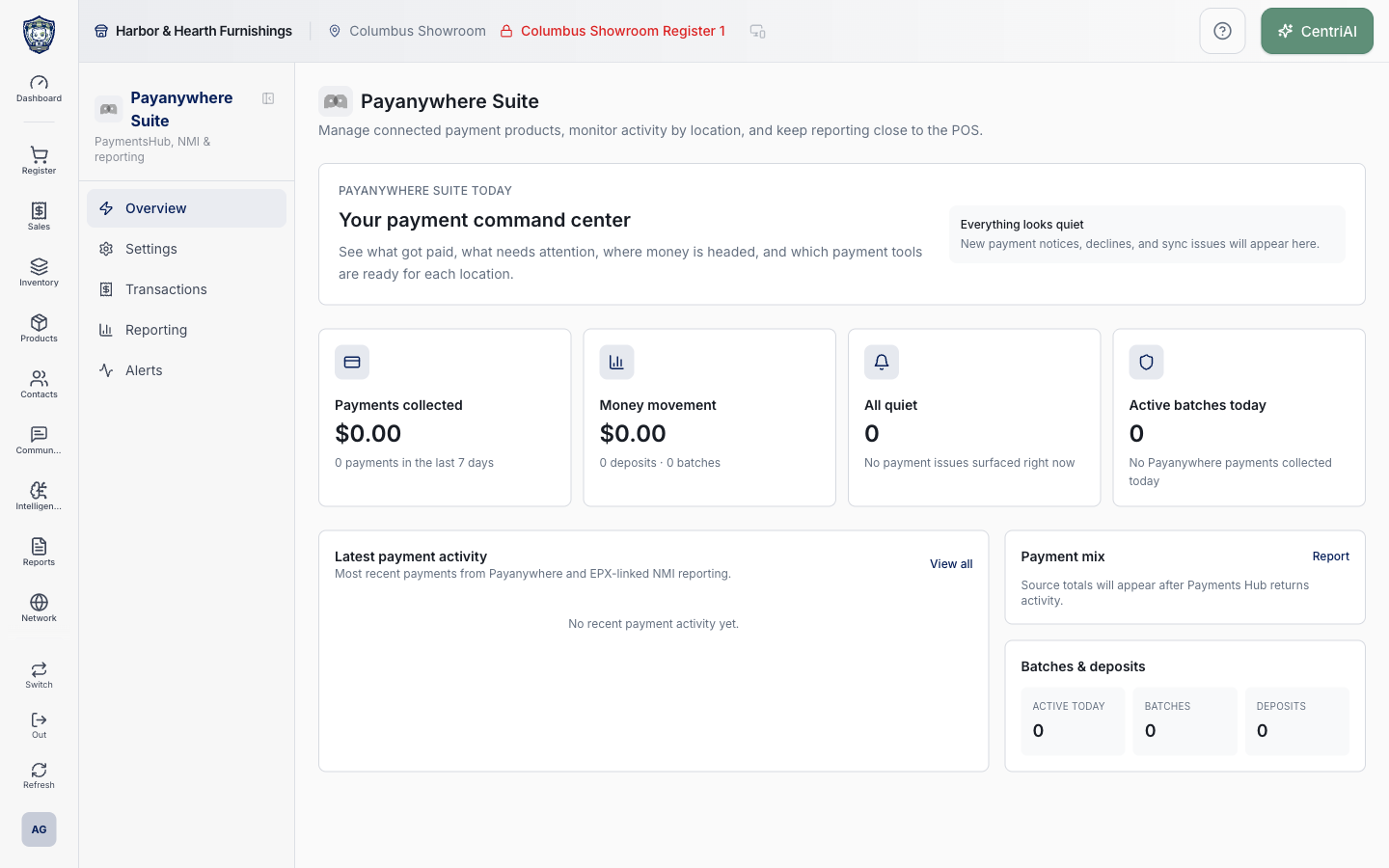
- The article screenshot is the real Amelia Grant Harbor & Hearth capture at 1440 × 900. It shows the loaded zero-aggregate state: $0.00 collected, $0.00 money movement, All quiet 0, Active batches today 0, no recent activity, no payment mix, and zero batch/deposit counts. It contains no transaction, card, customer, batch, or deposit details.
Screen and contract reference
| Control or area | What it means |
|---|---|
| Zap navigation icon | Exact Overview icon used in Payanywhere Suite navigation. |
| Tenant-wide scope | Overview reporting explicitly requests all locations; the top-bar location/register does not filter it. |
| Seven-day window | Fixed overview reporting period for Payments collected and related response summaries. |
| Recent-record count | Overview requests a small reporting sample (eight) and displays up to five reporting rows. |
| Payments collected | Gross volume and transaction count from the business-reporting summary. |
| Money movement | Returned deposit total plus deposit and batch counts. |
| All quiet / Needs attention | Unread stored alerts + declined reporting transactions + reporting-source errors. |
| Unread notice message | Counts unread gateway alerts only and points the user to Alerts. |
| Active batches today / Open batches | Returned batches treated as open/pending or lacking a closed timestamp; inspect Reporting before acting. |
| Latest payment activity | First five Payments Hub reporting transactions when available. |
| NMI fallback | Up to eight local gateway transactions used only when reporting supplies no transaction rows. |
| Location name | Reporting-row location; fallback rows use CentriPay Gateway rather than a store name. |
| Source | Cloud / terminal, Tap to Pay on iPhone, NMI Gateway, or Payments Hub classification. |
| Masked tender detail | Card brand plus last four, authorization reference, or generic payment label; never full credentials. |
| Payment mix | Reported dollar volume by payment-source classification. |
| View all | Opens Payanywhere Suite Transactions. |
| Report | Opens the full Reporting workspace. |
| Batches & deposits | Counts of active/open batches, all returned batches, and returned deposits. |
| Zero-value boundary | A rendered zero is only evidence about returned overview data, not full processor or accounting reconciliation. |
| Harbor & Hearth screenshot | Real Amelia Grant zero-aggregate overview with no sensitive payment records exposed. |
Expected result
The suite overview’s alerts, transactions, batches, deposits, and totals agree with the selected merchant and date scope and link to the relevant detail views.
Troubleshooting
- Check the processor transaction status before retrying an uncertain payment or refund.
- Confirm the terminal, register, amount, and transaction reference all belong together.
- Never include full card numbers or protected credentials in a support request.
CentriPOS API explorer · API Center administration
More guides
Build an itemized payment in MoneyUse Products or Amount & description to build one receipt, attach the customer, and follow the appropriate payment or service-estimate workflow.
Take a one-time payment in Virtual TerminalReview a one-time amount, tax and contact at the correct payment station, use its verified secure checkout, and recover the original receipt after an uncertain result.
Review booking payments, refunds and earned careKeep a booking’s customer payments, unused advances, completed care, cancellation fees and refunds distinct, then read a correctly scoped accrual report.
Configure booking properties and customer pagesSet accommodations, service packages, availability, required intake and payment terms, then review the correctly branded booking page before sharing it.