
Open Contacts → Associations with the same Home icon used in CentriPOS. An association is a relationship layer: every member remains a separate customer with a separate profile, store credit, account balance, payment methods, notes, and activity. Some optional sync settings intentionally copy selected association data into member records, so review them before Update.
Step by step
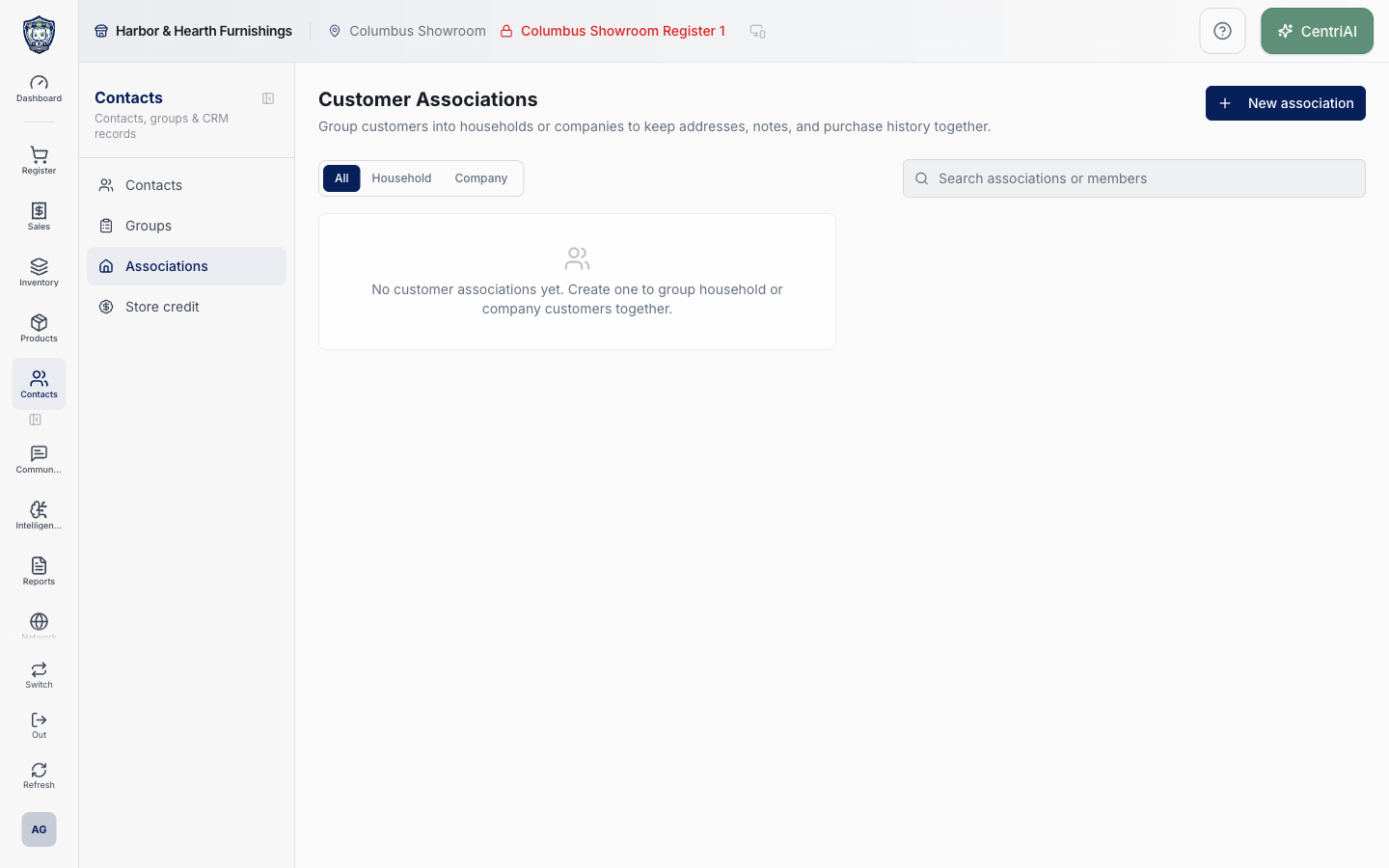
- Go to Contacts → Associations. The Harbor & Hearth screen heading is Customer Associations. Choose All, Household, or Company, then use Search associations or members before creating a record; the search covers association identity, contact and billing fields, notes, and linked-member identity fields.
- Read the list before editing. Each association card shows its Home or Building icon, name, Household or Company badge, member count, completed/refunded sales summary when present, and available address, company contact, billing, checkout, and note summaries. Click the card to expand it; use the pencil to edit without expanding or the trash action to delete.
- Choose New association only when the household or company does not already exist. Select Household for a shared family or residence, or Company for an organization with bill-to and checkout controls. Enter the required Name or Company name.
- Enter the Shared address for a household or Company address for a company: street, second line, city, state, and ZIP. Add Notes only for association-level operational context. These values do not automatically overwrite member profiles unless the matching Sync to members options are enabled and the existing association is updated.
- For a company, add Company email and Company phone as the organization’s general contact details. These are association fields; they do not replace a linked person’s own email or phone.
- In Bill-to and invoicing for a company, set Bill-to name, Invoice email, Billing phone, Terms, and Invoice delivery: Email, Mail, Portal, QuickBooks, or Other. Add comma-separated Invoice CC and BCC emails and Billing instructions only for approved recipients and routing requirements.
- Turn on Require authorization / PO / reference when staff must obtain a reference before billing or delivery. This creates a visible operational warning; it does not manufacture or validate the authorization number.
- Leave Use company address for bill-to on when the billing office uses the company address. Turn it off to enter a distinct bill-to street, second line, city, state, and ZIP. Verify the recipient and address before issuing an invoice.
- In Checkout, turn on Available at checkout only when the company may be selected on Sell as the bill-to identity. CentriPOS then maintains a dedicated bill-to customer record for that company. Turn on Require requested by to make the cashier select a linked contact when billing the company. Turning checkout off also clears the requester requirement.
- Use Sync to members deliberately. Keep member address aligned copies the association address into every current member’s customer profile when an existing association is updated. Keep member company name aligned copies the association name into the members’ Company field. These are real record updates, not display-only inheritance.
- Copy notes to members with an origin label inserts the association note into each current member’s Notes as “[Company note from …]” or “[Household note from …]”. CentriPOS avoids inserting the same exact origin-tagged text twice, but editing the association note can create a new distinct note. Do not enable this for private or irrelevant association context.
- Choose Create or Update. New associations save their profile, but member synchronization has no members to affect yet. For an existing association, enabled profile and note sync runs after the association update against the members linked at that time. Reopen the record and verify the intended fields.
- Expand the association and choose Add member. Search at least two characters by customer name, email, phone, company, contact code, or imported contact code, then choose the exact existing customer. This links the customer; it does not create, clone, or merge a customer record.
- Click a member’s name to open that customer’s full profile. Remove the member with X only when the relationship should end; removal deletes the association link, not the customer or their history. A customer can be linked to more than one association when the business relationship requires it.
- For company members, choose Role to enter free-text responsibility such as purchaser or accounts payable. Toggle Bill-to to mark a billing contact. Toggle Requester to allow or disallow order requests; the “No order requests” badge appears when the stored permission is off. These member attributes do not make one customer the owner of the others.
- Review the expanded association’s completed, refunded, and partially refunded sales summary. The total is built from matched member sales in the loaded association view, and the card shows up to five recent rows. Choose View history to open Receipts scoped to all current member customer IDs and labeled with the association name. This is a combined filter, not a combined receipt owner or account balance.
- For a checkout-enabled company, review QuickBooks customer. Find/link or Rematch is available only to permitted owners, finance leaders, or super admins. CentriPOS matches the dedicated company bill-to customer—not each member—to an existing QuickBooks customer or, with explicit approval, creates a new one.
- In Match QuickBooks customer, compare the CentriPOS company name, email, and phone with every candidate, choose the exact existing QBO ID, then Link selected QBO customer. If no confident match exists, Create new QBO customer requires explicit approval. Use Open to inspect an established link. Never create a second QBO customer merely because an expected candidate is absent.
- Delete an association only after reviewing members, checkout use, price books, receipt filters, billing setup, and the QBO link. The confirmation states that all member links will be removed. Customer records and their individual histories remain, but the association relationship and its configuration are deleted.
- Interpret empty states precisely. No customer associations yet means none exist for the tenant. No associations match the current filters means the type filter or search excluded every association; clear Search and return to All before assuming the record is missing.
- Verify from both sides: reopen the association, inspect each intended member profile’s Associations field, test the optional company bill-to selection and requester rule in Sell, and open View history. Confirm that individual customer identity and financial history remain separate.
Screen and contract reference
| Control or area | What it means |
|---|---|
| Home icon | The exact CentriPOS navigation icon for Contacts → Associations and the icon used for household records. |
| Building icon | Identifies a Company association in the list and editor. |
| All / Household / Company | Routes and filters the association list by relationship type. |
| Search associations or members | Searches association profile, billing, notes, and linked-member identity fields. |
| New association | Opens the Household or Company association editor. |
| Household | Shared relationship record with name, address, notes, member links, and optional member synchronization. |
| Company | Organization relationship record with contact, bill-to, checkout, QuickBooks, and member-role controls. |
| Name / Company name | Required association identity. |
| Company email / phone | Organization-level general contact fields; they do not replace member contact details. |
| Shared / Company address | Association address and optional source for explicit member-address synchronization. |
| Bill-to name / Invoice email / Billing phone | Company billing identity and destination fields. |
| Terms | Free-text billing terms such as Net 30; CentriPOS displays the instruction but does not independently guarantee collection. |
| Invoice delivery | Saved preference: Email, Mail, Portal, QuickBooks, or Other. |
| Invoice CC / BCC emails | Additional billing recipients parsed from comma-separated input. |
| Require authorization / PO / reference | Warns staff that a billing or delivery reference is required; it does not validate one. |
| Use company address for bill-to | Uses company address or reveals a separate bill-to address. |
| Billing instructions | Internal routing or document requirements displayed with the expanded company. |
| Available at checkout | Creates or maintains a dedicated company bill-to customer and exposes the company in supported Sell checkout. |
| Require requested by | Requires selection of a linked contact when the checkout-enabled company is billed. |
| Keep member address aligned | On update, writes the association address into every current member customer record. |
| Keep member company name aligned | On update, writes the association name into each current member’s Company field. |
| Copy notes to members with an origin label | Copies nonempty association notes into current member profiles with a source label and exact-text duplicate guard. |
| Association card | Shows type, members, relevant sales total, address/contact/billing summaries, checkout state, and notes. |
| Expand card | Shows sync and billing badges, instructions, QBO status, members, and recent member-sale context. |
| Add member | Searches existing customers after two characters and inserts a relationship link. |
| Member name | Opens the member’s separate customer profile. |
| Role | Free-text company-contact responsibility stored on the relationship. |
| Bill-to | Marks or unmarks a company member as a billing contact. |
| Requester | Allows or disallows the company member from requesting orders. |
| Remove member | Deletes only the membership link, not the customer. |
| Association sales | Recent completed, refunded, and partially refunded sales belonging to current members. |
| View history | Opens Receipts with every current member ID as a combined association scope. |
| QuickBooks Find/link / Rematch | Permission-gated matching for the checkout company’s dedicated bill-to customer. |
| Link selected QBO customer | Links the exact reviewed QuickBooks customer candidate. |
| Create new QBO customer | Explicitly approved fallback when no correct existing match is available. |
| Delete association | Removes the association and all member links after confirmation, while leaving individual customers intact. |
| No customer associations yet | No association records exist for this tenant. |
| No associations match the current filters | Search or type filter produced an empty result. |
| Relationship boundary | Associations do not merge customers, store credit, account balances, payment methods, notes, or activity histories. |
Expected result
The association has the intended Household or Company type, profile, billing and checkout configuration, member links and roles; optional address, company-name, and origin-tagged-note sync changed only the intended member records; association-scoped receipt history includes the current members without combining their individual financial records; and any QuickBooks link belongs to the reviewed dedicated company bill-to customer.
Troubleshooting
- Search by more than one identity field before creating or merging a customer.
- Confirm the selected customer, company, or household before changing balances or associations.
- Do not place payment credentials or unnecessary private information in notes.
CentriPOS API explorer · API Center administration