
Open Contacts → Groups with the same Clipboard List icon used in CentriPOS. A group stores a name, optional description, and customer membership links. It does not merge customers, create a company or household, synchronize profile fields, or automatically send a communication. Deleting a group also removes its links from customer price books, so inspect the displayed price-book count first.
Step by step
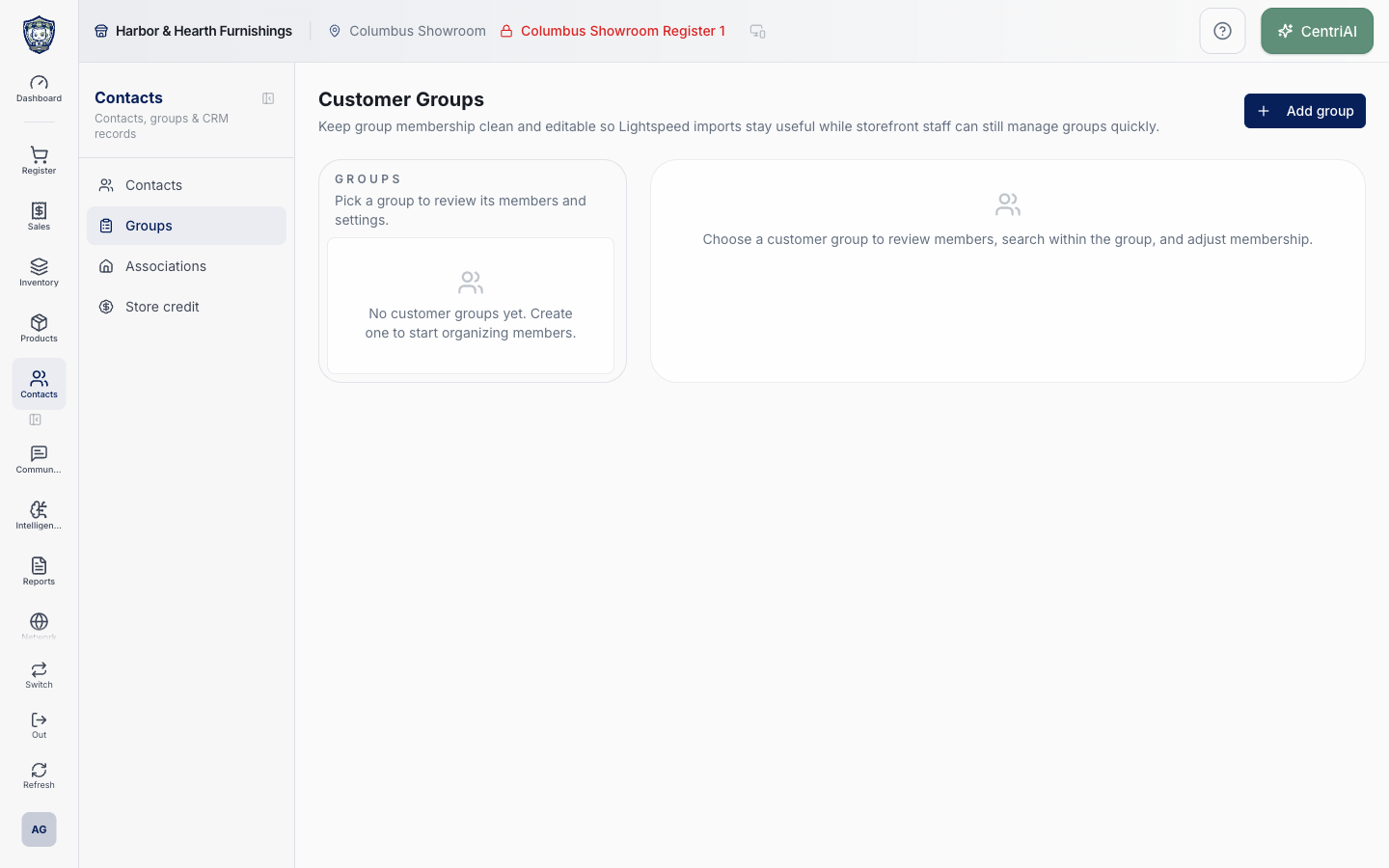
- Go to Contacts → Groups. The Harbor & Hearth screen heading is Customer Groups and explains that editable membership keeps Lightspeed imports useful while storefront staff can manage groups.
- Review the Groups panel before choosing Add group. Groups are alphabetized. Each card shows name, description or No description yet, member count, price-book count, and Open for the selected group. The first group is selected automatically when groups exist.
- Choose Add group. Enter a required Name that staff can interpret later, such as Wholesale, VIP, or Staff, and an optional Description that explains eligibility. Choose Create, then confirm the new group is selected.
- Choose a group to open its workspace. On desktop, use the left group list; on mobile, use the group picker above the detail panel. Review the group’s full description, member count, and linked price-book count before changing membership or deleting it.
- Choose Edit to update only the group Name and Description. Renaming preserves the group ID, current member links, and price-book links. Recheck downstream labels after a material rename so users do not mistake the old eligibility policy for the new name.
- Use Search [group name] members to filter only the selected group’s current members. It matches customer name, email, phone, company, contact code, imported contact code, and stored fallback email. Clearing this field restores every loaded member in that group.
- Choose Add members to search the tenant’s existing customers by name, contact or imported code, phone, email, or company. With no query, the picker returns the first 12 alphabetized eligible customers; with a query, it returns up to 25 matches. Customers already in the selected group are excluded.
- Review the result’s customer name and supporting code, company, email, phone, or Imported code, then choose the exact customer. The customer is linked immediately and remains available in Contacts under the same customer ID. Add members one at a time; this screen does not create a new contact.
- Click a member’s name to open their Customer Profile and confirm identity. Choose Remove to delete only that membership link from the selected group. Removing a member does not delete the customer, alter their other group memberships, or remove individual sales, balances, notes, payment methods, or activity.
- Understand downstream pricing. A group’s displayed price books are the customer price books directly assigned to that group. Membership can make a customer eligible when the price book is active, date-valid, channel-valid, and location-valid. Direct-customer and association-targeted price books outrank group targeting in the current Sell resolver.
- Treat group membership as explicit operational data. Imports or bulk actions can add memberships, but this screen does not continuously recalculate the group from customer attributes. Changing a customer’s company, spend, balance, or source does not automatically move them into or out of a group.
- Choose Delete only after checking the group name, member count, and price-book count. The confirmation explicitly says deletion removes the group from any linked price books. The customer records remain, but their group memberships and price-book targeting through this group end.
- Interpret empty states precisely. No customer groups yet means no group records exist. Choose a customer group means none is selected. This group is empty right now means the selected group has no membership rows. No members in this group match your current search means the local member search excluded them. No customers match that search refers only to eligible nonmembers returned by Add members.
- Verify one representative member from both directions: open the group and find the customer, then open the customer profile and confirm its Group field. If the group is used by a price book, attach the member in Sell and test the intended product at the intended location and date; also test a nonmember because membership alone does not prove the price resolver applied the book.
Screen and contract reference
| Control or area | What it means |
|---|---|
| Clipboard List icon | The exact CentriPOS navigation icon for Contacts → Groups. |
| Groups panel | Alphabetized group list with selected state, description, member count, and linked price-book count. |
| Add group | Creates a group from required Name and optional Description. |
| Name | Required staff-facing group identity. |
| Description | Optional explanation of membership purpose or eligibility. |
| Open | Marks the group currently shown in the detail workspace. |
| Member count | Number of customer membership links in the group. |
| Price-book count | Number of customer price books directly linked to the group. |
| Mobile group picker | Phone-sized replacement for the desktop Groups panel. |
| Edit | Renames the group or changes its description without replacing its ID or links. |
| Search group members | Filters current members by identity, contact, company, customer code, imported code, or fallback email. |
| Add members | Opens the existing-customer picker and excludes current members. |
| Add-member search | Returns 12 alphabetized eligible customers without a query or up to 25 matching eligible customers with a query. |
| Member row | Shows the linked customer name and available code, company, email, phone, or imported code. |
| Member name | Opens the separate Customer Profile for identity verification. |
| Remove | Deletes the selected membership link only. |
| Price-book eligibility | Group membership is one condition; active state, dates, channel, location, product, and higher-ranked customer or association targeting still affect the applied price. |
| Delete | Deletes the group, membership links, and linked price-book assignments after confirmation; customer records remain. |
| No customer groups yet | No group records exist for the current tenant. |
| Choose a customer group | No group is selected for detail. |
| This group is empty right now | The selected group has no members. |
| No members in this group match your current search | The selected group has members, but its local search hides all of them. |
| No customers match that search | The Add members picker found no eligible nonmember customer. |
| Membership boundary | A group does not merge contacts, synchronize customer fields, create an association, send messages, or dynamically recalculate membership. |
Expected result
The named group appears once with the intended description and membership links; representative member identity is verified in the Customer Profile; displayed member and price-book counts reconcile; a supported price-book test distinguishes a member from a nonmember under the correct date, channel, location, and targeting precedence; and no merge, field sync, message send, or dynamic-membership behavior is inferred.
Troubleshooting
- Search by more than one identity field before creating or merging a customer.
- Confirm the selected customer, company, or household before changing balances or associations.
- Do not place payment credentials or unnecessary private information in notes.
CentriPOS API explorer · API Center administration