
Name is the only universally required visible field, but a minimally valid save is not a sell-ready product. Product type cannot be changed after creation. SKU validation checks reserved system values and duplicates across products and variants; missing SKUs may be generated according to tenant SKU settings. New standard-product per-location stock, serial numbers, extra product codes, packaging relationships, history, and health tools require saving the base product first.
Before you beginSearch first to avoid duplicate products or reference values. Confirm whether the change is business-wide or location-specific.
Step by step
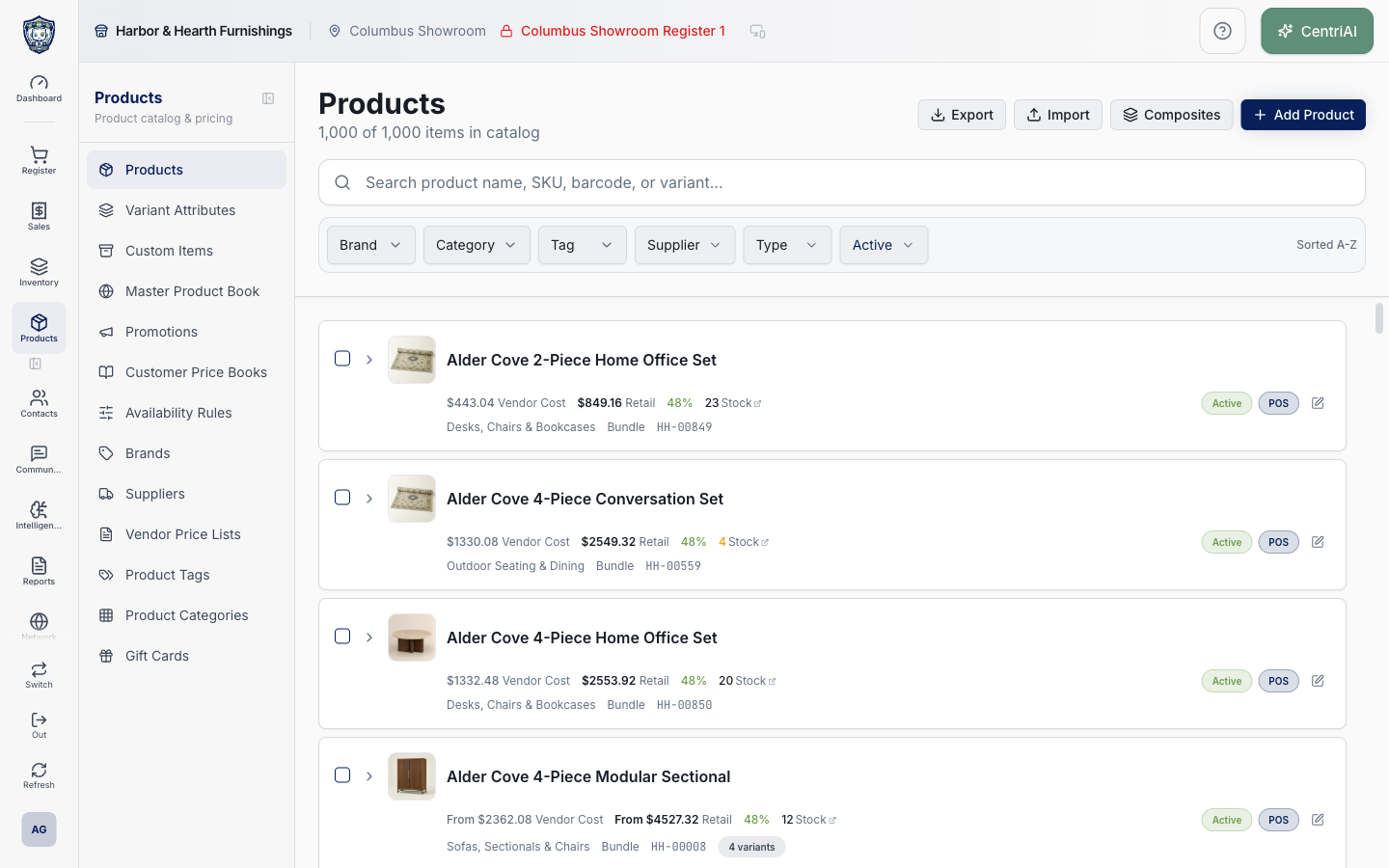
- Confirm the intended business and catalog scope, then go to Products → Product Catalog. Use the real Harbor & Hearth Products screenshot below to identify the catalog landing screen; choose Add product to open the Product editor. Do not use Add Custom Item Product for normal reusable catalog merchandise.
- In General, enter the customer/staff-facing Name and Description. Choose the Brand, Category, and Tags that should drive search, filters, promotions, labels, online merchandising, and reporting. New tags can be created from the search when no exact tag exists; avoid duplicates caused by spelling or casing.
- Choose Product type before creation: Standard / Variable for ordinary or variant merchandise, Composite (Bundle) for a product/variant assembled from components, Non-inventory for non-stocked items, or Gift card for the gift-card model. The selector is disabled when editing an existing product, so correct a wrong type before the first save.
- Set Sales tax type deliberately. General merchandise uses standard tax; No tax bypasses tax; ZipTax TIC choices support product-specific reduced rates, exemptions, thresholds, food, clothing, software, services, and other rules. Tax type is product taxability, not the customer’s exemption or location nexus decision.
- Set Sell at point of sale. Enable Custom price at sale only for legitimate open-price products; it prevents a $0 default from being treated as an extreme markdown, but it also authorizes associates to enter the selling amount through the supported flow.
- Choose Availability restrictions: Available everywhere, Only selected locations, or Only selected registers. If restricted, select at least one allowed location/register or save is blocked. Availability controls where the item can be offered; it does not move stock or grant access to another business.
- Add warranty label and an optional PDF when the product has customer-facing coverage. A newly selected PDF uploads when the product is saved. Verify the document contains no unrelated private data and that the label accurately describes coverage.
- For a product without variants, enter its SKU and Barcode. Use the camera control to scan/capture when appropriate. Turn on Track inventory only when on-hand quantities should be maintained, Track serial numbers only when individual units require serial custody, and set Leasable / Financeable explicitly or leave the supported category inheritance. New products must be saved before per-location stock or serial management appears.
- Choose the Primary vendor and Vendor code. For a nonvariant product, enter Vendor Cost and Retail price and review the calculated markup and margin. Composite cost can be derived/restricted when components exist. Do not mistake vendor cost for average or last received cost, which appears later on existing products.
- For Standard / Variable or Composite products, add attribute names and values. CentriPOS automatically generates every cross-combination. Review each variant’s unique SKU, vendor code, cost, retail, enabled On state, barcode, stock/reorder details, and any per-variant bundle recipe. Parent SKU/barcode fields are hidden once variants exist.
- Use Sync vendor code to SKU only when both identifiers should intentionally match. Missing SKUs can be assigned from tenant rules at save, but reserved system SKUs and duplicates within this product or anywhere else in the catalog are blocked. Resolve the named conflict rather than slightly disguising a duplicate.
- For a Composite product, add exact component products/variants and quantities. Validate that recipes do not create unsafe self-reference or circular/nested relationships. Component cost drives the supported derived cost. For variant composites, expand and verify the recipe on every affected variant.
- Add the Primary Product Image. Confirm crop/orientation and that the image represents the exact sellable item rather than another size/color. Images are reused in catalog, Sell, labels, online surfaces, and integrations where supported.
- Open Labeling & Shipping. On a brand-new unsaved product, review shipping data but save the base product before adding additional product codes. After the first save, add UPC, EAN, GTIN, ISBN, manufacturer, internal, supplier, case-pack, or other codes; or generate from SKU/supplier code. Choose whether a code applies to the product or an enabled variant, its pack quantity, Scan default, and Label default.
- Enter shipping weight in ounces, length/width/height in inches, package preset, origin country, HS code, and customs description when shipped. Set Ships individually, Signature default, Fragile, Oversized, Restricted, and Insure by default only when operationally true. These values support shipping fulfillment/EasyPost; they do not create a shipping method or buy postage by themselves.
- Open Online Store. Enable online sale and choose publish status only when the connected storefront and product content are ready. Complete online description, SEO title, meta description, URL slug, sort order, online tags, custom fields and storefront visibility, gallery/mapping, and supported WooCommerce/ACF sync. Saving a product does not guarantee an external store published successfully—verify the integration result separately.
- Choose Create product once and wait. Save blocks a blank name, empty selected availability scope, unsafe variant bundle recipes, reserved/duplicate SKUs, and other returned errors. If you close with unsaved changes, use the discard confirmation deliberately.
- Reopen the product after success. Complete any second-pass controls that require a product ID: per-location stock/reorder values, serial numbers, additional codes, label printing, packaging relationships, vendor price-list references, price/cost history, product health, online custom fields/gallery, and other supported edit-only panels. Save again and verify.
- Test from Register → Sell in the intended location/register. Search by name, SKU, barcode, and added scan-default code; select the intended variant; verify POS availability, enabled state, price/custom-price behavior, tax, inventory/serial prompts, bundle components, fulfillment/shipping behavior, image, warranty, labels, and receipt identity. Also verify online visibility separately when enabled.
Screen and contract reference
| Control or area | What it means |
|---|---|
| Product Catalog / Add product | Opens the reusable catalog Product editor from the Products landing screen shown in the real Harbor & Hearth screenshot. |
| Name* | Only universally required visible field; whitespace-only names are rejected. |
| Product type | Standard / Variable, Composite (Bundle), Non-inventory, or Gift card; disabled after creation. |
| Sales tax type | Product taxability selection: General merchandise, No tax, or supported ZipTax TIC. |
| Tags | Search/add existing tags or create a missing exact tag; tags feed supported search, filters, merchandising, and rules. |
| Sell at point of sale | Controls POS channel eligibility. |
| Custom price at sale | Allows supported sale-time price entry for open-price products. |
| Availability restrictions | Everywhere, selected locations, or selected registers; restricted scope must contain at least one selection. |
| Warranty PDF | Uploads when the product is saved; edit mode can open or clear the stored attachment. |
| SKU validation | Rejects reserved system SKUs, duplicates within the draft, and conflicts with any other product or variant; tenant rules may generate missing SKUs. |
| Track inventory | Enables stock behavior; new nonvariant products must be saved before per-location stock controls appear. |
| Track serial numbers | Enables serialized-unit management; serial controls require an existing saved product. |
| Leasable / Financeable | Explicit eligible/ineligible choice or supported category inheritance. |
| Primary vendor / Vendor code | Catalog supplier relationship and supplier-facing identifier; variant products manage vendor codes per variant. |
| Vendor Cost / Retail price | Base nonvariant cost and sell price used to calculate displayed markup and margin. |
| Variants | Automatic cross-combinations of attribute values with per-variant identifier, price, enabled, barcode, inventory, and supported bundle detail. |
| Composite recipe | Component product/variant quantities used to represent a bundle; unsafe recipes are blocked. |
| Primary Product Image | Main catalog image reused by supported POS, online, label, and integration surfaces. |
| Product codes | Additional scannable/label identifiers with type, product/variant target, pack quantity, Scan default, Label default, and active state; require a saved product ID. |
| Labeling & Shipping | Tab for product codes/label printing plus weight, dimensions, package, customs, and shipment-default flags. |
| Online Store | Tab for online eligibility/status, content, SEO, tags, custom fields, gallery, and supported WooCommerce/ACF behavior. |
| Create product / Save | Validates and writes the product; post-save edit-only data may require reopening and saving again. |
| Exact screenshot scope | The screenshot is the approved real Amelia Grant Harbor & Hearth Product Catalog landing screen where this workflow begins. The modal’s private editable values are not fabricated into the image. |
Expected result
The product is saved once with the intended variants, codes, prices, tax, inventory behavior, media, availability, and location or network scope.
Troubleshooting
- Confirm whether you are editing a product, variant, shared master record, or location-specific value.
- Search for an existing product, SKU, UPC, attribute, or tag before creating a duplicate.
- Preview labels, pricing, and availability in the intended location before broad publication.
CentriPOS API explorer · API Center administration
More guides
Build an itemized payment in MoneyUse Products or Amount & description to build one receipt, attach the customer, and follow the appropriate payment or service-estimate workflow.
Take a one-time payment in Virtual TerminalReview a one-time amount, tax and contact at the correct payment station, use its verified secure checkout, and recover the original receipt after an uncertain result.
Review booking payments, refunds and earned careKeep a booking’s customer payments, unused advances, completed care, cancellation fees and refunds distinct, then read a correctly scoped accrual report.
Configure booking properties and customer pagesSet accommodations, service packages, availability, required intake and payment terms, then review the correctly branded booking page before sharing it.