
Custom Items uses the Archive icon. These records live in the products table with product_type custom, but they are intentionally outside regular master inventory, purchase orders, and receiving. Register-created custom items are non-inventory, POS-only, and offline-only. A completed sale marks them Sold; supported return/exchange or receipt reversal paths can reactivate them. Manual status buttons do not validate the related receipt, so never reactivate and resell a genuinely sold one-off item without reconciliation.
Before you beginSearch first to avoid duplicate products or reference values. Confirm whether the change is business-wide or location-specific.
Step by step
- Go to Products → Custom Items. Wait for the loading state to finish. The subtitle counts every custom product in the current business before search or status filtering, not only the visible matches.
- Open the information icon beside Custom Item Archive. Its product guidance is the governing boundary: custom items are miscellaneous one-off records with cost history on the customer receipt, not regular master inventory and not available for PO or receiving workflows.
- Use Search custom items… to filter the already-loaded tenant list by product Name or SKU only. Search is client-side and case-insensitive; it does not inspect description, customer, receipt, price, cost, dates, brand, categories, tags, or sale number.
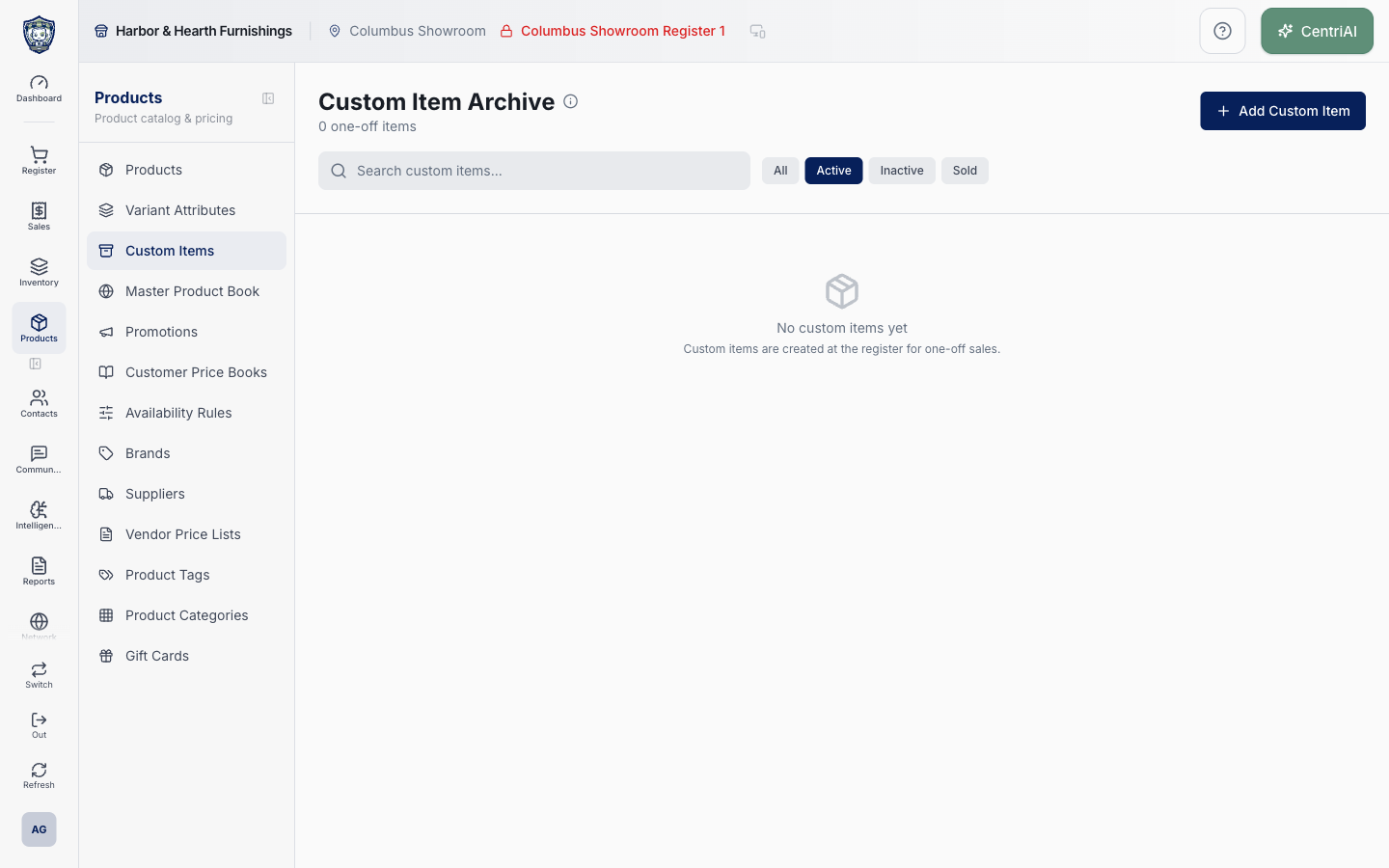
- Choose All, Active, Inactive, or Sold. These buttons compare sold_status, not sale status or inventory availability. The table shows Item, Cost, Price, Status, Created date, and row actions.
- For the fastest register flow, open Sell and choose Custom Item. Enter required Item name and a Sell price greater than zero; optional Cost supports margin history. Add to Cart creates a product_type custom row with inventory tracking off, POS selling on, online selling off, and sold_status Active, then adds it to the current cart.
- If creating from the archive, choose Add Custom Item. This opens the full Product editor as Add Custom Item Product. Saving creates the custom product record but does not automatically add it to a Sell cart. Review its name, pricing/cost, tax treatment, labels, and other entered fields before later using it.
- Distinguish the two creation paths before retrying. Register Custom Item creates the database record before calling Add to Cart; if cart insertion or the surrounding workflow is uncertain, search the archive before creating another duplicate. Archive Add Custom Item is a product-editor save only.
- Complete the sale through the normal Sell workflow. Checkout marks each custom product in that transaction Sold. The archive status is product-level, so a custom item should represent one exceptional item rather than a reusable miscellaneous SKU.
- Open a row or pencil to inspect/edit the custom product through Product Details. Although the full editor exposes broad catalog fields, using variants, tracked inventory, online selling, purchasing, or repeat-sale design defeats the intended one-off model; create a standard or non-inventory catalog product instead when repeatability is required.
- For Active rows, Deactivate immediately writes sold_status Inactive and is_active false. For Inactive rows, Activate immediately restores sold_status Active and is_active true. Neither action has a confirmation dialog or checks a linked cart/receipt.
- For Sold rows, Reactivate immediately changes sold_status to Active and is_active true. Use this only after verifying the original transaction was properly returned, exchanged, voided, or otherwise reversed. The button itself does not create a return, reverse revenue/payment, update a receipt, or restore inventory.
- Supported receipt reversal/return logic can also reactivate custom products, and sale repair/completion logic can set them Sold. After any exception, verify the receipt and custom archive together rather than treating the badge as the accounting source of truth.
- When no rows exist, No custom items yet is a completed empty state. When search has no match, the screen says No items match your search. Clear search and return to All before concluding the record is missing.
- Protect customer context: the archive does not show the associated receipt/customer, and editing a row does not reveal which sale made it Sold. Use the authorized receipt workflow to establish provenance; do not infer ownership from the product name.
Screen and contract reference
| Control or area | What it means |
|---|---|
| Archive icon | Exact CentriPOS navigation icon for Custom Items. |
| Information icon | Explains that custom items are miscellaneous receipt-history records excluded from regular inventory, POs, and receiving. |
| One-off item count | Total loaded custom-product count before the current search/status filter. |
| Search custom items… | Client-side Name or SKU match only. |
| All / Active / Inactive / Sold | Filters by product sold_status, not receipt status or stock state. |
| Item / Cost / Price / Status / Created | Columns in the archive list. |
| Sell → Custom Item | Quick dialog requiring name and positive sell price, with optional cost; creates the record and adds it to the cart. |
| Add Custom Item | Archive action opening the full custom Product editor; saving does not add the item to a cart. |
| Register-created defaults | product_type custom, track_inventory false, sell_pos true, sell_online false, sold_status active. |
| Sold | Product status written when supported checkout/repair logic completes a sale containing the custom item. |
| Deactivate | Immediately writes sold_status inactive and is_active false without checking a receipt. |
| Activate | Immediately writes sold_status active and is_active true. |
| Reactivate | Available for Sold rows; immediately restores Active without reversing the original transaction. |
| Row / pencil | Opens the full Product editor for that custom record. |
| No custom items yet | Fully rendered zero-record state. |
| No items match your search | Search/filter result state; clear filters before concluding the item is absent. |
| Not provenance | Archive rows show no customer, receipt, or sale identifier; use Sales/Receipts for transaction evidence. |
| Not reusable inventory | Use a standard/non-inventory catalog product for repeat sales, variants, purchasing, receiving, or inventory tracking. |
| Harbor & Hearth screenshot | Real Amelia Grant capture of /catalog/custom-items in a fully rendered empty state. It shows no one-off items and no customer or receipt data; no item dialog was opened. |
Expected result
The one-off item appears once in the intended archive state and on the related sale and receipt without being mistaken for a reusable inventory product.
Troubleshooting
- Confirm whether you are editing a product, variant, shared master record, or location-specific value.
- Search for an existing product, SKU, UPC, attribute, or tag before creating a duplicate.
- Preview labels, pricing, and availability in the intended location before broad publication.
CentriPOS API explorer · API Center administration
More guides
Build an itemized payment in MoneyUse Products or Amount & description to build one receipt, attach the customer, and follow the appropriate payment or service-estimate workflow.
Take a one-time payment in Virtual TerminalReview a one-time amount, tax and contact at the correct payment station, use its verified secure checkout, and recover the original receipt after an uncertain result.
Review booking payments, refunds and earned careKeep a booking’s customer payments, unused advances, completed care, cancellation fees and refunds distinct, then read a correctly scoped accrual report.
Configure booking properties and customer pagesSet accommodations, service packages, availability, required intake and payment terms, then review the correctly branded booking page before sharing it.