
Admin → E‑Cart uses the Link 2 icon. Every field is a local draft until Save E‑Cart Settings. This page stores acknowledgment, policy links, recipients, webhook URLs, and signing secret inside the tenant settings JSON; the signing secret is masked in the input but is not written through the encrypted service-credential store. Current checkout renders the acknowledgment only when it is both enabled and required. Treat legal text, recipients, URLs, and secrets as sensitive production configuration and run controlled end-to-end tests.
Before you beginUse an authorized administrator account and confirm the business shown in the top bar. Record the previous value before changing a live operational setting.
Step by step
- Go to Admin → E‑Cart, identified by the Link 2 icon. Confirm the intended CentriPOS business before editing; these settings are tenant-wide defaults consumed by public E‑Cart checkout and paid-order notification services.
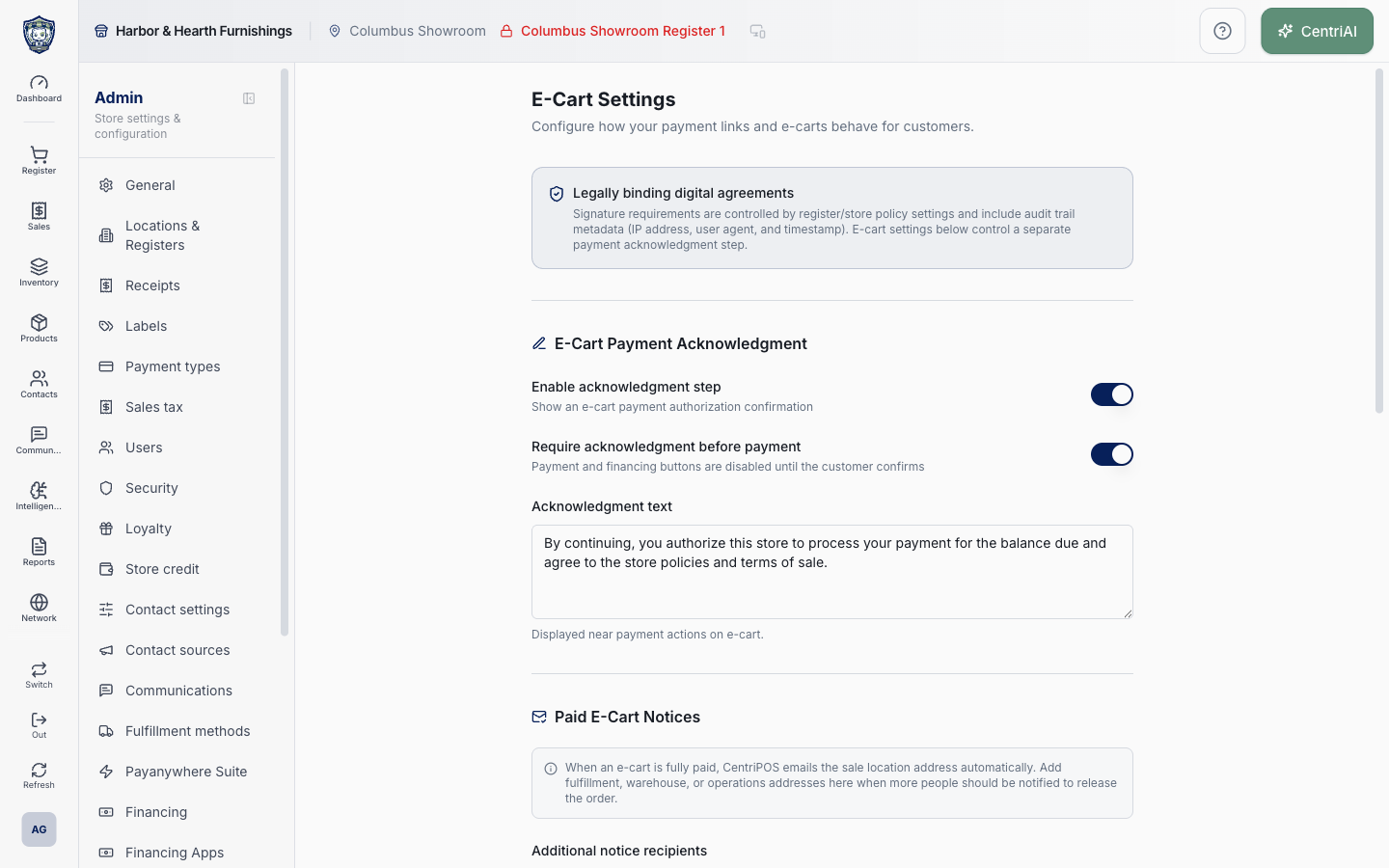
- Read Legally binding digital agreements. Register/store signature requirements, terms display, signature capture, IP/user-agent/timestamp metadata, and payment gating are configured separately. The E‑Cart Payment Acknowledgment here is a distinct checkbox gate and is not a substitute for legal advice or a required signature.
- Enable acknowledgment step controls whether the E‑Cart acknowledgment feature is active. Require acknowledgment before payment can be changed only while enabled and gates card, supported ACH, and financing actions until the customer checks the authorization box. Both switches remain unsaved until the bottom Save.
- Current checkout behavior is stricter/narrower than the labels imply: the Payment Authorization panel and custom acknowledgment text render only while enabled + required + not yet accepted. If enabled but Require is off, there is no optional acknowledgment panel displayed. Test the actual public checkout before relying on optional consent wording.
- Write concise Acknowledgment text describing the exact payment authorization and approved policy relationship. When blank/whitespace is stored, public cart lookup falls back to the system default wording. The customer checkbox label itself remains “I acknowledge and authorize payment processing for this order.”
- Acknowledgment acceptance is browser UI state reset when the E‑Cart token changes. This component does not show a separate persisted acceptance record for the E‑Cart checkbox. Do not represent it as equivalent to the register signature audit trail; use the approved signature workflow when durable signed evidence is required.
- Under Paid E‑Cart Notices, understand the trigger. The notice service skips a sale without a posted E‑Cart token or with balance due above $0.009. When fully paid, it merges the sale location email, tenant Additional notice recipients, and any location-level ecart_paid_notice_emails, removes duplicates, and discards invalid addresses at send time.
- Enter Additional notice recipients one per line or separated by commas/semicolons. The editor deduplicates case-insensitively but does not validate email syntax while typing/saving; invalid entries can remain in tenant settings and will be silently excluded by the notice service. Reopen and independently verify every operational address.
- The merchant email subject includes the receipt number and can include a branded public receipt link/PDF plus customer, sale, payment, and pending-fulfillment details. Add only recipients authorized to receive that data. The location email is automatically included when valid; remove/change it under Locations & Registers, not here.
- A paid E‑Cart can also generate a customer receipt email separately when an eligible customer/display email exists. Merchant paid notice and customer receipt use different activity-log communication kinds and idempotency checks. Editing recipients does not resend an already recorded notice automatically.
- Under Paid E‑Cart Webhooks, enter only approved HTTPS endpoints. The editor keeps newline/comma/semicolon entries beginning with https:// and deduplicates them, but does not fully parse/validate the URL until the sender; malformed or non-HTTPS values are removed from the saved normalized URL list.
- Each endpoint receives an ecart.paid JSON event with a stable event_id based on sale ID; occurrence time; tenant, location, register, sale totals/status/IDs/timestamps; customer identity/contact and marketing-opt-in fields; pending fulfillment lines; and branded app/public receipt links. This is customer and transaction data—apply least privilege, retention, monitoring, and vendor agreements.
- CentriPOS sends X-CentriPOS-Event, a random X-CentriPOS-Delivery ID, and, when a secret exists, X-CentriPOS-Signature in sha256=<hex> form. The signature is HMAC-SHA256 over the exact raw JSON request body. Verify it using constant-time comparison before parsing/trusting the payload.
- Generate a strong unique Webhook signing secret outside the page and deliver it securely to the receiving middleware. The field is masked but Save stores its trimmed value in tenant.settings.ecart; it is not encrypted through the platform service-credential vault in this implementation. Restrict admin access and never expose it in screenshots, tickets, browser logs, or client code.
- Webhook deliveries run concurrently and capture URL, delivery ID, HTTP success/status, or request error. A non-2xx webhook does not make the notice function fail; results are written to the merchant notice activity record, which then prevents ordinary duplicate merchant sends. There is no retry schedule or per-endpoint resend control on this settings screen.
- When merchant email sending is required and the email service is unconfigured or rejects the message, the notice function returns an error before webhook dispatch/marking in the normal path. Inspect the sale communication/activity evidence and integration logs; do not assume “paid” means every notification arrived.
- Policy Links appear at the bottom of supported E‑Cart checkout and open in a new tab. Enter public HTTPS Terms & Conditions and Privacy Policy URLs owned/approved by the business. The settings editor uses type=url but Save performs no explicit URL validation or HTTPS enforcement for these two fields.
- Public cart lookup prefers a register-level privacy/terms value when present and otherwise uses these tenant E‑Cart URLs. Review the actual register involved in the sale; changing the tenant value may not change a register override.
- Choose Save E‑Cart Settings once. The save rereads the current tenant settings, merges the ecart object, normalizes recipient lists/HTTPS webhooks, trims the secret, and writes the entire merged settings JSON. Wait for E‑Cart settings saved, then reopen the page and confirm every value.
- Create a controlled E‑Cart from the exact location/register. Open only a branded https://pos.getcentri.com customer link (or an approved verified customer domain), confirm authorization gating/text, signature/terms behavior, policy links, eligible payment methods, totals/balance, and customer identity.
- Complete a small approved test payment. Verify the receipt and payment in CentriPay Transactions before retrying; then verify the sale location email, each additional recipient, customer receipt when expected, browser/web-push notice where configured, webhook raw body/signature/status, activity log, pending Fulfillment Center work, and branded receipt links.
- Test negative paths: acknowledgment required/unaccepted, enabled but not required, disabled, blank text fallback, invalid policy URL, invalid/duplicate email, malformed/non-HTTPS webhook, no secret, bad signature, endpoint 4xx/5xx/timeout, missing location email, partial balance, already-sent idempotency, and register policy override.
- Harbor & Hearth’s real Amelia Grant screenshot shows the fully loaded /admin/ecart settings at 1440×900 with the actual Link 2 navigation and general configuration sections. It intentionally exposes no recipient addresses, webhook URLs, signing secret, or private policy URLs; no setting was saved and no E‑Cart/payment/notification was triggered.
Screen and contract reference
| Control or area | What it means |
|---|---|
| Link 2 icon | Exact Admin navigation icon for E‑Cart. |
| Legally binding digital agreements | Boundary between register signature audit behavior and the separate payment acknowledgment. |
| Enable acknowledgment step | Tenant draft flag activating acknowledgment behavior. |
| Require acknowledgment | When enabled, blocks payment/financing until the customer checks the box. |
| Current optional-mode limitation | Enabled + not required does not render an optional acknowledgment panel in current checkout. |
| Acknowledgment text | Customer authorization copy; blank falls back to system default. |
| Acceptance state | Client UI state reset per token; not represented here as the durable signature audit record. |
| Additional notice recipients | Tenant merchant-notice emails merged with sale-location and location-level recipients. |
| Email normalization | Case-insensitive dedupe in editor; valid-email filtering occurs only in sender. |
| Customer receipt | Separate paid E‑Cart email/idempotency path to eligible customer email. |
| Webhook URLs | Normalized/deduplicated HTTPS endpoints for ecart.paid. |
| ecart.paid payload | Customer, sale, location/register, totals, fulfillment, and branded link data. |
| X-CentriPOS-Delivery | Random identifier generated per endpoint request. |
| X-CentriPOS-Signature | HMAC-SHA256 of exact raw body, formatted sha256=<hex>. |
| Webhook signing secret | Masked but stored in tenant settings JSON, not the encrypted service-credential store. |
| Webhook failure boundary | Non-2xx/error is recorded; it does not fail the notice function or automatically schedule retry. |
| Merchant notice idempotency | Activity-log marker suppresses ordinary repeat sends after dispatch is recorded. |
| Terms & Conditions URL | Tenant fallback public link; no explicit Save-time validation. |
| Privacy Policy URL | Tenant fallback public link; no explicit Save-time validation. |
| Register override | Register settings take precedence over tenant policy URLs when present. |
| Save E‑Cart Settings | Reread/merge/write tenant settings; all page controls are drafts until chosen. |
| Branded public host | Customer-facing links and webhook payload links use pos.getcentri.com. |
| Harbor & Hearth screenshot | Real Amelia Grant loaded E‑Cart settings capture with secrets/recipients/URLs excluded and no mutation. |
Expected result
A controlled E-Cart shows the intended acknowledgment and sends only the configured paid-cart notices or webhook after successful payment.
Troubleshooting
- Confirm you are changing the intended business and location before saving.
- Record the previous setting when a change affects live selling, payments, tax, or integrations.
- Use a controlled test record after saving before rolling the setting out broadly.
CentriPOS API explorer · API Center administration
More guides
Build an itemized payment in MoneyUse Products or Amount & description to build one receipt, attach the customer, and follow the appropriate payment or service-estimate workflow.
Take a one-time payment in Virtual TerminalReview a one-time amount, tax and contact at the correct payment station, use its verified secure checkout, and recover the original receipt after an uncertain result.
Review booking payments, refunds and earned careKeep a booking’s customer payments, unused advances, completed care, cancellation fees and refunds distinct, then read a correctly scoped accrual report.
Configure booking properties and customer pagesSet accommodations, service packages, availability, required intake and payment terms, then review the correctly branded booking page before sharing it.