
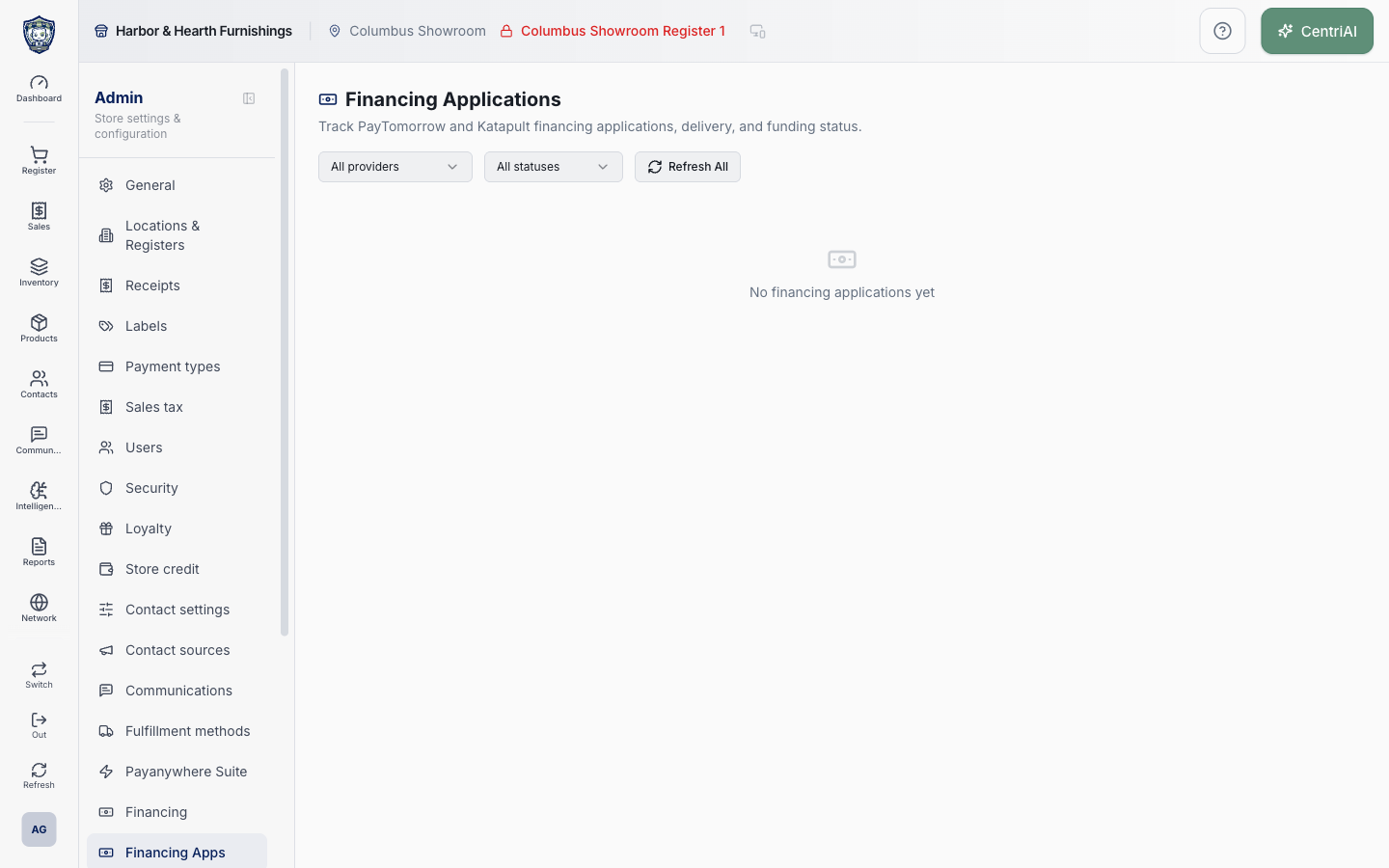
Financing Apps uses the Banknote icon and can expose customer name, email, phone, requested/approved amounts, dates, provider identifiers, offer links, delivery state, and funding state. The approved Harbor & Hearth screenshot is an empty state only. Refresh All does not contact providers; it only refetches CentriPOS rows. Row-level Refresh status invokes the provider gateway. Never publish an applicant screenshot or copy financing data into an unsecured support channel.
Before you beginUse an authorized administrator account and confirm the business shown in the top bar. Record the previous value before changing a live operational setting.
Step by step
- Go to Admin → Financing Apps in the intended business. Confirm the Banknote icon and Financing Applications heading. The list is tenant-scoped, newest first, and limited to the first 100 rows matching the current provider/status filters. There is no pagination or date search on this page.
- Use All providers, PayTomorrow, or Katapult. Use All statuses, Pending, Approved, Funded, Declined, or Cancelled. Error and Refunded records can display under All statuses but have no dedicated filter choice.
- Choose Refresh All when you only need to refetch current financing_applications rows from CentriPOS. This action does not call PayTomorrow or Katapult, does not show a progress state/toast, and may return the same stored values.
- Read each card carefully: customer name or email fallback, normalized provider badge, normalized status, optional raw provider-status code, delivery/pickup badge, requested amount, approved amount, created date/time, and external application ID. Customer email, phone, and delivery date can appear on the second row.
- Treat the normalized status and raw provider_status as different evidence. A provider code appears when it differs from the normalized CentriPOS status. Do not translate an unfamiliar raw code from memory; use the provider’s documented status or refresh that exact application.
- Choose the row-level circular Refresh status icon to invoke check_status on the application’s PayTomorrow or Katapult gateway. Wait for Status updated or an error, then allow the list to refetch. Do not repeatedly click while the row spinner is active.
- If an Open application external-link icon appears, it opens the saved offer_url in a new browser tab. Confirm the domain and intended applicant before proceeding. The page does not add noopener/noreferrer in this call, so avoid opening an untrusted or unexpected URL and report it to support.
- For Katapult only, Mark Delivered and Picked Up appear when the normalized status is Approved or Funded and no delivery_status exists. Verify the applicant, transaction, merchandise, actual delivery/pickup, amount, and date before choosing either action.
- In the Katapult confirmation dialog, review the customer and amount and set Delivery Date or Pickup Date. Blank defaults to today. The dialog explicitly says this notifies Katapult to initiate funding and cannot be undone. Choose Confirm once only when the real-world event occurred.
- Wait for the provider response and refreshed row after delivery submission. A toast is not sufficient financial evidence; verify the delivery badge, provider status, funding status, receipt/order, merchandise handoff, and provider portal as required. This page has no undo or correction workflow.
- For PayTomorrow, Settle / Fund appears only when provider_status is exactly S and settle_submitted_at is empty. The button invokes settlement immediately without a confirmation dialog. Verify eligibility and provider records before clicking.
- If PayTomorrow returns needs_dashboard, CentriPOS says settlement must be completed in the PayTomorrow merchant portal and that status was updated. Finish and verify there; do not treat the information toast as funded. Otherwise verify the Settlement submitted result against the provider and downstream funding evidence.
- Use No financing applications yet as a completed empty result for the active provider/status query. Clear both filters before concluding the tenant has no applications. Refresh All can confirm stored rows, but only configuration/provider diagnostics can explain a missing application.
- Configure credentials, environment, register scope, thresholds, and availability under Admin → Financing, not here. Financing Applications is a lifecycle screen; it does not edit API keys, merchant IDs, cart minimums/maximums, or register enablement.
Screen and contract reference
| Control or area | What it means |
|---|---|
| Banknote icon | Exact CentriPOS navigation and page icon for Financing Apps. |
| Provider filter | All providers, PayTomorrow, or Katapult. |
| Status filter | All statuses, Pending, Approved, Funded, Declined, or Cancelled; Error and Refunded remain All-only. |
| 100-row limit | Newest matching applications only; no pagination is provided. |
| Refresh All | Refetches CentriPOS database rows only; it does not request provider status. |
| Normalized status | CentriPOS status rendered as Pending, Approved, Funded, Declined, Cancelled, Error, or Refunded. |
| Provider status badge | Raw provider_status code displayed when it differs from normalized status. |
| Open application | Opens stored offer_url in a new tab; verify domain and applicant. |
| Row Refresh status | Invokes check_status for that application through the provider-specific gateway. |
| Requested / Approved amount | Financing values shown on the application card; protect as customer financial data. |
| External application ID | Provider-facing reference displayed in monospace. |
| Delivery badge | Delivered, Picked Up, or Delivery Pending when a delivery status exists. |
| Mark Delivered / Picked Up | Katapult-only actions for eligible approved/funded applications without delivery status. |
| Delivery/Pickup date | Defaults to today if blank; review before irreversible confirmation. |
| Confirm delivery | Notifies Katapult and can initiate funding; cannot be undone from this screen. |
| Settle / Fund | PayTomorrow-only immediate action when provider_status is S and no settlement submission time exists. |
| needs_dashboard | Provider response requiring settlement completion in PayTomorrow merchant portal. |
| No financing applications yet | Completed empty result for the active filters. |
| Admin → Financing | Separate register/provider credential and threshold configuration. |
| Harbor & Hearth screenshot | Real Amelia Grant capture of /admin/financing-apps in a fully rendered empty state. It exposes no applicant, delivery, funding, credit, customer, or provider-credential data. |
Expected result
The financing application belongs to the intended customer and sale, shows its current provider status once, and any approved amount is applied only through the authorized workflow.
Troubleshooting
- Confirm you are changing the intended business and location before saving.
- Record the previous setting when a change affects live selling, payments, tax, or integrations.
- Use a controlled test record after saving before rolling the setting out broadly.
CentriPOS API explorer · API Center administration
More guides
Build an itemized payment in MoneyUse Products or Amount & description to build one receipt, attach the customer, and follow the appropriate payment or service-estimate workflow.
Take a one-time payment in Virtual TerminalReview a one-time amount, tax and contact at the correct payment station, use its verified secure checkout, and recover the original receipt after an uncertain result.
Review booking payments, refunds and earned careKeep a booking’s customer payments, unused advances, completed care, cancellation fees and refunds distinct, then read a correctly scoped accrual report.
Configure booking properties and customer pagesSet accommodations, service packages, availability, required intake and payment terms, then review the correctly branded booking page before sharing it.