
Sales → Fulfillment uses the Truck icon. It works at sale-line-item level and groups related items for execution; status changes write immediately. Completing or signing is blocked when the sale itself is not completed unless an owner, store owner, super admin, or manager intentionally overrides the exception. A balance-due warning is informational, while a non-completed sale status is the completion gate. Verify the receipt and customer handoff before every terminal status.
Before you beginConfirm the customer-safe sale or order reference, its location, and its current fulfillment status before making a change.
Step by step
- Go to Sales → Fulfillment, identified by the Truck icon. The default view is Open work across All types and All locations. The selected type and status persist for the browser session; URL filters can also open a specific receipt, sale, location, or unscheduled set.
- Read the header counts. Open includes every status except completed, cancelled, and none. Ready counts ready line items. No date appears for open items without a fulfillment date, and Paid online identifies E-cart work that needs fulfillment action after customer payment.
- Use Find receipt with a receipt number such as S-80483. Entering receipt search removes any saleId URL filter so the result is driven by the receipt text. Clear the field to return to the current broader filter set.
- Choose All types, Local Delivery, Pickup, or Shipping; then choose Open work, All statuses, Pending, Needs sourcing, Ordered, Awaiting receipt, Received, Ready, Picked, Loaded, Scheduled, In Progress, Completed, or Cancelled. Status filtering is operational state—not payment or sale status.
- Choose All locations or one active location. Counts beside locations summarize open work for the current type/status/search/schedule filters before the location is applied. Use No date to isolate open work with no scheduled fulfillment date.
- Use the summary cards as filter shortcuts, then choose Queue for grouped execution or Calendar for date planning. The filters apply to both views. An empty queue after filtering is a completed state; clear receipt, type, status, location, and No date before concluding work is missing.
- In Queue, review the fulfillment type, operational status, customer/contact, sold-at and source locations, receipt status, balance due, method, date/time preference, sold-by user, line items, quantities, and any linked purchase order before acting. Choose the receipt number or Receipt to inspect the sale without changing the queue’s filter scope.
- If E-cart paid - fulfillment needs action appears, read the customer notice channel/recipient/time and choose Open receipt when payment or sale context needs confirmation. Do not charge again from this banner.
- Advance an individual line only to the state that matches physical reality. The guided sequence can move Pending → Ready; Needs sourcing → Ordered → Awaiting receipt → Received → Ready; local-delivery Ready → Picked → Loaded → In Progress → Completed; Scheduled → In Progress; and pickup/shipping Ready or In Progress → Completed.
- Use a linked purchase-order control to open sourcing evidence when present. Do not mark sourced merchandise Received or Ready merely because a PO exists; confirm actual receipt and item identity.
- Choose Mark ready to update all currently open items in the group to Ready. Choose Picked up for pickup, Shipped for shipping, or Completed for local delivery only after the customer or carrier handoff actually occurred. Each item update is saved separately, so verify the whole group after a multi-item action.
- If the sale is not completed, the handoff action opens Sale is not completed instead of completing. Choose Open receipt to fix/confirm the sale. Only an owner, store owner, super admin, or manager sees Override and complete; use it solely for an approved exception such as a Customer Accounts release and document the business reason.
- A balance due greater than one cent displays Payment / sale status check. The code blocks completion based on non-completed sale status, not the balance warning alone; follow the business’s account-release policy and confirm the receipt rather than interpreting the warning as automatic authorization.
- For pickup or local delivery, choose Sign to capture the customer acknowledgment. Saving the signature stores its time, staff identity, customer label, type, line-item IDs, receipt number, capture mode/device, and signature image, then marks every group item Completed. Shipping has no Sign button. Re-sign replaces the fulfillment acknowledgment metadata.
- Choose Print slip or Print <n> items for an internal/customer fulfillment document. It assembles grouped items plus available delivery address, sale note, selling location, printed-by identity, and saved signature. Inspect the print preview and recipient before printing.
- Choose SMS / email to create a new branded pos.getcentri.com public fulfillment-slip link and open delivery controls. Confirm the customer phone/email and message; each invocation creates a new token. Treat the link as customer-accessible and do not paste internal notes or unrelated receipt data into messages.
- Choose Schedule or Change date. The dialog applies the fulfillment date/time preference to every item in the group, advances pending line items to the scheduled workflow, and may update a pending sale to scheduled. Use the method-appropriate pickup, shipping, or delivery availability configured by Admin.
- In Calendar, move between months and select a date. Each day shows work count, type/status summaries, configured availability, full-capacity indication, or blackout state. The No date scheduled list shows at most the first ten unscheduled items in its compact panel; use the No date filter for the complete filtered result.
- Calendar availability and capacity come from the selected type: Pickup uses pickup schedules/overrides, Shipping uses shipping schedules/overrides, and All types defaults the calendar schedule model to Delivery. Filter to the intended type before interpreting availability or capacity.
- For Delivery calendar dates, authorized manager-level users can Black out date and add an internal note. The blackout prevents new delivery scheduling but does not move existing work already on that date. Reopen date removes the delivery override; verify existing commitments before either action.
- When a selected date contains local deliveries, switch between Items and Route. Items shows the normal fulfillment groups. Route groups delivery stops and supports operational stages Ready to Pick, Picked, Loaded, Out, and Delivered.
- In Route, confirm the saved primary delivery hub and usable hub/customer addresses. Drag stops only when route-management access permits, use Preview route for one routable stop or Optimize for multiple stops, review miles/time, then choose Save Route. Optimization depends on configured Mapbox geocoding/routing and does not save until Save Route.
- Use Route sequence and external map directions to validate source pickups, hub, and customer order. Open route follows the computed waypoint sequence. A missing/un-geocodable address can exclude a stop from optimization; never assume displayed sequence proves every delivery is routable.
- If available, create temporary driver route access and securely provide its branded link and PIN only to the assigned driver. Treat both as credentials, do not publish them in the knowledge base, and revoke/replace access according to operational policy. DispatchTrack connection is an optional external layer, not proof that the CentriPOS route was dispatched.
- After status, date, blackout, route, print, link, or signature action, re-open the group and receipt. Confirm line-item states, sale/payment state, scheduled date, customer/address, fulfillment document, signature, inventory/source work, and downstream receipt/Customer Account behavior before closing the task.
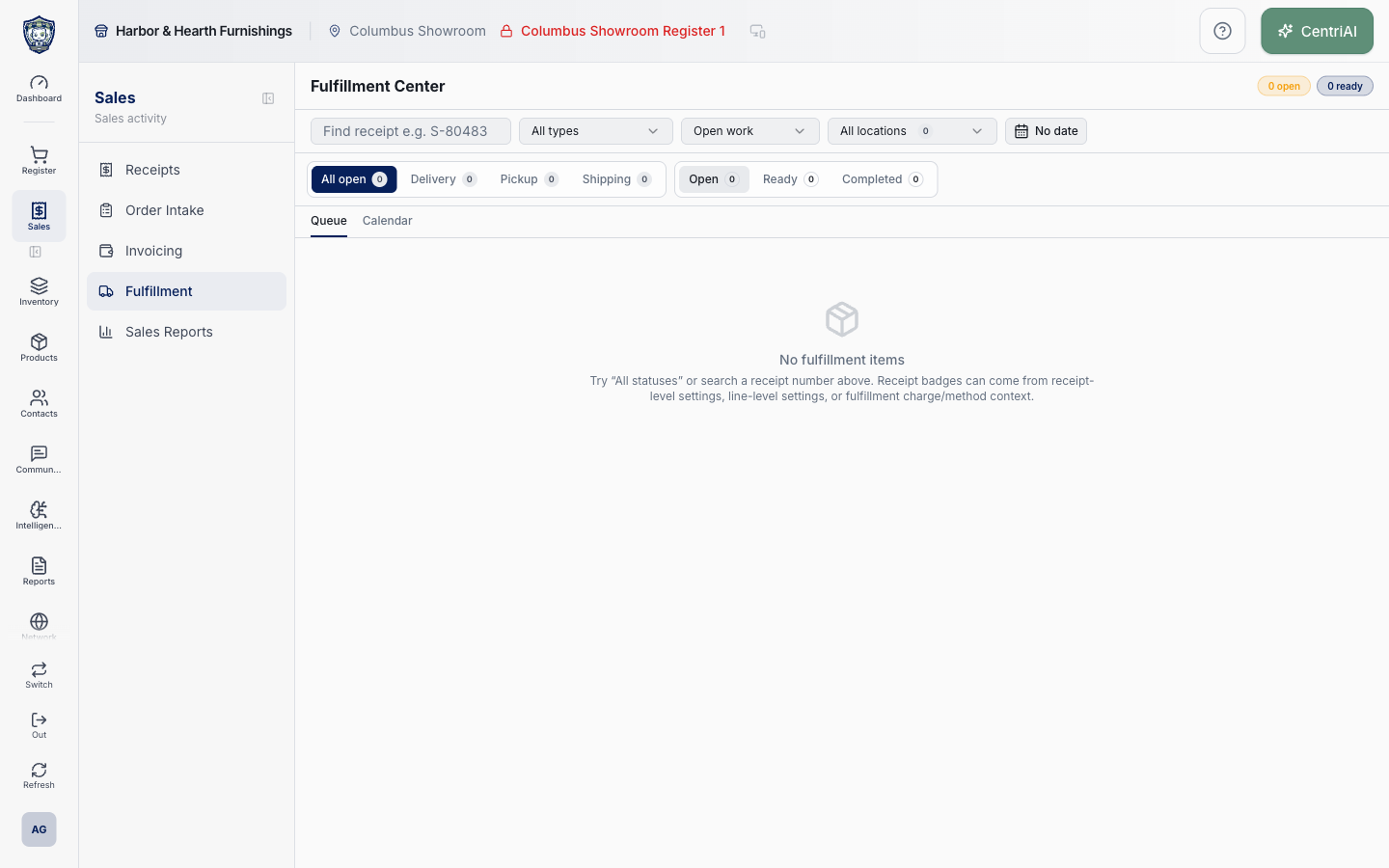
- Harbor & Hearth’s real Amelia Grant screenshot shows the fully loaded empty Fulfillment Center at 1440×900. It exposes the real filters, counts, summary cards, Queue/Calendar navigation, and Truck icon, but zero fulfillment items—so it contains no receipt, customer, address, route, payment, or signature data and no state was changed.
Screen and contract reference
| Control or area | What it means |
|---|---|
| Truck icon | Exact Sales navigation icon for Fulfillment. |
| Open count | Every line item not completed, cancelled, or none under the active filters. |
| Ready count | Line items currently at Ready. |
| No date count/filter | Open items without fulfillment_date; toggle isolates them. |
| Paid online | E-cart payment completed and fulfillment now needs operational action. |
| Receipt search | Searches by receipt and clears a saleId URL filter when changed. |
| Type filter | All, Local Delivery, Pickup, or Shipping. |
| Status filter | Open work, all, or one of twelve explicit operational statuses. |
| Location filter | Uses active locations and displays open counts under the other active filters. |
| Summary cards | Clickable type/status shortcuts derived from the filtered item set. |
| Queue | Grouped line-item execution view. |
| Calendar | Date, schedule, capacity, blackout, items, and delivery-route planning view. |
| Receipt link | Opens the related receipt; fulfillment UI state remains distinct from receipt-list filtering. |
| Linked purchase order | Sourcing reference for an individual sale line. |
| Mark ready | Immediately marks all currently open group items Ready. |
| Picked up / Shipped / Completed | Type-specific group completion action. |
| Sale completion gate | Non-completed sale status blocks completion and signature by default. |
| Manager override | Owner/store owner/super admin/manager exception to complete before sale completion. |
| Balance-due warning | Operational warning; not the code’s sale-status completion gate and not automatic release authorization. |
| Sign / Re-sign | Pickup/delivery acknowledgment stored on the sale; saving also completes all group items. |
| Print slip | Builds a fulfillment document with group items and available operational/customer details. |
| SMS / email | Creates a new branded public fulfillment-slip token and opens send controls. |
| Schedule / Change date | Applies date/preference across the group and advances pending scheduling state. |
| No date scheduled list | Compact calendar panel limited to ten displayed unscheduled items. |
| Availability source | Calendar schedule/overrides follow the selected type; All types uses Delivery schedule semantics. |
| Delivery blackout | Prevents new scheduling only; does not move existing work. |
| Items / Route | Selected-date delivery detail or route-management board. |
| Route stages | Ready to Pick, Picked, Loaded, Out, Delivered. |
| Optimize / Preview route | Mapbox-based ordering from the configured hub and routable customer addresses. |
| Save Route | Persists the current stop order; optimization alone is a draft. |
| Temporary driver access | Credentialed link plus PIN for the driver view. |
| Sync receipt | Reapplies Completed to a completed group so receipt-linked state can be synchronized. |
| Harbor & Hearth screenshot | Real Amelia Grant /sales/fulfillment capture in a fully loaded zero-item state; no customer or transaction data is exposed. |
Expected result
The fulfillment record shows the current operational status, schedule, assignment, customer-safe destination, items, and completion history.
Troubleshooting
- Keep the current receipt or order filters in place while opening details.
- Check the record status and activity before repeating a send, return, or fulfillment action.
- Use a safe receipt or order reference when contacting support.
CentriPOS API explorer · API Center administration
More guides
Build an itemized payment in MoneyUse Products or Amount & description to build one receipt, attach the customer, and follow the appropriate payment or service-estimate workflow.
Take a one-time payment in Virtual TerminalReview a one-time amount, tax and contact at the correct payment station, use its verified secure checkout, and recover the original receipt after an uncertain result.
Review booking payments, refunds and earned careKeep a booking’s customer payments, unused advances, completed care, cancellation fees and refunds distinct, then read a correctly scoped accrual report.
Configure booking properties and customer pagesSet accommodations, service packages, availability, required intake and payment terms, then review the correctly branded booking page before sharing it.