
Admin → Fulfillment Methods uses the Truck icon and defaults to Delivery. Method names, fees, taxable state, enablement, and deletion affect checkout choices and order totals. Add, rename, price, Tax, Enabled, and trash actions write immediately; schedules, the delivery hub, and Advanced delivery settings have their own Save actions. Trash has no confirmation or restore. Test every intended location/register/cart and Fulfillment Center result before launch.
Before you beginUse an authorized administrator account and confirm the business shown in the top bar. Record the previous value before changing a live operational setting.
Step by step
- Go to Admin → Fulfillment Methods, identified by the Truck icon. The URL retains the selected Pickup, Delivery, or Shipping tab; confirm the tab before changing anything.
- Start with Pickup when customers collect orders. Enter a required customer-facing method name, such as Curbside or In-store counter, and a nonnegative base price, then choose Add. Blank/invalid price text becomes 0. The new row is written immediately.
- For each pickup row, click the name or pencil to rename and click the displayed amount to edit its base price. Enter or blur commits the edit; Escape cancels the inline editor. Tax controls whether the method fee is taxable, and the unlabeled row switch controls Enabled. These switches save immediately.
- Configure the base Pickup Schedule separately. For each available weekday choose Time Windows, Specific Slots, or Free-form, then set Start, End, Max Slots, window minutes when applicable, and buffer minutes. These are drafts until Save Schedule appears and is chosen.
- Use Pickup Method Schedules only when one pickup method needs different availability or capacity. Select the method, configure its weekdays and slot values, and choose Save. If no method-specific rows are set, that method uses the base pickup schedule.
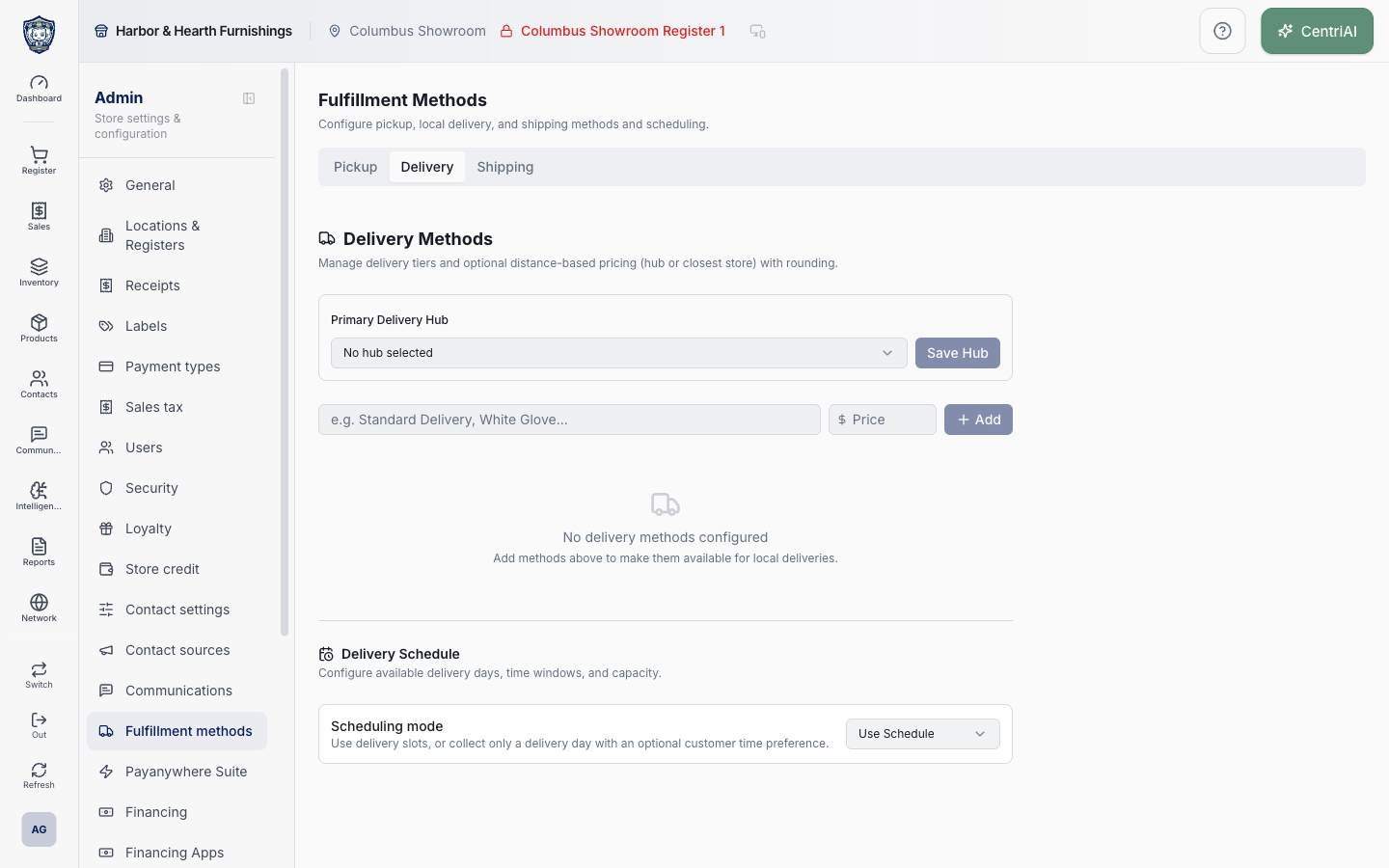
- Open Delivery. Choose the Primary Delivery Hub only when operations or hub-distance pricing require one, then choose Save Hub. Changing the selector alone is unsaved. Active locations populate this list; No hub selected removes the stored hub reference.
- Add each delivery method with its required name and base price. A new delivery method starts taxable, enabled by the database default, flat-priced, price-enabled, generally available, unable to use past fulfillment dates, and with no saved location/register scope. Verify the row after Add.
- Use a delivery row’s inline name, amount, Taxable, and Enabled controls carefully because they persist immediately. If Advanced has Charge a delivery price off, the row shows No method price and its amount is not editable from the list.
- Open Advanced for delivery-only controls. Charge a delivery price off is intended for contract/account methods priced through products, agreements, or manual terms. Allow past delivery dates permits backdating for invoice/account workflows; do not enable it for ordinary forward scheduling.
- Under Limit availability, search and select active Locations and/or active Registers. With no selection the method is general. Add to the available delivery options keeps general methods alongside matching scoped methods; Use as the only scoped delivery option hides general choices when that scope matches. Save advanced settings is required.
- Choose Flat base price for a fixed fee; Distance from delivery hub for hub mileage; or Distance from closest assigned store for the nearest participating store. Distance pricing uses the configured multiplier in dollars per mile, a dollar adjustment, and optional nearest/up rounding to $1, $5, or $10.
- For closest-store pricing, enter a base price only for locations that should participate. A location with no base price is not assigned for closest-store matching. Confirm location addresses are usable and test the actual customer address; the configuration screen does not preview a mileage quote.
- Choose Save advanced settings and wait for Delivery pricing updated. Cancel closes the dialog without saving its draft. Reopen Advanced to verify pricing, eligibility, price-enabled state, backdating, and assigned locations/registers.
- Configure Delivery Schedule. Scheduling mode saves immediately when changed: Use Schedule exposes the weekly grid; Day Only retains the grid but has staff choose a delivery day and optionally record no preference, before, after, or between times.
- In Use Schedule, enable intended weekdays and set Mode, Start, End, Max Slots, Window minutes for Time Windows, and Buffer minutes. Choose Save Schedule when the dirty-state button appears. The Schedule Preview is a configuration summary, not proof of checkout capacity behavior.
- Open Shipping and add customer-facing methods such as Standard Ground or Express. Names, prices, Tax, Enabled, inline edits, and trash behavior match Pickup: each row action writes immediately and there is no separate method-list Save.
- In Shipping Schedule, choose Open-ended when shipping does not require a scheduled day, or Use Schedule when availability/capacity applies. Choose whether the selected date means Ship on or Deliver by. Configure weekday mode, hours, slots, windows, and buffer when scheduled, then choose Save Schedule.
- To remove any pickup, delivery, or shipping method, choose its trash icon only after checking active carts, orders, customer promises, and downstream operations. The current UI deletes immediately with no confirmation, archive state, or restore control.
- Run controlled checkout tests for each enabled method across every intended location, register, channel, customer/account type, taxable scenario, address, and date. Confirm the displayed choice, fee/tax, eligibility, distance result, date/slot capacity, receipt, sale record, and Fulfillment Center work item before offering it to customers.
- If the page shows No pickup/delivery/shipping methods configured, treat it as a completed empty state for that tab—not a loading failure. Harbor & Hearth’s real Amelia Grant screenshot shows the fully rendered empty Delivery tab with no hub or methods configured and no settings changed.
Screen and contract reference
| Control or area | What it means |
|---|---|
| Truck icon | Exact Admin navigation icon for Fulfillment Methods and the Delivery/Shipping method headings. |
| Pickup / Delivery / Shipping tabs | Three independent method and schedule surfaces; the selected tab is stored in the URL query. |
| Method name | Required customer-facing choice; click the row name or pencil to rename immediately. |
| Base price | Nonnegative fee; Add treats blank or unparsable text as 0. Inline blur/Enter saves. |
| Tax / Taxable | Immediate switch controlling tax treatment of the method fee. |
| Enabled switch | Immediate availability flag for the method. |
| Trash icon | Immediate hard delete with no confirmation or restore in the current UI. |
| Grip handle | Displayed on method rows, but these components do not implement drag-and-drop reordering. |
| Pickup Schedule | Base weekly pickup availability used separately from delivery. |
| Pickup Method Schedules | Optional per-method override; if unset, the method uses the base pickup schedule. |
| Primary Delivery Hub | Active location used by hub-based delivery pricing; selection requires Save Hub. |
| Save Hub | Persists only the hub setting, separately from methods and schedules. |
| Advanced delivery pricing | Saved dialog for price enablement, past dates, scope, pricing mode, adjustments, rounding, and participating stores. |
| Charge a delivery price | Off creates a no-method-price option for account/contract workflows. |
| Allow past delivery dates | Permits backdated fulfillment dates for the selected delivery method. |
| Locations / Registers scope | Restricts a delivery method to selected active operational contexts. |
| Add availability behavior | Scoped method appears alongside applicable general methods. |
| Exclusive availability behavior | Matching scope uses only explicitly scoped delivery methods. |
| Flat base price | Fixed configured delivery fee. |
| Distance from delivery hub | Hub mileage pricing; requires a saved, addressed primary hub. |
| Distance from closest assigned store | Uses the closest location with an entered base price. |
| Distance multiplier / adjustment | Per-mile amount plus a fixed dollar adjustment. |
| Rounding | None, nearest $1/$5/$10, or round up to $1/$5/$10. |
| Scheduling mode | Delivery-only selector that persists immediately as Use Schedule or Day Only. |
| Time Windows / Specific Slots / Free-form | Available schedule-generation modes for enabled weekdays. |
| Start / End | Available operating span for the weekday. |
| Max Slots | Configured daily capacity value. |
| Window / Buffer | Window duration and spacing inputs used by scheduled availability. |
| Save Schedule | Persists dirty pickup, delivery, or shipping weekly schedule changes. |
| Open-ended shipping | Does not require a scheduled shipping day. |
| Ship on / Deliver by | Meaning assigned to a selected scheduled shipping date. |
| Schedule Preview | Read-only summary of enabled schedule rows, not an end-to-end capacity test. |
| Empty state | A fully rendered tab with no configured methods; not evidence that another tab is empty. |
| Harbor & Hearth screenshot | Real Amelia Grant capture of /admin/fulfillment-methods at 1440×900, fully loaded on the empty Delivery tab. It exposes no customer/order data and no values were changed. |
Expected result
Each enabled method appears on an eligible test cart with the intended schedule, fee, instructions, and downstream Fulfillment Center behavior.
Troubleshooting
- Confirm you are changing the intended business and location before saving.
- Record the previous setting when a change affects live selling, payments, tax, or integrations.
- Use a controlled test record after saving before rolling the setting out broadly.
CentriPOS API explorer · API Center administration
More guides
Build an itemized payment in MoneyUse Products or Amount & description to build one receipt, attach the customer, and follow the appropriate payment or service-estimate workflow.
Take a one-time payment in Virtual TerminalReview a one-time amount, tax and contact at the correct payment station, use its verified secure checkout, and recover the original receipt after an uncertain result.
Review booking payments, refunds and earned careKeep a booking’s customer payments, unused advances, completed care, cancellation fees and refunds distinct, then read a correctly scoped accrual report.
Configure booking properties and customer pagesSet accommodations, service packages, availability, required intake and payment terms, then review the correctly branded booking page before sharing it.