
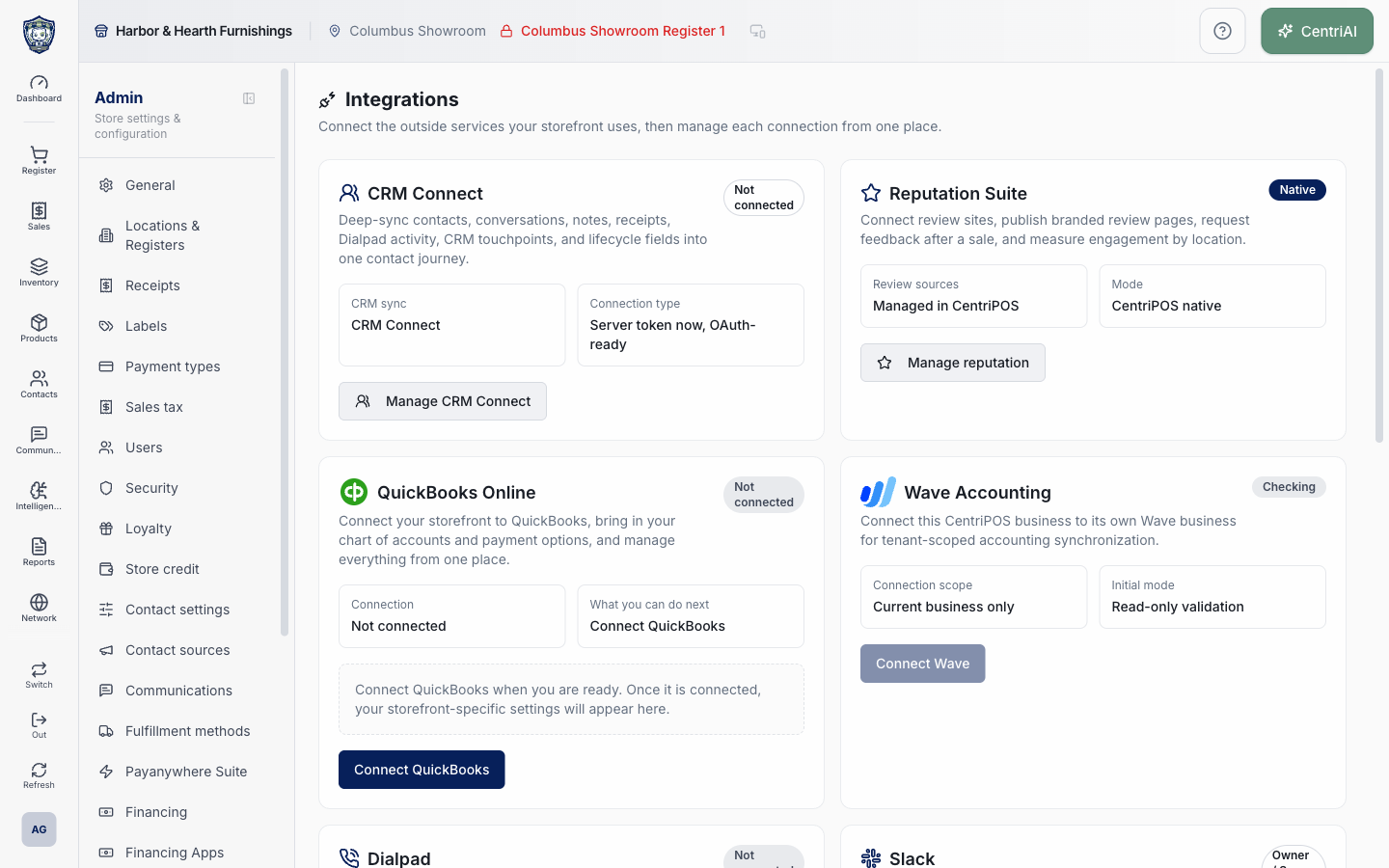
Admin → Integrations uses the Plug Zap icon. The Overview currently contains eight provider cards—CRM Connect, Wave Apps, CentriReviews Pro, QuickBooks Online, Dialpad, DispatchTrack, WooCommerce, and Shipping—plus a What lives here boundary card. Several badges are fixed capability labels rather than live connection tests, and the Overview performs status reads for only CRM Connect, CentriReviews, QuickBooks, Dialpad, and WooCommerce.
Before you beginUse an authorized administrator account and confirm the business shown in the top bar. Record the previous value before changing a live operational setting.
Step by step
- Go to Admin → Integrations using the Plug Zap icon. Confirm the active CentriPOS business before reading a status or opening a provider. Every status request on this screen is tenant-scoped, but the external authorization page can still show a different company or account if the browser already has another provider session.
- Wait for Checking badges to resolve. CRM Connect, CentriReviews Pro, QuickBooks Online, Dialpad, and WooCommerce request live or stored status for the active tenant. Wave Apps, DispatchTrack, and Shipping do not request their connection status from this Overview; their Independent connector, Optional, and EasyPost badges describe product role only.
- Read CRM Connect. Its live badge is Connected when the returned connection status equals connected, Configured when a connection row exists with another status, and Not connected when no row exists. The card always describes Connection type as Server token now, OAuth-ready; that text is architecture guidance, not connection proof.
- Choose Manage CRM Connect to open the tenant connection editor. Do not paste a private integration token into support notes or screenshots. Verify the display name, exact external location ID, configured secret status, direction, field behavior, and one known contact/touchpoint before broader synchronization.
- Read Wave Apps as an independent connector for closed register reports. The Overview always shows Independent connector and describes sales, tax, discounts, returns, deposits, and the EPX Payment Processing Fee; it does not prove a Wave business is authorized or mapped. Choose Manage Wave Apps and use that screen’s status before sending anything.
- Read CentriReviews Pro. Connected requires its returned connection status to equal connected; another stored connection status is displayed with underscores converted to spaces; no connection shows Not connected. Location mappings is the number returned for this tenant, and Per-location provider routing describes the model. Choose Manage CentriReviews for the actual connection, mappings, request, and review-sync controls.
- Read QuickBooks Online. The badge is Connected only when the tenant integration row reports active. When inactive, the card offers Connect QuickBooks directly from Overview; that action requests an authorization URL and leaves CentriPOS for the provider sign-in. When active, Settings and Open QuickBooks both enter the CentriPOS QuickBooks detail workspace—they do not directly open a QBO company page from this card.
- Before choosing Connect QuickBooks, confirm the intended QBO company, authorized administrator, accounting owner, mapping plan, and rollback approach. On return, verify the CentriPOS tenant and QBO company identity, then refresh reference options and configure mappings in the provider workspace. A successful OAuth return is not proof that receipts or register reports have posted.
- Read Dialpad. Connected requires an active returned integration; the card separately shows the number of synced phone-number records. Live SMS and calls is a capability description, not evidence that a particular number, user assignment, webhook, or historical import is ready. Choose Manage Dialpad for the exact connection and number controls.
- Read DispatchTrack. Optional and External routing layer are fixed descriptions. Built-in center still primary means CentriPOS Fulfillment Center remains the operational base. Choose Manage DispatchTrack to inspect its actual credential, connection, location mapping, sync, and dispatch behavior before sending delivery data.
- Read WooCommerce. Connected requires is_enabled from the returned tenant integration. Store shows the returned store URL or Ready to connect; Order lifecycle: OAuth, webhooks, polling describes supported mechanisms. Choose Manage WooCommerce and verify the exact site URL, environment, webhooks, polling, catalog/location mapping, and a controlled order before enabling broader flow.
- Read Shipping. EasyPost, Carrier rates and labels, and Retailer-owned account are fixed product descriptions on Overview—not connection status. Choose Manage Shipping to see the actual status, Test or Live mode, last verification, error, and password-masked retailer-owned API-key field. This built-in shipping connection is independent of WooCommerce Shipping.
- Use What lives here as a security boundary. Store-facing provider connections belong in Integrations. Platform-wide credentials such as Mapbox, mail delivery, and provider application credentials belong in restricted Platform API Keys and are not customer-storefront settings. Do not request or copy a platform credential to make a tenant card look connected.
- After an authorized connection or setting change, run one small provider-specific test and verify both ends: tenant/business, external account, location/register scope, source record, direction, mapped fields, timestamps, identifiers, duplicates, errors, and rollback. A green card badge alone is never end-to-end proof.
- For a mismatch, capture the active CentriPOS business, provider card, visible safe status, intended external account, approximate time, safe record/reference, direction, and exact error. Stop repeated authorization or sync attempts until the tenant and provider identities are reconciled. Never share access tokens, API keys, OAuth codes, webhook secrets, customer private data, or accounting credentials.
- The screenshot is the real Amelia Grant Harbor & Hearth /admin/integrations Overview at 1440 × 900. It shows only provider capability and safe connection-status cards; no credentials, account identifiers, OAuth dialogs, mappings, or management screens are exposed.
Screen and contract reference
| Control or area | What it means |
|---|---|
| Plug Zap icon | Exact CentriPOS navigation icon for Admin → Integrations. |
| Eight provider cards | CRM Connect, Wave Apps, CentriReviews Pro, QuickBooks Online, Dialpad, DispatchTrack, WooCommerce, and Shipping. |
| Checking | A tenant-scoped status request is still loading for a provider that Overview actually queries. |
| CRM Connect Connected | Returned connection status is exactly connected. |
| CRM Connect Configured | A connection row exists but its returned status is not connected. |
| Server token now, OAuth-ready | Fixed connection-model description; not a live readiness result. |
| Independent connector | Fixed Wave Apps product-role badge; inspect the Wave workspace for actual connection status. |
| CentriReviews status | Connected or the returned stored status; Not connected when no connection exists. |
| Location mappings | Count of returned CentriReviews location-routing rows. |
| QuickBooks Connected | The tenant QBO integration row reports is_active. |
| Connect QuickBooks | Starts external QBO authorization directly from Overview when inactive. |
| QuickBooks Settings / Open QuickBooks | Both enter the CentriPOS QBO detail workspace from this card. |
| Dialpad Connected | Returned Dialpad integration reports active. |
| Synced numbers | Count of returned Dialpad number records, not proof every user can send or call. |
| DispatchTrack Optional | Fixed capability badge; not a connection check. |
| WooCommerce Connected | Returned tenant integration reports is_enabled. |
| WooCommerce Store | Returned store URL or Ready to connect. |
| Shipping EasyPost | Fixed provider badge; actual status, mode, verification, and errors live in Manage Shipping. |
| What lives here | Separates storefront connections from restricted platform-wide application credentials. |
| Manage action | Opens the named provider workspace under /admin/integrations/<provider>. |
| Controlled verification | One known workflow checked in both CentriPOS and the exact external account. |
| Harbor & Hearth screenshot | Real loaded provider-status Overview with no credentials, account IDs, OAuth dialogs, or management screens. |
Expected result
The integration card reports the expected connection state, and one known record follows the configured data direction and mapping.
Troubleshooting
- Confirm you are changing the intended business and location before saving.
- Record the previous setting when a change affects live selling, payments, tax, or integrations.
- Use a controlled test record after saving before rolling the setting out broadly.
CentriPOS API explorer · API Center administration
More guides
Build an itemized payment in MoneyUse Products or Amount & description to build one receipt, attach the customer, and follow the appropriate payment or service-estimate workflow.
Take a one-time payment in Virtual TerminalReview a one-time amount, tax and contact at the correct payment station, use its verified secure checkout, and recover the original receipt after an uncertain result.
Review booking payments, refunds and earned careKeep a booking’s customer payments, unused advances, completed care, cancellation fees and refunds distinct, then read a correctly scoped accrual report.
Configure booking properties and customer pagesSet accommodations, service packages, availability, required intake and payment terms, then review the correctly branded booking page before sharing it.