
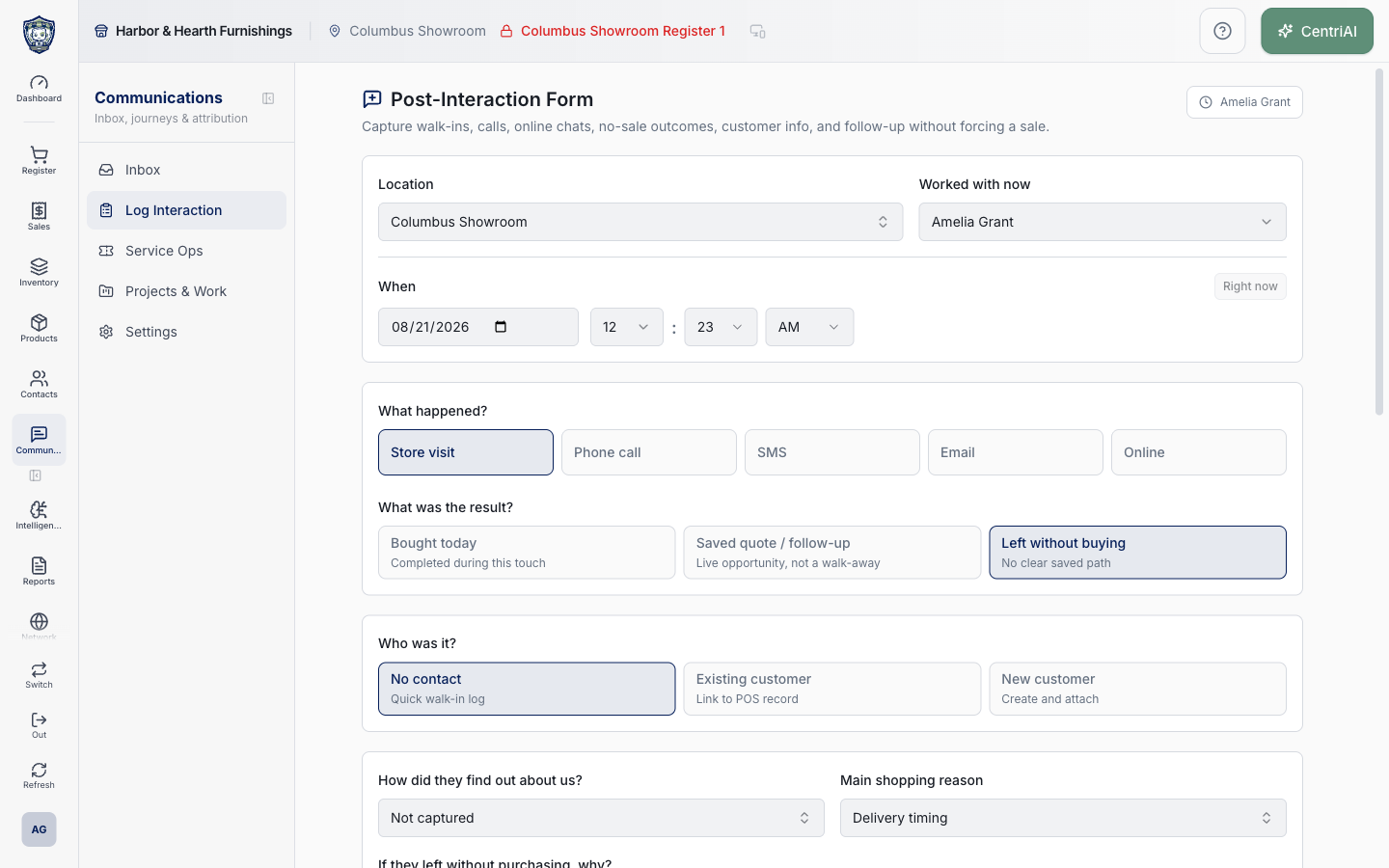
Communications → Log Interaction uses the Clipboard List icon; the form heading uses Message Square Plus. Standalone /interactions/log displays Post-Interaction Form. A saleId opens Receipt Follow-Up Form only for an eligible open/saved sale; closed completed, account, completed-layaway, voided, refunded, cancelled, and return/exchange-group records are locked from new sale-interaction logging. The real Amelia Grant Harbor & Hearth screenshot is an untouched standalone form with only the signed-in associate and assigned location visible—no customer selected and nothing submitted.
Step by step
- Go to Communications → Log Interaction using the Clipboard List icon. Confirm the heading says Post-Interaction Form and the signed-in associate badge is correct before entering anything. Use this standalone mode for walk-ins, calls, messages, and online touches that are not already represented by a receipt/saved-sale follow-up.
- Choose Location from assigned locations. The form begins with the active register location when available; a receipt-linked form can prefer the receipt location unless you deliberately changed it. No assigned locations found means the current user has no selectable location evidence.
- Choose Worked with now. It defaults to the effective signed-in profile and can be changed to another listed team member. This field attributes the interaction; it does not switch the logged-in user or transfer ownership of an existing sale.
- For a standalone interaction, set When with the date plus hour, minute, and AM/PM. Editing timing enables Right now; choose it only to reset both date and time to the current moment. For receipt-linked mode, the timestamp is derived from completed, parked, or created receipt timing and is displayed read-only.
- Under What happened?, choose the exact enabled interaction-type tile configured for the tenant, such as Store visit, Phone call, SMS, Email, or Online. These values are configuration-backed; use the label actually displayed rather than forcing a convenient channel.
- For standalone/open context, choose What was the result?: Bought today, Saved quote / follow-up, or Left without buying. Do not choose Bought today unless the purchase completed during this touch. A saved receipt is forced to saved quote/follow-up so it does not count as a walk-away.
- Understand receipt-linked eligibility. A completed/closed receipt is locked for a new sale interaction and directs later work to service, claims, product questions, or customer notes. A saved/open sale can collect the eligible interaction. Return/refund/exchange child receipts must not receive a separate interaction when the initial receipt owns the group.
- When a permitted saleId is present, verify Receipt number, customer snapshot or No customer attached, total, status, short linked sale ID, and Submitted/Not submitted. View receipt opens sale history; do not use a similar receipt number without confirming the tenant and sale ID.
- In Related receipts / quotes, choose an attribution role: Alternate quote, Comparison quote, Related saved sale, Converted sale, Follow-up quote, or Primary quote. Search receipt # with at least two characters, or review Suggested same interaction receipts and Historical possible matches.
- Treat suggestions as candidates, not proof. Compare number, amount, status, customer, location, timing, and the displayed reason. Link as <role> only when the records truly belong to the same customer touch or quote chain. A candidate already carrying an interaction may link the current receipt to that existing interaction.
- Review Current receipt, pending-link, and linked-receipt badges. Expand Linked receipts / quotes to inspect existing and pending relationships. Remove a pending badge with X before saving if it is wrong. An already saved link requires the supported follow-up correction path; this form exposes no unlink action for it.
- Under Who was it?, choose No contact for a genuinely anonymous quick walk-in; Existing customer to link a known POS record; or New customer to create and attach one. Do not create a duplicate customer merely to satisfy attribution.
- For Existing customer, enter at least two characters and search by name, phone, email, or company. Resolve the exact result and choose it. The selected card shows the best available email, phone, company, or Existing customer label and X clears the selection.
- For New customer, enter required Customer name plus optional Email and Phone. Phone formatting follows the tenant country context. This is a real contact creation, not a temporary interaction-only label; search first and do not enter fake data.
- Channel contact requirements are enforced. Phone call and SMS require a linked/created customer with a phone number; Email requires a linked/created customer with an email address. Those channels automatically move No contact to an identity mode and block save until the required destination exists. Store visit/other noncontact channels do not require one.
- Under How did they find out about us?, choose an enabled customer source or Not captured. The searchable list shows enabled sources only. This attribution is optional and does not overwrite evidence that should come from an external campaign/integration without verification.
- Choose Main shopping reason from the configured searchable option list. The form stores its human-readable label on the interaction. Use the customer’s primary stated need, not a product category chosen merely for reporting convenience.
- If the result is Left without buying, select at least one reason in If they left without purchasing, why? Multiple configured reasons are allowed and are joined into the saved no-purchase reason. Save is blocked until one is selected.
- Choose Earlier contact for this purchase? from the configured visit options. When it is not First visit, Previously worked with appears; choose the correct associate or Not captured. This supports handoff attribution without changing the current Worked with now value.
- Read Sale journey as an automatic classification derived from receipt status, saved-sale history, selected outcome, prior-visit choice, and whether a customer is known. It can resolve to saved-sale conversion, open follow-up, return-visit sale, first-visit sale, or existing-customer repurchase. It is not directly editable.
- Select Needs follow-up only when another touch is actually expected. Enter Date, Time, and Follow-up note. These values are appended into interaction notes/metadata, including a calculated due timestamp when Date is present; this form does not itself create or prove a scheduled automation, assigned task, notification, email, SMS, or call.
- Use Staff notes for products discussed, objections, handoff information, or context another authorized associate needs. Keep notes factual and minimal; never include card data, credentials, health information, or unrelated sensitive details.
- Before saving, confirm Location, Worked with now, When, type, result, identity/contact requirement, source, shopping reason, walk-away reasons, prior contact/associate, derived journey, related receipts, follow-up, and notes. Save interaction is disabled while required conditions fail or a write is pending.
- Choose Save interaction once. A New customer is created first, the interaction is created second, its metadata/context is attached next, and pending receipt links are written afterward. Those writes are not one all-or-nothing operation; an error can leave the customer or interaction already saved. Search the activity/customer/receipt before retrying.
- Wait for Interaction logged or Saved quote interaction logged. The form then clears to the current location, current time, configured defaults, No contact, no links/follow-up/notes, and the effective current associate. Verify one new activity row with the intended customer and receipt relationships before starting another.
- Use Clear only when you intend to discard the current unsaved form and reset it. The page tracks dirty state for its container, but Clear performs the reset directly; review any pending receipt links and new-customer details before choosing it.
Screen and contract reference
| Control or area | What it means |
|---|---|
| Clipboard List icon | Exact Communications navigation icon for Log Interaction. |
| Message Square Plus icon | Icon displayed beside Post-Interaction Form or Receipt Follow-Up Form. |
| Post-Interaction Form | Standalone capture without a saleId. |
| Receipt Follow-Up Form | Sale-linked mode for an eligible open/saved sale. |
| Locked sale | Closed completed, account, completed-layaway, voided, refunded, cancelled, or return/exchange-group record that cannot receive a new sale interaction here. |
| Location | Assigned operational location; may initialize from active register or receipt context. |
| Worked with now | Associate attributed to the current customer touch. |
| When | Standalone editable date and 12-hour time; receipt-linked timing is derived/read-only. |
| Right now | Resets a manually changed standalone timestamp to the current date/time. |
| What happened? | Configuration-backed interaction channel/type tiles. |
| Bought today | Completed during this touch; receipt completion can force the purchase result in supported context. |
| Saved quote / follow-up | Live opportunity with a continuing path; saved receipts are classified here. |
| Left without buying | No completed purchase or clear saved path; requires at least one no-purchase reason. |
| No contact | Anonymous interaction with no customer record, available only when the channel does not require contact data. |
| Existing customer | Search by name, phone, email, or company after at least two characters and attach one exact customer ID. |
| New customer | Creates a real customer before the interaction; Customer name is required. |
| Phone/SMS requirement | Linked or new customer with a phone number. |
| Email requirement | Linked or new customer with an email address. |
| Customer source | Enabled source attribution or Not captured. |
| Main shopping reason | Configured primary buying-reason label. |
| No-purchase reasons | One or more required configured reasons when the customer left without buying. |
| Earlier contact | Configured prior-visit choice controlling whether Previously worked with appears. |
| Previously worked with | Prior associate or Not captured; separate from Worked with now. |
| Sale journey | Read-only derived deal-path classification for reporting. |
| Needs follow-up | Stores date/time/note context; does not itself prove task scheduling or notification. |
| Staff notes | Private operational context subject to data minimization. |
| Receipt status card | Number, customer snapshot, total, status, sale ID, View receipt, and Submitted state. |
| Receipt link role | Alternate quote, Comparison quote, Related saved sale, Converted sale, Follow-up quote, or Primary quote. |
| Suggested same interaction receipts | Higher-confidence candidates requiring human confirmation. |
| Historical possible matches | Lower-confidence prior-submission candidates requiring human confirmation. |
| Receipt search | At least two characters of receipt number and tenant/customer/location context. |
| Pending link | Held in the current form until interaction save; removable with X. |
| Saved link | Written immediately when an active interaction exists; no unlink control in this form. |
| Save interaction | Sequential customer → interaction → context → receipt-link writes; inspect for partial success after an error. |
| Clear | Resets the unsaved form to current/default state. |
| Harbor & Hearth screenshot | Real Amelia Grant capture of the pristine standalone form showing only signed-in staff and assigned location, with no customer or submission data. |
Expected result
One intended interaction exists with the correct tenant/location, current and prior associate, timestamp, channel/contact requirement, outcome, customer or anonymous choice, source, shopping/no-purchase reasons, derived journey, receipt/quote links, follow-up metadata, and safe notes; any customer or link created before a later failure is detected rather than duplicated.
Troubleshooting
- Confirm the operating line, sender identity, customer match, and recipient before sending.
- Review the conversation or interaction log before repeating an outbound message.
- Check browser microphone and notification permissions when calls or alerts do not work.
CentriPOS API explorer · API Center administration