
Inventory → Movements uses the Activity icon. The page queries at most 500 newest matching movements, then applies product/SKU search in the browser. It is an evidence view, not an editor: no row can be changed, deleted, reversed, or opened to its source record here. Correct the originating workflow or post an approved counter-movement while preserving the audit trail.
Before you beginConfirm the location, product, variant, and unit of measure. Inventory actions create an operational audit trail and can affect availability immediately.
Step by step
- Go to Inventory → Movements, identified by the Activity icon. Confirm the Movement Ledger has finished loading before interpreting a blank result.
- Choose 14 days, 30 days, 90 days, 6 months, or 1 year. Custom uses the selected range only after both Start date and End date exist; until then it falls back to 14 days. Day boundaries are created in the browser timezone and converted to ISO for the query.
- Choose All types or one exact movement type: Sale, Return, Exchange, PO Receive, Transfer In, Transfer Out, Adjustment, Count, Opening, Fulfillment, or Manual Edit. Unknown stored types can still appear under their raw name when All types is selected.
- Use the Location filter carefully. Exactly one selected location adds a server condition. Zero or multiple selected locations currently omit that condition and show all active-location movement results allowed by the data policy; do not read multi-selection as “only these locations.”
- The query returns the newest 500 records matching date, type, and single-location filters. Search product or SKU then filters only those loaded rows by product name/SKU or variant name/SKU. A zero result does not prove the product never moved—narrow the server filters or inspect authoritative data/reporting when older evidence matters.
- Read each collapsed row: product snapshot/current name, Deleted marker when the product relation is gone but a stored name remains, variant badge, displayed SKU, location, performer, type, signed quantity, stock before → stock after, time, and unit cost when greater than zero.
- Interpret the sign with the workflow. Positive increases stock and uses the up-right indicator; negative decreases stock and uses the down-right indicator. Do not assume a positive Return, PO Receive, or Transfer In is correct without confirming product, variant, location, source, and quantity.
- Expand the row to view Type, Source, Stock before/after, Unit cost, Performed by, captured Role when present, exact timestamp, current product SKU, Location, and Notes. movement_id in the URL only controls row expansion; it does not bypass date/type/location filters or fetch a missing row.
- Source is the stored source_type label, not a clickable document and not the source record ID. Use timestamp, product/variant, location, performer, notes, related receipts/POs/transfers/counts, and other module history to find the originating record.
- For Sale or Return evidence, open the relevant receipt and trace sale line, quantity, location/register session, return/exchange link, and payment/fulfillment state. Do not “fix” a sale movement with an unrelated manual edit merely to force today’s stock.
- For PO Receive, inspect the purchase order, receiving event, supplier/product/variant, destination location, quantity, and cost basis. Use an approved receiving correction or supplier-return workflow as appropriate.
- For Transfer Out/In, confirm both sides of the same location transfer, source/destination, shipment/receipt status, quantities, and timing. A single side without its counterpart requires investigation, not a duplicate transfer.
- For Adjustment, open Inventory → Adjustments and match its before/after, reason, user/role, note, product/variant, and location. Correct an erroneous posted adjustment with an approved opposite adjustment; do not erase movement evidence.
- For Count, inspect the corresponding physical inventory count, counted-versus-system quantities, posting user/time, and location. Recount or correct through the count workflow when supported.
- For Opening or Manual Edit, identify the authorized import/setup/edit event and its documentation. These types can establish or directly alter stock without a sale/receive/transfer, so preserve migration or administrative evidence.
- For Fulfillment, trace the sale line and fulfillment work to understand when operational handoff affected stock. Confirm the configured sale/fulfillment inventory policy before concluding that a timing difference is an error.
- Unit cost is displayed only when greater than zero and uses the tenant currency formatter. A blank dash is not evidence of a free item; inspect product/supplier valuation and the source record. The ledger itself does not calculate financial valuation or accounting entries.
- Deleted products can display a stored product name/SKU snapshot in the collapsed row with Deleted. The expanded current-SKU field can show a dash because the product relation is gone. Preserve the movement for historical explanation rather than recreating/deleting catalog records just to change the display.
- When investigating a current-stock discrepancy, reconcile a continuous chain: earliest trustworthy stock → every signed movement in time order → current location/variant stock. Account for the 500-row cap and filters; export/query authoritative records when the chain extends beyond this view.
- After correcting through the proper workflow, return to Movements and verify the new counter/source movement, signed quantity, before/after continuity, location, user, time, and notes. Confirm current Inventory and the originating module agree.
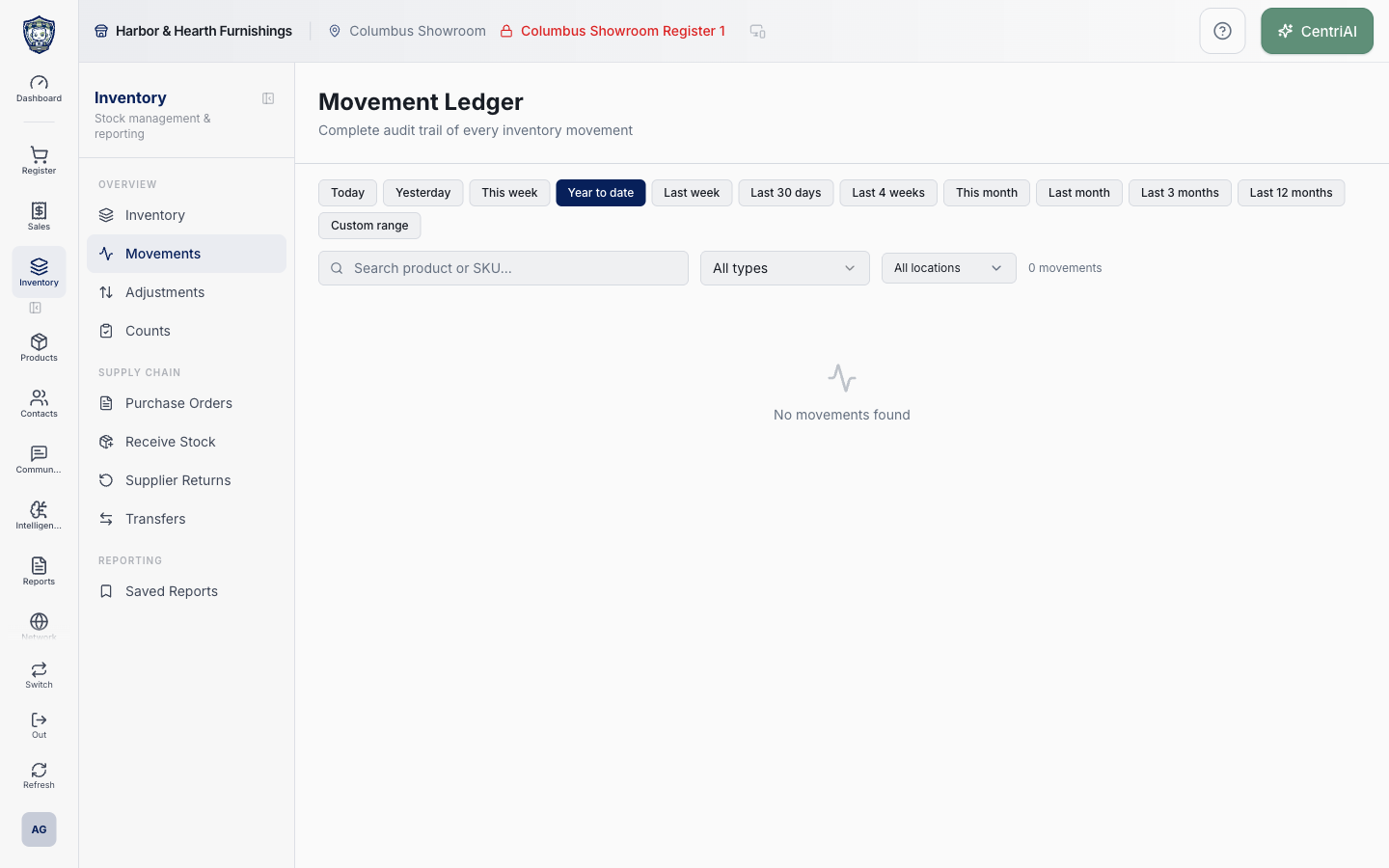
- Harbor & Hearth’s real Amelia Grant screenshot shows the fully rendered /inventory/movements empty state at 1440×900 for the selected range. It exposes the actual Activity icon, date/type/search/location controls, movement count, and zero results; no product, user, customer, cost, source, or stock data was exposed and no state changed.
Screen and contract reference
| Control or area | What it means |
|---|---|
| Activity icon | Exact Inventory navigation and empty-state icon for Movements. |
| Date presets | 14 days, 30 days, 90 days, 6 months, 1 year, or Custom. |
| Custom fallback | Uses 14 days until both custom dates are selected. |
| Movement type | Sale, Return, Exchange, PO Receive, Transfer In/Out, Adjustment, Count, Opening, Fulfillment, or Manual Edit. |
| Single-location server filter | Applied only when exactly one location ID is selected. |
| Multi-location caveat | Zero or multiple selected IDs currently omit location filtering. |
| 500-row cap | Newest server-filtered records; search and count cannot see older omitted rows. |
| Product/SKU search | Client-side match across loaded product and variant name/SKU. |
| Movement count | Count after client search within the capped query. |
| Signed quantity | Positive adds, negative removes. |
| Stock before → after | Persisted continuity evidence for the movement. |
| Unit cost | Shown only when greater than zero; absence is not proof of zero economic cost. |
| Deleted marker | Current product relation missing while stored snapshot identity remains. |
| Expanded detail | Type/source label, before/after, unit cost, performer/role, exact time, SKU, location, notes. |
| Source type | Text classification only; no source ID or clickable source record in this view. |
| movement_id | URL expansion state, not a lookup bypass. |
| Read-only ledger | No edit, delete, reverse, export, or source-open action in this component. |
| No movements found | Completed result for current filters/cap, not proof of no historical movement. |
| Harbor & Hearth screenshot | Real Amelia Grant loaded empty Movement Ledger capture; no inventory or identity data exposed and no mutation. |
Expected result
The movement ledger row identifies the correct product, variant, location, quantity direction, reason, source document, user, and time for the stock change.
Troubleshooting
- Confirm the exact product variant and stock location before posting a quantity change.
- Use the movement ledger to identify the source workflow instead of correcting history directly.
- Avoid a manual adjustment when receiving, transfer, count, sale, or return is the correct workflow.
CentriPOS API explorer · API Center administration
More guides
Build an itemized payment in MoneyUse Products or Amount & description to build one receipt, attach the customer, and follow the appropriate payment or service-estimate workflow.
Take a one-time payment in Virtual TerminalReview a one-time amount, tax and contact at the correct payment station, use its verified secure checkout, and recover the original receipt after an uncertain result.
Review booking payments, refunds and earned careKeep a booking’s customer payments, unused advances, completed care, cancellation fees and refunds distinct, then read a correctly scoped accrual report.
Configure booking properties and customer pagesSet accommodations, service packages, availability, required intake and payment terms, then review the correctly branded booking page before sharing it.