
Lightspeed Import uses the Arrow Down To Line icon. This is a live migration console, not a preview or dry-run tool: Import and Run preset create background jobs that write tenant data. Cancel preserves records already created or updated. Disconnect immediately clears the stored token. Most purge actions target source-marked imported records, but Purge all receipts is exceptional: the UI calls a full tenant sales purge, deletes all sales and broad related records, clears parked carts, and resets every register’s receipt number to 1. Never use purge in production without an approved migration rollback plan and verified backup.
Step by step
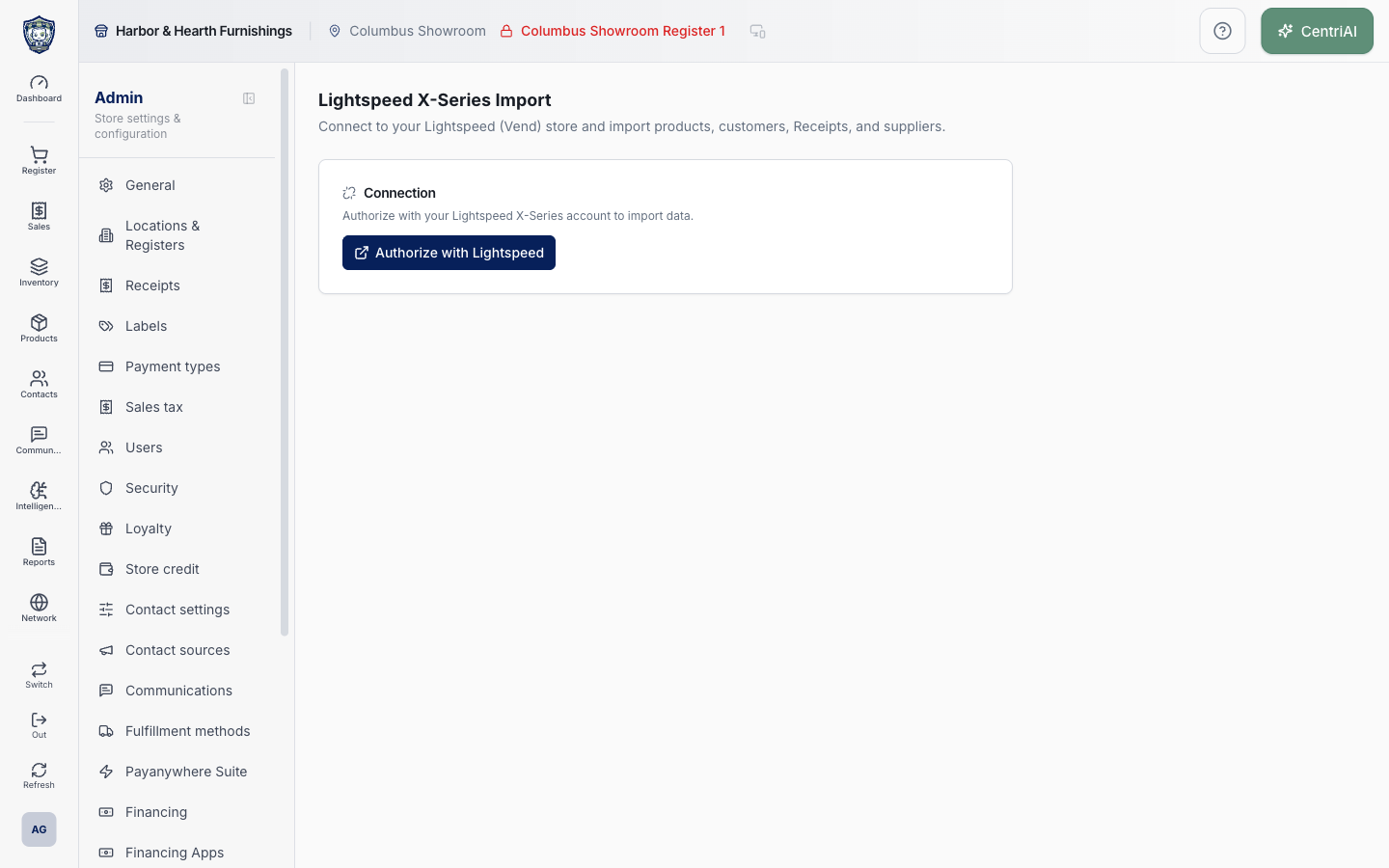
- Go to Admin → Lightspeed Import in the intended CentriPOS business. Confirm the Lightspeed X-Series Import heading and Arrow Down To Line navigation icon. The approved Harbor & Hearth screenshot shows only the untouched unconnected authorization state.
- Before authorization, identify the exact Lightspeed X-Series/Vend retailer, its environment, expected domain prefix, CentriPOS tenant, locations, registers, users, payment methods, tax model, products/variants, customers, suppliers, inventory, purchase orders/transfers/returns, historical sales range, and receipt-number policy.
- Choose Authorize with Lightspeed only when signed into the intended provider account. CentriPOS requests an OAuth authorize URL and redirects the current page. Complete provider consent without pasting credentials, tokens, or private account details into support notes.
- On return, look for Lightspeed connected successfully and verify Connected to <domain>. The callback removes its success/error query parameter from the browser URL. Stop if the displayed store/domain is wrong; do not import and plan to clean it up afterward.
- Understand Disconnect: it immediately sets the integration inactive, replaces its stored API token with an empty string, clears the local connection, and shows Disconnected. There is no confirmation. It does not undo imported data or cancel completed jobs.
- Choose an ordered preset for normal dependency-aware work. Initial full sync runs Products → Composites → Suppliers → Customers → Sales → Consignments → Inventory → Register Reports. Daily Lightspeed catch-up runs Customers → Sales → Consignments → Inventory → Register Reports. Only one active job/preset is intended at a time.
- Use individual Import only for a deliberate resource step: Products includes variants, brands, categories, tags, and supplier links; Customers includes balances/contact info; Receipts includes sale lines, payments, original numbers, and user attribution; Suppliers imports vendors; Consignments maps purchase orders, stock transfers, and supplier returns; Register Reports reconstructs sessions after sales; Inventory Levels applies stock after products; Composites & Case Packs links bundles/case-pack relationships after products.
- There is no mapping editor, preview, dry-run, record-selection list, date-range selector, location selector, duplicate-resolution screen, or Apply confirmation in this UI. Starting a job inserts an import_jobs row and invokes the import function asynchronously. Run a controlled migration tenant or approved narrow sequence first, not an unreviewed production full sync.
- After starting, wait for Started <resource> import. Imports run in the background and the page polls about every five seconds while a recent job is Pending or Running. You may navigate away, but return to inspect completion rather than assuming the toast means data imported.
- Read progress as Processed, Created, Updated, Errors, and optional phase/detail. The progress bar is an estimate capped below completion while running. A Completed row shows created/updated totals, warnings, and completion time. Expand warnings and review every message; they can contain source data identifiers and should not be copied publicly.
- Cancel is a request, not rollback. It changes the job status to Cancelled and says the import will stop shortly. The final row reports records created/updated before stopping, and those partial writes remain. Reconcile them before re-importing.
- Re-import starts another job for that resource. Do not use it as a blind retry: inspect the previous warnings/errors, source IDs, created-versus-updated counts, and representative records first so duplicate/mismatched or partially imported data is not compounded.
- Import History is limited: the page loads the newest 20 jobs and displays only the first 10 in history. Each resource card uses the newest matching job within that loaded window. Absence from the visible history is not proof a resource was never imported.
- Treat every Purge all <resource> data action as destructive. The button appears after a failed, cancelled, or completed job with created/updated activity, but it is not scoped to that one job. The confirmation says permanent and cannot be undone. Do not approve it merely to clear a warning or retry.
- For Products, Customers, Suppliers, Consignments, Register Reports, Inventory, and Composites, the screen calls purge-data without all:true. The function generally uses source/import markers for those supported resource branches, but it can delete/null linked catalog, stock, pricing, purchasing, and relationship data. Review the exact current function and tenant backup before use.
- For Receipts/Sales, stop: the screen calls purge-data with type sales, all true, and reset_receipt_counters true. It deletes all tenant sales regardless of Lightspeed source marker plus line items, payments, fulfillment, layaway/AR/returns/store-credit links and other related records, clears tenant parked carts, nulls some external transaction/order links, removes sale inventory movements, and resets each register receipt counter to 1. This is not a safe “remove the last import” action.
- After a completed import, verify each selected resource independently: representative identities and source IDs, variants/SKUs, costs/prices/tax, locations/stock, customer balances/contact data, suppliers, receipts/lines/payments/users/numbers, purchase/transfer/return documents, composite children/quantities, and reconstructed register sessions/closures. Reconcile totals against a Lightspeed export.
- Keep migration evidence: tenant/store IDs, authorization time, job IDs, resource/preset, started/completed timestamps, counts, warnings/errors, sample source-to-CentriPOS IDs, reconciliation totals, and signoff. Do not include OAuth tokens, API tokens, full customer data, or payment credentials.
Screen and contract reference
| Control or area | What it means |
|---|---|
| Arrow Down To Line icon | Exact CentriPOS navigation icon for Lightspeed Import. |
| Authorize with Lightspeed | Requests an OAuth authorization URL and redirects the current page; it does not import by itself. |
| Connected to <domain> | Saved active integration with nonempty token; verify the retailer before any job. |
| Disconnect | Immediately disables the integration and clears its token without confirmation; imported data remains. |
| Initial full sync | Eight-step dependency-ordered first migration preset. |
| Daily Lightspeed catch-up | Five-step customers/sales/consignments/inventory/register-reports preset. |
| Run preset | Creates the first background job with a queued preset sequence; later steps queue automatically. |
| Individual Import | Creates one pending resource job and invokes the importer asynchronously. |
| Products | Products, variants, brands, categories, tags, and supplier relationships. |
| Customers | Customer records, balances, and contact information. |
| Receipts | Sales with receipt numbers, lines, payments, and user attribution. |
| Suppliers | Supplier records. |
| Consignments | Purchase orders, stock transfers, and supplier returns. |
| Register Reports | Reconstructs register sessions from imported sales and should follow sales. |
| Inventory Levels | Current variant/location stock and should follow products. |
| Composites & Case Packs | Bundle/case-pack relationships and should follow products. |
| No preview/mapping | UI has no dry run, date/scope selector, mapping, duplicate-resolution, or proposed-record preview. |
| Progress | Background job processed/created/updated/error counts and phase, polled about every five seconds. |
| Warnings | Expandable job messages requiring reconciliation; may contain source identifiers. |
| Cancel | Marks cancellation requested; partial created/updated data remains. |
| Re-import | Starts another job; it is not rollback or guaranteed idempotent recovery. |
| Import History | Newest 10 displayed from the newest 20 loaded jobs. |
| Purge button | Resource-wide destructive action, not job-specific. Requires explicit confirmation but no typed tenant name. |
| Non-sales purge | Generally source-marker-scoped for supported branches, yet can remove/null extensive linked data; verify code/backup first. |
| Sales purge exception | Passes all:true and reset_receipt_counters:true, deleting all tenant sales and broad dependencies and resetting receipt counters to 1. |
| Harbor & Hearth screenshot | Real Amelia Grant capture of /admin/lightspeed-import in the initial unconnected state. It shows no OAuth flow, retailer identity, token, imported data, or job details. |
Expected result
The reviewed import creates or updates only the intended records, reports skipped and failed rows clearly, preserves source references, and can be reconciled against the import file.
Troubleshooting
- Confirm you are changing the intended business and location before saving.
- Record the previous setting when a change affects live selling, payments, tax, or integrations.
- Use a controlled test record after saving before rolling the setting out broadly.
CentriPOS API explorer · API Center administration