
Inventory → Live Inventory uses the Layers icon. This screen has no accounting-period date, opening/closing balance, Summary/Replenishment/Performance/Dusty views, Inventory by location dashboard, View movements action, or Export control. It reads the currently loaded active tracked products and URL-backed filters. For variable products, variant-location stock is authoritative for displayed totals, but the Below Reorder calculation still reads parent product location_stock reorder fields; validate variant reorder evidence separately. Cost-visible Value is base product supply_price multiplied by displayed on-hand, not a supplier price-book, FIFO, landed-cost, or accounting valuation.
Step by step
- Go to Inventory → Live Inventory, identified by the Layers icon. Confirm the active business and the current app location context before reading quantities. Wait for the product loader to finish.
- Start with the URL state. Search is `q`; one location is `loc`; stock view is `tab`; expanded product/variant are `expand` and `expandVariant`; Brand/Category/Tag/Supplier/Type filters are comma-separated IDs. A shared URL preserves the view but does not grant inventory/cost permission.
- Read the stock tabs that actually exist: In Stock, Below Reorder, Zero Stock, Negative, and All. The default is In Stock unless an `expand` product is supplied, in which case an absent tab defaults to All. There are no Summary, Performance, Out of Stock, or Dusty tabs on this component.
- Use Location to choose All or one visible location. Although the shared dropdown supports multiple IDs, this screen keeps only the first selected ID when more than one is returned. Confirm the trigger’s final single location; do not represent the results as a multi-location subset unless it says All.
- Search matches only the parent product name or parent SKU by simple lowercase substring. It does not search barcode, variant name/SKU, supplier code, or attribute values. Expand a variable product or use Products search when variant identity is required.
- Use Brand, Category, Supplier, Tag, and Type. Supplier membership comes from product_suppliers rows loaded separately; a fetch error is not surfaced here and can make a supplier filter return no products. Type derives Variable from any variants, Composite from stored type, and Standard from non-composite products without variants.
- Understand filter logic. Multiple IDs within Brand, Category, Supplier, or Tag use any-match. Different groups all must pass. Product type passes when any chosen type rule matches. Clear removes search and these five attribute filters, but it does not reset Location, stock Tab, or expanded product/variant.
- Read tab counts after search, attributes, type, supplier mapping, and selected location, but before applying the active stock tab. Only products with track_inventory true participate. In Stock is on-hand >0; Zero equals 0; Negative is <0; All includes all tracked matches.
- For standard products, on-hand is the product location_stock quantity at one location or the sum across all location rows. For variable products, on-hand is the sum of every variant_location_stock quantity in scope; parent location_stock is not added to the headline. Untracked products are excluded entirely rather than shown as infinity.
- Below Reorder counts a product only when a parent location_stock row has a non-null reorder_point and on-hand is greater than zero but below the point. With one location it checks that row; with All it checks whether any parent row qualifies. Zero and negative quantities are deliberately not Below Reorder.
- For variable products, the displayed/tab on-hand comes from variant rows while Below Reorder still checks parent product location_stock. A variable item can therefore show variant units that do not align with its below-reorder classification/detail. Inspect each variant’s reorder point and correct source data through the authorized product/inventory workflow.
- Read the stats carefully. Tracked always shows the total number of loaded track_inventory products and ignores search/location/tab filters. Total Units and Value sum only the currently displayed `filtered` rows after the active tab. Below Reorder uses the pre-tab filtered count. These four cards do not necessarily share one scope.
- Cost-visible Value is product.supply_price × displayed on-hand for each row. For a variable product it multiplies the parent base supply price by summed variant units rather than using each variant cost. Negative stock reduces total value. Cost-hidden users see bullets and no row/expanded cost values. Use finance/inventory reports for accounting valuation.
- Choose Stats/Hide to manually collapse or expand the cards. Scrolling the product list downward past 50 pixels auto-collapses them; returning within 10 pixels of the top auto-expands unless the user manually collapsed at the top. On mobile stats begin collapsed and show a compact tracked/units/value line.
- When In Stock is active and any Below Reorder match exists, use the warning banner’s View action to switch to Below Reorder. The banner count follows parent reorder logic, not the separate visual low-stock fallback of positive quantity below 10.
- Read a row’s product name, parent SKU, optional brand, variant count, count of locations with stock rows, held-transfer badges, on-hand, and cost-visible base value. Row color treats negative as destructive, zero muted, below-reorder or any positive quantity below 10 as warning, otherwise success. The below-10 warning is visual only and does not add the product to Below Reorder.
- A held-transfer Lock badge comes from location_transfer_items with is_held true and a transfer not Received or Cancelled. It shows quantity_requested and links to Location Transfers. It does not subtract from the displayed on-hand here, identify source/destination in the badge, or prove dispatch/receipt. Open the transfer.
- Expand a product for Stock by Location and Open in Catalog. Every configured location is shown. Standard products use parent stock/reserved; variable products sum variant stock/reserved. Available equals on-hand minus reserved and is shown only when reserved is positive.
- For variable products, a nonzero parent location_stock alongside variant-authoritative stock displays Unassigned parent. This is a reconciliation warning: those parent units are not included in the variable product headline/variant sum. Investigate movements and product conversion history before adjusting.
- Location cards show reorder point/quantity from parent location_stock even for variable products. Low styling requires positive on-hand below reorder; negative has destructive styling; zero is muted. The card’s cost-visible amount is still parent product supply_price × location on-hand.
- For a standard/nonvariable product, expansion also loads supplier price-list entries and can show their supporting price/cost evidence in the expanded panel. That fetch ignores errors and is not performed for variable products here. An absent price list is not proof none exists.
- For a variable product, use Variant Inventory by SKU. The variant-location filter starts from the main single Location or All and then supports its own multi-location selection. This nested filter changes only the expanded variant table/summary, not the main list or headline row.
- Expand a variant to see one row per selected configured location with on-hand, reserved, available, reorder point/quantity, and cost-visible variant supply price where data exists. No stock recorded instructs staff to use Product Settings → Variant → Inventory; do not invent a zero row when no record exists.
- The expanded variant ID remains in the URL and scrolls to the variant after render. Collapsing/changing the parent clears expandVariant. Confirm both product and variant IDs in a shared link before acting.
- Below Reorder detail with All locations lists qualifying positive parent location rows and can show On Hand, Reorder at, Order Qty, and “Need” calculated as reorder quantity minus on-hand. With one location, Need uses reorder quantity when present, otherwise reorder point, minus on-hand. Negative/zero exceptions belong in their own tabs.
- No tracked inventory products found means no tracked product survived the current search/attribute/location/tab logic. Clear search/attributes, choose All location and All tab, and confirm product tracking before concluding inventory is absent.
- For a discrepancy, open the exact product in Catalog, then use Inventory Movements, Transfers, Receiving, Counts, or Adjustments as appropriate. Record product/variant IDs, selected location, URL filters, parent versus variant stock, reserved, unassigned parent amount, reorder fields, held transfer ID, and cost-visibility state.
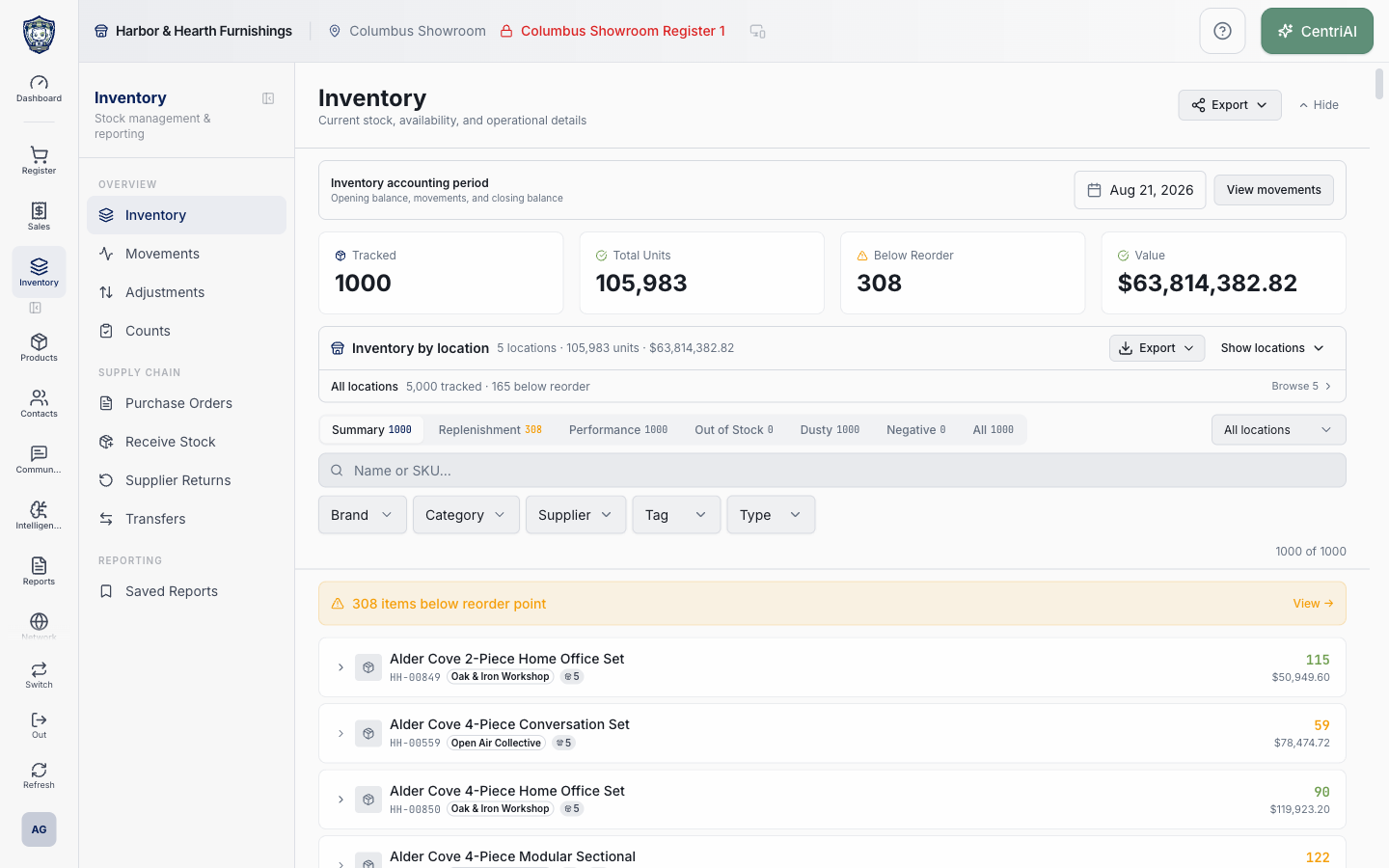
- Use the real Amelia Grant Harbor & Hearth screenshot for orientation. It is the approved loaded `/inventory/live` capture at 1440×900. It shows actual stock totals, filters, and product quantities; no inventory change, transfer, count, customer, cost export, or transaction mutation was performed.
Screen and contract reference
| Control or area | What it means |
|---|---|
| Layers icon | Exact CentriPOS Inventory navigation icon for Live Inventory. |
| Tracked product boundary | Only loaded products with track_inventory true appear. |
| In Stock | Scoped on-hand greater than zero. |
| Below Reorder | Positive parent location_stock below non-null reorder_point; zero/negative excluded. |
| Zero Stock | Scoped on-hand exactly zero. |
| Negative | Scoped on-hand below zero. |
| All | All tracked products surviving search/attribute/type filters. |
| Location | One location or All; multiple dropdown IDs collapse to the first. |
| Search | Parent product name or SKU only. |
| Brand / Category / Supplier / Tag | Any-match within each filter; all groups must pass. |
| Type | Derived Standard, Variable, or Composite rules. |
| Clear | Resets search and product filters only—not tab, location, or expansion. |
| Tracked stat | All loaded tracked products, regardless of current filters/tab. |
| Total Units | Sum of rows in the active filtered stock tab. |
| Below Reorder stat | Pre-tab count after search/attributes/location using parent reorder rows. |
| Value | Base parent supply_price × current filtered on-hand; not accounting valuation. |
| Stats auto-collapse | Scroll-down and mobile behavior with manual override. |
| Below-reorder banner | Switches In Stock to Below Reorder. |
| Below-10 styling | Visual row warning only; not the Below Reorder rule. |
| Standard stock | Parent product location_stock in one location or summed All. |
| Variable stock | Sum of variant_location_stock; parent stock excluded. |
| Held Lock badge | Open held transfer quantity_requested; does not change displayed on-hand. |
| Reserved | Committed quantity displayed in expansion when positive. |
| Available | On-hand minus reserved, shown when reserved is positive. |
| Unassigned parent | Parent stock on a variable product excluded from authoritative variant total. |
| Stock by Location | Every configured location, regardless of main list location filter. |
| Open in Catalog | Working product editor/details route. |
| Variant Inventory by SKU | Nested variant/location evidence with its own multi-location filter. |
| Variant expansion | Location rows, on-hand, reserved, available, reorder, and variant cost. |
| No stock recorded | No variant stock rows; not necessarily an explicit zero record. |
| Need | Reorder target/quantity minus on-hand when positive. |
| No export/accounting-period control | This component has neither an export nor accounting date/balance workflow. |
| Harbor & Hearth screenshot | Real approved loaded Live Inventory capture with no mutation. |
Expected result
The exact tenant, single location or All, stock tab, search, URL filters, product, variant, and expansion scope are confirmed; parent versus variant on-hand, reserved, available, unassigned parent stock, reorder fields, held transfers, and source movements explain the result; card/stat scope differences and base-cost value limitations are understood; and no absent accounting-period/export control is invented.
Troubleshooting
- Confirm the exact product variant and stock location before posting a quantity change.
- Use the movement ledger to identify the source workflow instead of correcting history directly.
- Avoid a manual adjustment when receiving, transfer, count, sale, or return is the correct workflow.
CentriPOS API explorer · API Center administration