
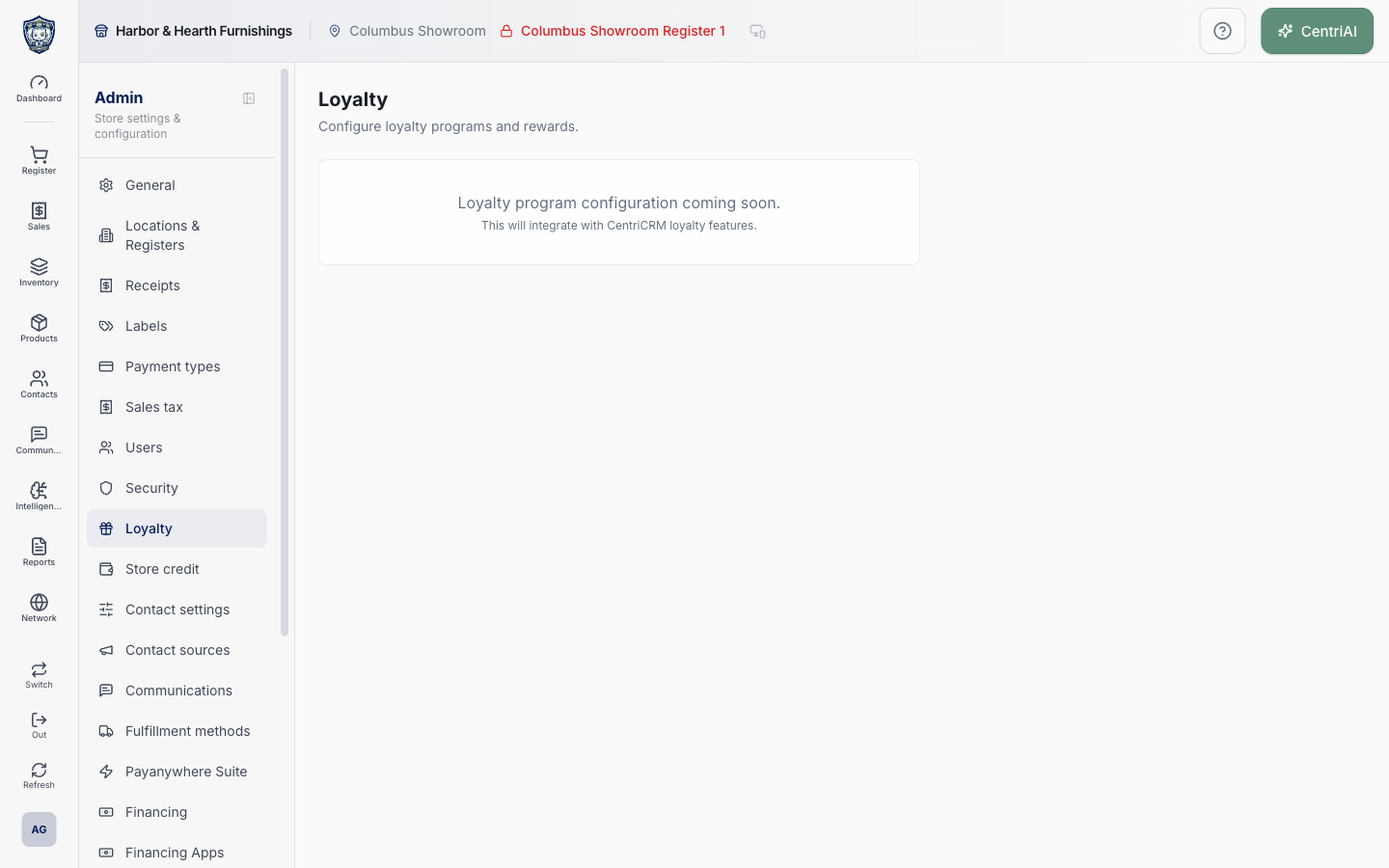
Admin → Loyalty uses the Gift icon. In the current customer-visible product, this route is a fully loaded feature-status screen—not an editable loyalty-program setup. The real Amelia Grant Harbor & Hearth capture documents that exact state without fabricated controls or reward data.
Before you beginUse an authorized administrator account and confirm the business shown in the top bar. Record the previous value before changing a live operational setting.
Step by step
- Go to Admin → Loyalty using the Gift icon. Confirm the page heading is Loyalty and the supporting line reads Configure loyalty programs and rewards.
- Read the single Loyalty panel. The current message is Loyalty program configuration coming soon. This is the completed loaded state of /admin/loyalty, not a loading failure or a collapsed settings form.
- Read the smaller integration note: This will integrate with CentriCRM loyalty features. It describes intended future direction; it does not confirm that CentriCRM enrollment, points synchronization, rewards, or redemption is active for this CentriPOS tenant.
- Do not look for a hidden Save button, program switch, points-per-dollar rule, reward catalog, tier editor, expiration setting, member list, balance ledger, import, report, or redemption control. None is exposed on this screen today.
- Do not interpret Products → Promotions → Offer loyalty points as an operational loyalty program. The promotion editor stores that flag, but the current promotion matcher does not award points and this Loyalty route provides no program configuration or balance system.
- Do not tell staff or customers that purchases earn points, that balances exist, or that a reward can be redeemed until a released interface exposes those rules and a controlled sale proves earning, balance posting, receipt/customer visibility, return reversal, and redemption behavior end to end.
- If loyalty was contractually expected for the business, use Contact support from the Help Center and include the tenant/business name, the /admin/loyalty route, the exact coming-soon message, and the expected capability. Do not include customer details, payment data, or invented reward balances.
- When the screen changes in a future release, treat the new controls as undocumented until this guide and its real screenshot are recaptured and each earning, adjustment, reversal, expiration, and redemption path is tested.
Screen and contract reference
| Control or area | What it means |
|---|---|
| Gift icon | Exact CentriPOS Admin navigation icon for Loyalty. |
| Loyalty heading | Confirms the current /admin/loyalty route is loaded. |
| Configure loyalty programs and rewards | Current page description; it is not evidence that configuration controls are available. |
| Loyalty panel | The only feature-status panel currently rendered on this route. |
| Loyalty program configuration coming soon | Explicit boundary showing that editable program controls are not yet available. |
| CentriCRM integration note | Future-direction statement, not proof of a live loyalty connection or data synchronization. |
| No Save or setup controls | There is currently no program activation, earning, reward, tier, expiration, member, balance, or redemption interface on this screen. |
| Promotions boundary | Offer loyalty points can be stored on a promotion, but the current matcher does not award points and Loyalty has no operational program configuration. |
| Verification boundary | Do not promise loyalty until controlled earning, receipt/customer balance, return reversal, and redemption tests succeed after release. |
| Harbor & Hearth screenshot | Real Amelia Grant capture of /admin/loyalty in its fully loaded coming-soon state; it contains no customer or reward data. |
Expected result
The screen clearly identifies whether loyalty configuration is available for this business. No reward behavior should be assumed until controls are enabled and tested.
Troubleshooting
- Confirm you are changing the intended business and location before saving.
- Record the previous setting when a change affects live selling, payments, tax, or integrations.
- Use a controlled test record after saving before rolling the setting out broadly.
CentriPOS API explorer · API Center administration
More guides
Build an itemized payment in MoneyUse Products or Amount & description to build one receipt, attach the customer, and follow the appropriate payment or service-estimate workflow.
Take a one-time payment in Virtual TerminalReview a one-time amount, tax and contact at the correct payment station, use its verified secure checkout, and recover the original receipt after an uncertain result.
Review booking payments, refunds and earned careKeep a booking’s customer payments, unused advances, completed care, cancellation fees and refunds distinct, then read a correctly scoped accrual report.
Configure booking properties and customer pagesSet accommodations, service packages, availability, required intake and payment terms, then review the correctly branded booking page before sharing it.