
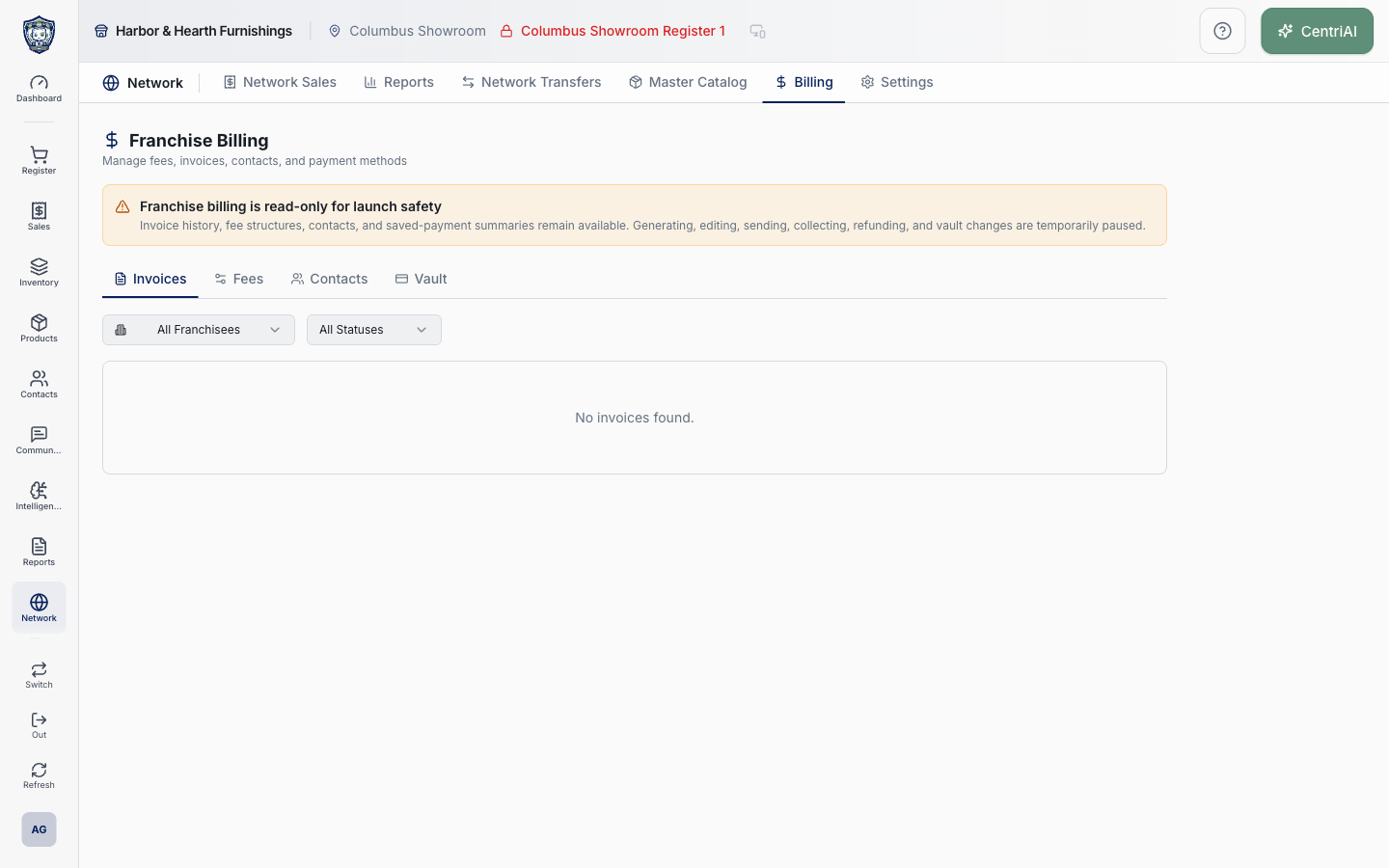
The live Harbor & Hearth screen is deliberately read-only. Invoice history, fee structures, contacts, and masked payment summaries can be reviewed, but generating, editing, sending, collecting, refunding, deleting, or changing vault records is temporarily paused.
Before you beginConfirm the organization and participating locations. Network actions may affect more than one storefront.
Step by step
- Go to Network → Billing. Confirm the page heading is Franchise Billing and read the amber launch-safety notice before using any displayed information.
- Use All Franchisees to view every permitted child business or narrow the page to one franchisee. This filter applies to Invoices, Fees, Contacts, and Vault; an empty result may simply mean the selected franchisee has no records of that type.
- On Invoices, optionally choose All Statuses, Draft, Sent, Paid, Overdue, Void, or Refunded. Read invoice number, franchisee, billing period, total, status, and due date together. A status or total is a summary—not proof of a processor settlement or accounting entry—so reconcile through the approved payment and accounting records when the distinction matters.
- Use Draft for an invoice not yet issued, Sent for one delivered for payment, Paid only when the billing record reports collection, Overdue when an issued balance passed its due date, Void for a cancelled invoice, and Refunded when the recorded payment was returned. Do not attempt to change a status from this locked screen.
- If No invoices found appears, wait for loading to finish, then check both filters. Try All Franchisees and All Statuses. If the empty state remains, it means no permitted invoice records matched; it does not mean Network Billing or every franchise relationship is unconfigured.
- Open Fees to inspect each configured charge. A row can show its label, franchisee, fee type, billing cycle, percentage rate or flat amount, effective start/end dates, and Inactive state. Percentage of Sales, Flat Fee, Tiered %, Marketing Fund, and Custom describe calculation intent; confirm the governing agreement before treating any displayed structure as contract authority.
- Open Contacts to review the people assigned to franchise billing communication. A row can show name, contact type, Primary badge, franchisee, title, email, and phone. Use this data only for authorized billing work, verify the recipient before sharing an invoice, and correct contact information through an approved administrator while editing is paused.
- Open Vault only when your role permits payment-summary access. The page may show Card or Bank Account, masked last four digits, franchisee, expiration, and Default. CentriPOS does not display a full card or bank number here. Never copy masked payment details into notes or infer that a saved method is valid, chargeable, or authorized for a particular invoice.
- Treat No fee structures configured, No contacts added yet, and No payment methods on file as completed empty results for the active franchisee filter. They are different from a spinner, permission error, or failed request.
- Do not look for Auto-Generate, New Invoice, Add Fee, Add Contact, edit, send, copy-payment-link, refund, void, delete, or vault-update controls during launch-safety mode. Their absence is intentional. Do not work around the lock through customer-facing links, direct database changes, or dormant application paths.
- For an urgent correction or collection, capture the franchisee, invoice number when present, visible status, expected outcome, and safe supporting context, then contact an authorized CentriPOS/network billing administrator. Do not include full payment credentials or unrelated customer data.
- The article screenshot is the real Amelia Grant Harbor & Hearth capture at 1440 × 900. It shows the launch-safety notice, Invoices tab, All Franchisees and All Statuses filters, and a loaded No invoices found state; it does not expose fees, contacts, payment methods, or invoice records.
Screen and contract reference
| Control or area | What it means |
|---|---|
| DollarSign navigation icon | Matches the Billing section icon used in the CentriPOS Network navigation. |
| Launch-safety notice | Production boundary stating that billing mutations and collection actions are temporarily paused. |
| All Franchisees | Shows records for every permitted child tenant; selecting one scopes all four tabs. |
| All Statuses | Invoice-only filter for Draft, Sent, Paid, Overdue, Void, or Refunded. |
| Invoice number | Network billing document identifier to include in an authorized support or reconciliation request. |
| Billing period | Start and end dates represented by the invoice. |
| Total | Invoice total in the tenant currency; it is not independently proof of cash settlement. |
| Due date | Date the issued invoice is expected to be paid. |
| Draft | Prepared but not issued. |
| Sent | Issued for payment. |
| Paid | Billing record reports payment received; reconcile externally when settlement proof is required. |
| Overdue | Issued balance is past its due date. |
| Void | Cancelled invoice that should not be collected. |
| Refunded | Recorded payment has been returned. |
| Fees | Read-only summaries of franchise charge structures, cycles, rates, dates, and active state. |
| Contacts | Read-only billing-recipient summaries with contact type and Primary designation. |
| Vault | Permission-limited masked card or bank-account summaries; never a source of full credentials. |
| Default payment method | Preferred saved summary, not blanket authorization or a guarantee that a charge will succeed. |
| Loaded empty state | No records matched the active tab and franchisee/status filters after loading completed. |
| Harbor & Hearth screenshot | Real read-only Amelia Grant capture with no invoices or sensitive billing records exposed. |
Expected result
The billing period, participating storefronts, assessed amounts, status, and source activity reconcile without exposing unrelated tenant financial data.
Troubleshooting
- Confirm the organization and participating locations before comparing, publishing, or transferring.
- Keep local and network-level records distinct when reviewing inventory or catalog values.
- Check whether your network role allows the action shown in the guide.
CentriPOS API explorer · API Center administration
More guides
Build an itemized payment in MoneyUse Products or Amount & description to build one receipt, attach the customer, and follow the appropriate payment or service-estimate workflow.
Take a one-time payment in Virtual TerminalReview a one-time amount, tax and contact at the correct payment station, use its verified secure checkout, and recover the original receipt after an uncertain result.
Review booking payments, refunds and earned careKeep a booking’s customer payments, unused advances, completed care, cancellation fees and refunds distinct, then read a correctly scoped accrual report.
Configure booking properties and customer pagesSet accommodations, service packages, availability, required intake and payment terms, then review the correctly branded booking page before sharing it.