
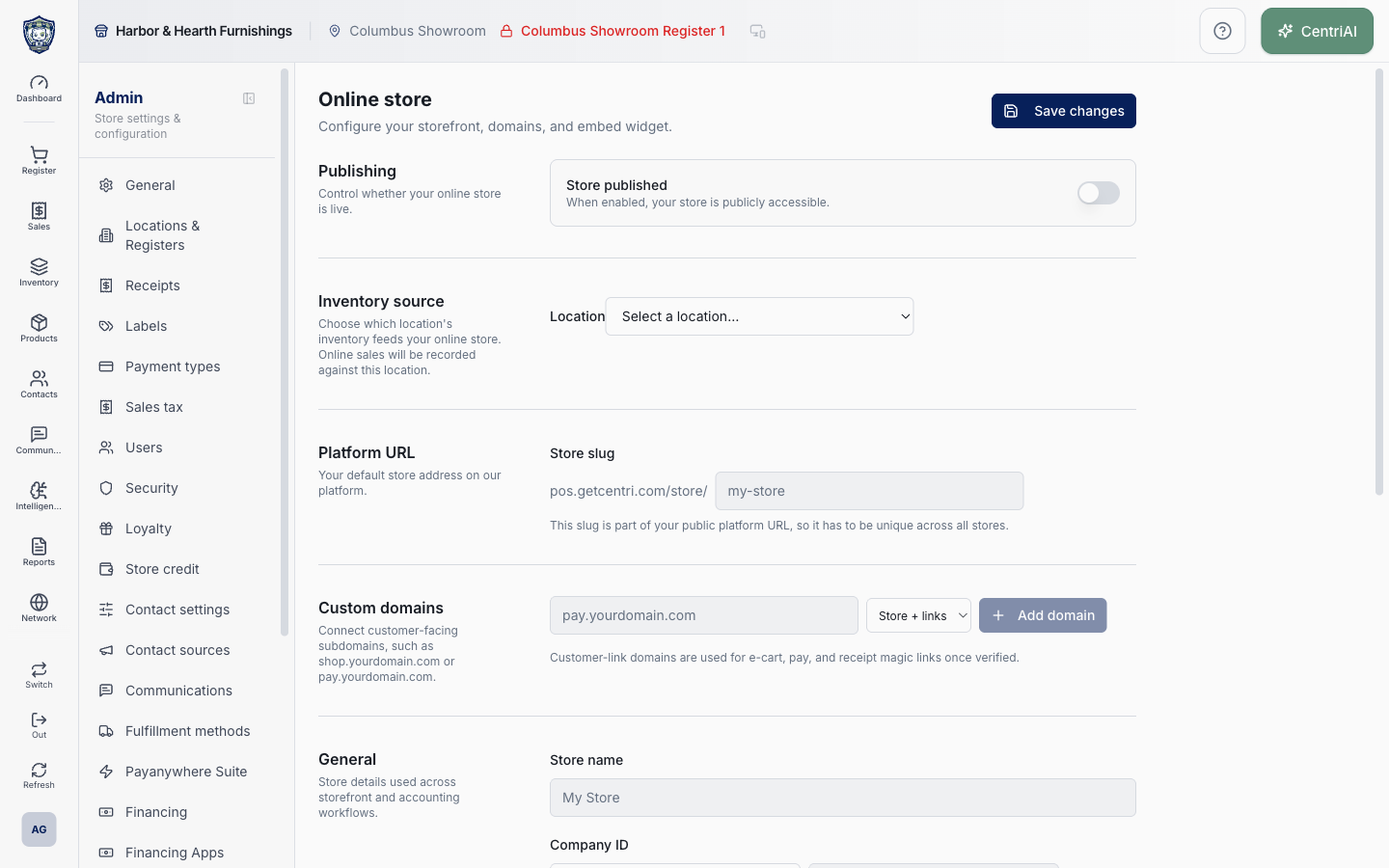
Admin → Online store uses the Globe icon. Page fields are drafts until Save changes, but custom-domain add, use-scope changes, verification, and removal write separately and immediately. Keep every shared customer destination on https://pos.getcentri.com or a verified customer domain routed through the branded service; never publish a Supabase project, Edge Function, storage, or project-reference URL. The real Harbor & Hearth screenshot shows untouched placeholder settings and no private identifier or verified domain.
Before you beginUse an authorized administrator account and confirm the business shown in the top bar. Record the previous value before changing a live operational setting.
Step by step
- Go to Admin → Online store using the Globe icon. Confirm the heading says Online store and the description says Configure your storefront, domains, and embed widget.
- Leave Store published off while configuring. The switch changes the page draft; the public state changes only after Save changes succeeds. Do not publish until the catalog, location/register, domain, identity, tax, fulfillment, payment, and checkout tests are complete.
- Under Inventory source, choose the exact Location whose recorded inventory feeds the storefront and against which online sales are recorded. Changing Location clears the selected Register in the draft.
- After choosing a Location, choose a Register from that location. Online orders are recorded on this register for register reports. Confirm the register’s taxes, payments, fulfillment settings, numbering, restrictions, and reporting behavior before launch.
- Under Platform URL, enter Store slug using only lowercase letters, numbers, and hyphens. Typing removes other characters; Save also trims and normalizes the value. The slug must be unique across every storefront tenant.
- Review the complete https://pos.getcentri.com/store/<slug> link shown after a slug exists. Use its external-link action for a controlled preview and Copy only when the branded hostname, merchant, and published state are correct. A saved slug is not by itself a published store.
- If Save reports that the slug is already in use, choose a distinct approved variation. Do not imitate another merchant’s domain or add customer/private data to the slug. An empty slug can be saved but provides no usable platform storefront address.
- Under Custom domains, enter a customer-facing hostname such as shop.yourdomain.com or pay.yourdomain.com—without a scheme or path—and choose Store + links, Links only, or Store only. The current mobile layout hides this use selector while adding and defaults to Store + links, so verify the resulting row afterward.
- Choose Add domain once. This immediately creates a Pending domain with a verification token and SSL pending-validation state; it is not part of Save changes. The first domain added becomes Primary automatically. Adding the hostname does not prove DNS ownership or make it safe to share.
- Publish the exact CNAME and TXT records displayed for that Pending domain in the customer’s DNS. Use the Copy controls to avoid transcription errors, but review the hostname and target before saving DNS. If verification returns an additional Cloudflare ownership CF TXT record, add that exact record too.
- Choose Verify after DNS propagation. Read the separate CNAME found/missing, TXT found/missing, and SSL active/pending results. DNS can be verified while SSL is still pending; wait for the certificate before sharing an HTTPS customer link.
- Read the row badges and SSL text. Verified confirms the current ownership and SSL checks; Pending does not. Primary identifies the first/current primary row but this screen exposes no separate Make primary control.
- Change Use for only after reviewing all affected surfaces. Storefront + customer links can cover the store plus supported e-cart, pay, and receipt magic links; Customer links only excludes the storefront; Storefront only excludes those customer-link surfaces. This selector saves immediately and reports Domain use updated.
- Use Trash only after resolving the exact hostname and its customer use. Removal writes immediately with no confirmation dialog in this component and can break bookmarks, emails, texts, receipts, e-carts, pay links, or storefront traffic. Preserve or redirect active public paths before removal.
- Under General, enter the customer-facing Store name. Choose the Company ID type—EIN, VAT, GST/HST, ABN, ACN, NZBN, company registration number, UTR, CNPJ, RFC, Tax ID, or Other—and enter its value only when authorized. Company ID is stored separately as a private accounting-export field, including supported QuickBooks invoice custom fields; do not show it publicly.
- Enter SEO title up to 60 characters and Meta description up to 160 characters; the live counters show the saved draft length. Enter the longer Store description used by supported storefront content. Write accurate customer-facing copy without hidden claims about availability, delivery, returns, or pricing.
- Under Storefront theme, choose Primary color and Accent color with the color picker or exact color value. These fields are drafts until Save changes. Verify contrast, focus visibility, button readability, and mobile presentation on the real public storefront.
- Under Website embed, leave Enable embed widget off unless an approved external site needs the entire storefront. The switch is saved with the page. When enabled, the page reveals an HTML snippet and Copy action.
- Do not publish or share an embed snippet that exposes a Supabase project or Edge Function URL. The current component can generate a direct service-host script source; customer-facing code must first be routed through a branded pos.getcentri.com path or verified customer domain. Escalate to CentriPOS support/engineering for the branded embed endpoint rather than copying the internal address into a public website.
- Choose Save changes once. The storefront settings write occurs first and the private Company ID write follows; a failure in the second write can occur after the main settings were already updated. Wait for Online store settings saved, then reopen the page and verify both public settings and authorized private accounting data.
- Test the saved platform URL and every verified custom-domain use in a private window. Confirm merchant identity, TLS, catalog, product/variant pages, cart persistence, exact location/register order intake, tax, enabled fulfillment methods, online/card or alternate payment paths, receipt/customer links, mobile layout, SEO metadata, and one controlled completion.
- Publish only after the controlled order returns one order number and the same order appears once in the intended Order Intake, Receipts, register reporting, inventory, payment, and fulfillment workflows. If a submission result is uncertain, trace the existing record before retrying.
Screen and contract reference
| Control or area | What it means |
|---|---|
| Globe icon | Exact Admin navigation icon for Online store and the icon used on domain rows. |
| Save changes | Persists page-level publishing, inventory source, slug, identity, SEO, theme, and embed settings; it does not control the separate domain writes. |
| Store published | Draft switch that makes a saved storefront publicly accessible. |
| Location | Inventory source and operating location for online sales; changing it clears the draft Register. |
| Register | Register under the chosen location used for online orders and register reports. |
| Store slug | Unique lowercase letters/numbers/hyphens path segment for the branded platform URL. |
| Platform URL | https://pos.getcentri.com/store/<slug>; available only when a slug exists and public only when the store is published. |
| External link / Copy | Opens or copies the current branded platform URL; verify merchant and publication state first. |
| Custom-domain hostname | Scheme-free customer subdomain stored as a separate tenant-domain record. |
| Store + links | Uses a verified domain for the storefront and supported e-cart, pay, and receipt magic links. |
| Links only | Uses the verified domain for supported customer links but not the storefront. |
| Store only | Uses the verified domain for the storefront but not other customer-link surfaces. |
| Add domain | Immediate insert that creates Pending validation; the first saved domain becomes Primary. |
| CNAME / TXT / CF TXT | DNS ownership and routing records shown for an unverified domain. |
| Verify | Runs domain ownership and SSL checks; CNAME, TXT, and certificate readiness are reported separately. |
| Pending | Domain is not yet fully verified for customer use. |
| Verified | Current verification service reports the required state, including active SSL. |
| Primary | Automatically assigned to the first domain; no separate primary-selector control appears here. |
| Use for selector | Immediate update of the domain’s customer-surface scope. |
| Trash | Immediate domain deletion without a confirmation dialog in this component. |
| Store name | Customer-facing storefront identity. |
| Company ID | Private accounting-export value stored separately from public storefront settings. |
| SEO title | Customer/search title limited to 60 characters. |
| Meta description | Search summary limited to 160 characters. |
| Store description | Longer customer-facing store description. |
| Primary / Accent color | Saved theme colors for the public storefront. |
| Enable embed widget | Saved switch revealing an external-site embed snippet. |
| Embed snippet safety | Do not publish the current direct service-host source; obtain a branded pos.getcentri.com or verified-domain endpoint first. |
| Partial-save boundary | Main storefront settings save before the private Company ID upsert, so reopen and verify both after any error. |
| Harbor & Hearth screenshot | Real Amelia Grant capture of loaded default settings with no private Company ID, verified domain, credential, DNS token, or saved mutation. |
Expected result
The branded storefront opens with the intended identity, catalog source, domain, and customer checkout choices.
Troubleshooting
- Confirm you are changing the intended business and location before saving.
- Record the previous setting when a change affects live selling, payments, tax, or integrations.
- Use a controlled test record after saving before rolling the setting out broadly.
CentriPOS API explorer · API Center administration
More guides
Build an itemized payment in MoneyUse Products or Amount & description to build one receipt, attach the customer, and follow the appropriate payment or service-estimate workflow.
Take a one-time payment in Virtual TerminalReview a one-time amount, tax and contact at the correct payment station, use its verified secure checkout, and recover the original receipt after an uncertain result.
Review booking payments, refunds and earned careKeep a booking’s customer payments, unused advances, completed care, cancellation fees and refunds distinct, then read a correctly scoped accrual report.
Configure booking properties and customer pagesSet accommodations, service packages, availability, required intake and payment terms, then review the correctly branded booking page before sharing it.