
Register → Session control uses the Banknote icon. A session belongs to the currently selected business, location, and register and groups receipts, tenders, manual drawer movements, users, timestamps, and closure evidence. Opening and closing require pos.register_open; Add/Remove cash requires cash.manage. Never use a manual cash movement to represent a sale tender or change, and never close a mismatch without recounting and documenting the approved reason.
Before you beginConfirm the business, location, and register in the top bar. Finish or park any active cart before changing register context.
Step by step
- Before opening, confirm the selected business, location, and register in the CentriPOS context bar. Go to Register → Session control, identified by the Banknote icon, and wait for the loaded Register closed or OPEN state.
- When closed, review Last Report first when present: closed time/user, expected cash, and Difference. Choose View in Reports for the closure record or Report Details for the printable summary. Resolve unexplained prior differences before opening another session.
- Count the physical drawer and enter Opening float as a nonnegative amount. Blank, invalid text, or 0 becomes a zero float. Enter an optional opening note for verified context such as a safe transfer or approved drawer variance.
- Choose Open Register once. The operation records tenant, selected register, opening user, amount, and note through the register-session operation. Wait for Register opened; CentriPOS then routes to Sell. If it fails, read the error and confirm access/context instead of clicking repeatedly.
- The Sell screen can be used to browse products and build estimates while the register is closed, but a normal register sale cannot be completed until an authorized user opens the session.
- Return to Session control and confirm the OPEN badge, exact location/register, opening-to-current time range, and Drawer cash. The displayed drawer base is opening float plus manual Add cash minus Remove cash; it intentionally excludes cash received through sales.
- Review Receipt Activity. It groups session-attached receipts into operational buckets such as Completed, Saved, Incomplete, Layaways, Layaway Payments, Account Balance Open, Account Paid, Layaway Completed, Returns, and Exchanges. Open a bucket/receipt to inspect the source record before reconciling.
- Use Cash drawer movements only for physical cash entering or leaving outside a sale, such as an approved pay-in, safe drop, or payout. It lists opening float and manual pay_in/pay_out with date, type, reason, and amount—not every cash sale.
- To Add cash or Remove cash, enter an amount greater than zero and an explanatory note, then choose the action once. The record stores the session, user, amount, pay_in/pay_out type, and reason. The current handler does not verify that a removal is less than the expected drawer; follow physical-control policy and recount afterward.
- Do not record sale cash or customer change through Add/Remove cash. Cash tenders and change are reflected in sale payment lines and summarized under Payments Collected/Payment Types. Duplicating them as a drawer movement will distort expected cash.
- Use Session Notes as working draft lines during the day. Add, edit, or remove lines as needed. They are local UI state and are copied into Closing Note when the Close Register dialog opens; they are not independently persisted as journal entries before closure.
- Review Internal Receipt Notes separately. These are sale-level internal notes attached to receipts in the session with author/time context. They do not automatically become the register closing note. Open the receipt for the complete transaction context.
- Review Payments Collected. It totals tender in this session and includes payments collected on existing layaways; expand a payment type to inspect contributing receipts. Do not compare this table directly to drawer base without adding the Cash tender total.
- Review A/R payments separately. Customer Account payments collected during the session remain outside register tender balancing by design. Confirm account receipts and Customer Account balances independently instead of forcing them into a payment-type count.
- Before closing, resolve open or unusual receipt buckets, returns/exchanges, layaways, account activity, internal notes, manual cash movements, payment-type totals, and uncertain processor transactions. For an uncertain card result, inspect CentriPay Transactions and settlement evidence before retrying or closing.
- Choose Close Register. The dialog resets its count fields each time it opens and requires review of every payment type. Use the check box only when the verified counted value equals Expected; it fills the expected amount. Otherwise enter the actual independently counted/verified amount.
- Cash must be entered manually even when expected is zero. Non-cash payment types with an expected zero initialize as verified 0.00. Counted fields allow signed currency formatting, but enter only valid verified values consistent with the tender’s reconciliation evidence.
- Read Totals Expected, Counted, and Difference. Payment-type mismatch uses a half-cent tolerance. A green Balanced result means the entered counts match system expected totals; it does not prove processor settlement, bank deposit, inventory, or accounting reconciliation.
- Review the Cash summary separately: Drawer base equals opening float plus pay-ins minus pay-outs; Cash tenders collected comes from session sale payments; Expected drawer cash is their sum; Cash difference is counted Cash minus expected drawer cash.
- Enter a Closing Note. Session Notes populate it when the dialog opens, but you can revise the final note. Explain every approved over/short, missing tender, processor issue, safe drop, exception, or follow-up in durable, professional language.
- Choose Close Register. If any payment type differs, Count Mismatch Detected names the mismatches and says management will be notified. Choose Go Back to recount/correct. Use Close Anyway only under approved authority with a complete closing-note justification.
- A successful close records closing user/time, counted tender values, closing cash, expected drawer cash, difference, and closing note; it clears the active-session cache and refreshes closure/report data. A background processor-reconciliation refresh is attempted afterward, but its failure does not roll back the already closed session.
- After Register closed appears, review the Last Report and full Register Report Summary: location/register/report number, open/close times, users, expected/count payment types, cash movements, expected cash, difference, and notes. Choose Print only after confirming the report and recipient.
- Use View in Reports to inspect the durable Register Report record and continue the full path for discrepancies: sale/payment row → register session → closure payment totals → processor transaction/deposit → QuickBooks sync row where applicable. Never repair production financial data from this screen alone.
- Open the next session only after the previous closure is visible and reconciled enough for business policy. Confirm the new opening float comes from actual physical cash and is not simply copied from the previous expected amount.
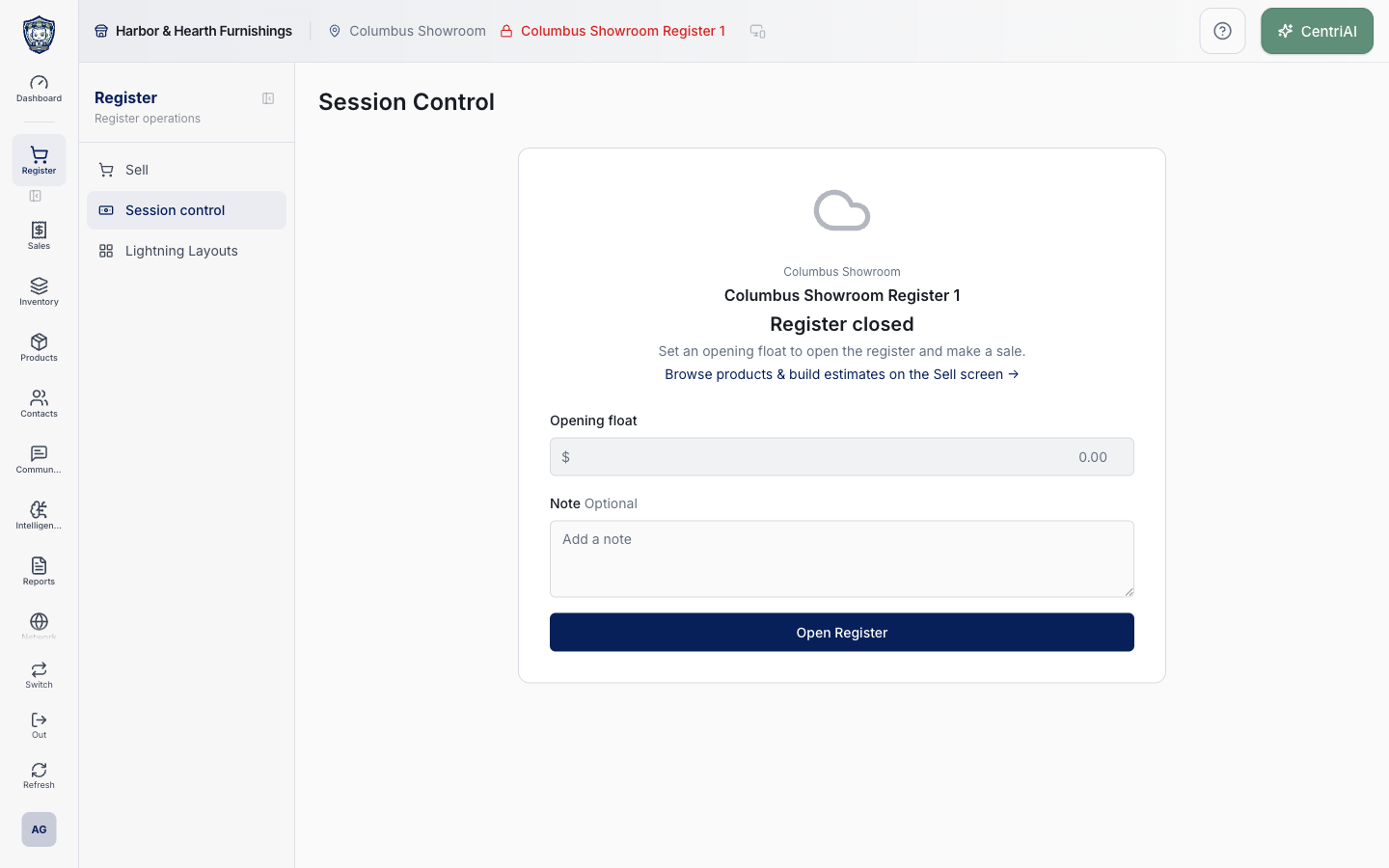
- Harbor & Hearth’s real Amelia Grant screenshot shows the fully loaded closed Session Control screen at 1440×900 with the actual Banknote navigation, opening-float form, optional note, and Open Register control. No float/note was entered, no session was opened, and no receipt, tender, customer, closure, or cash data is exposed.
Screen and contract reference
| Control or area | What it means |
|---|---|
| Banknote icon | Exact Register navigation icon for Session control. |
| Register closed | No active session for the selected register. |
| Last Report | Most recent closure’s time/user, expected cash, and difference. |
| View in Reports | Opens the durable Register Reports record for the prior session. |
| Opening float | Actual physical cash present before transaction activity; blank/invalid becomes 0. |
| Opening note | Optional persisted context stored with the opening operation. |
| Open Register | Creates the selected register session when the user has pos.register_open. |
| OPEN badge | Confirms an active session for the displayed location/register. |
| Drawer cash / drawer base | Opening float plus manual pay-ins minus pay-outs; excludes sale tenders. |
| Receipt Activity | Session receipts grouped by operational/register status. |
| Cash drawer movements | Opening float and manual Add/Remove cash only. |
| Add cash | Immediate pay_in drawer movement requiring a positive amount. |
| Remove cash | Immediate pay_out; current UI does not cap it at expected drawer cash. |
| Session Notes | Local working lines copied into Closing Note when the close dialog opens. |
| Internal Receipt Notes | Persisted sale-level notes displayed separately from closing notes. |
| Payments Collected | Session tender totals including existing-layaway payments; expandable to receipts. |
| A/R payments | Customer Account collections kept separate from register tender balancing. |
| Close Register | Opens tender-count and cash-summary reconciliation. |
| Expected | System-calculated tender amount. |
| Counted | User-entered independently verified amount. |
| Verification checkbox | Fills Counted with Expected; use only after verification. |
| Expected drawer cash | Opening float + pay-ins − pay-outs + Cash sale tenders. |
| Count mismatch warning | Explicit confirmation before closing with any mismatched tender. |
| Close Anyway | Finalizes an approved mismatch; requires documentation and follow-up. |
| Closing Note | Persisted closeout explanation; initially populated from Session Notes. |
| Background processor refresh | Attempted after successful close and does not roll back the closed session if it fails. |
| Register Report Summary | Printable last-closure evidence with tender, movement, difference, and note details. |
| Harbor & Hearth screenshot | Real Amelia Grant /register/session-control capture of the closed opening screen; no financial/customer data or state change. |
Expected result
The selected register shows an open session with the opening float and opening time recorded. Sell becomes available for that register, and new activity belongs to this session.
Troubleshooting
- Confirm the active location, register, and register-session status before repeating the action.
- Do not refresh or retry while a card terminal shows a payment in progress.
- If totals differ, review every cart line, discount, fulfillment charge, and tax before payment.
CentriPOS API explorer · API Center administration
More guides
Build an itemized payment in MoneyUse Products or Amount & description to build one receipt, attach the customer, and follow the appropriate payment or service-estimate workflow.
Take a one-time payment in Virtual TerminalReview a one-time amount, tax and contact at the correct payment station, use its verified secure checkout, and recover the original receipt after an uncertain result.
Review booking payments, refunds and earned careKeep a booking’s customer payments, unused advances, completed care, cancellation fees and refunds distinct, then read a correctly scoped accrual report.
Configure booking properties and customer pagesSet accommodations, service packages, availability, required intake and payment terms, then review the correctly branded booking page before sharing it.