
Order Intake currently reads submissions created by CentriPOS public price-book order forms. The page description mentions ecommerce and future channels, but this queue is backed by price_book_order_submissions; do not assume every online-store or WooCommerce order appears here. Most importantly, Review sale does not yet copy the customer or requested items into the Sell cart and does not convert the request to a sale. It marks the request Reviewing and opens Sell, where staff must verify and enter the transaction through the normal workflow.
Before you beginConfirm the customer-safe sale or order reference, its location, and its current fulfillment status before making a change.
Step by step
- Go to Sales → Order Intake. The navigation item and page heading use the Clipboard List icon. Work in the intended business; the query is tenant-scoped and newest submissions appear first.
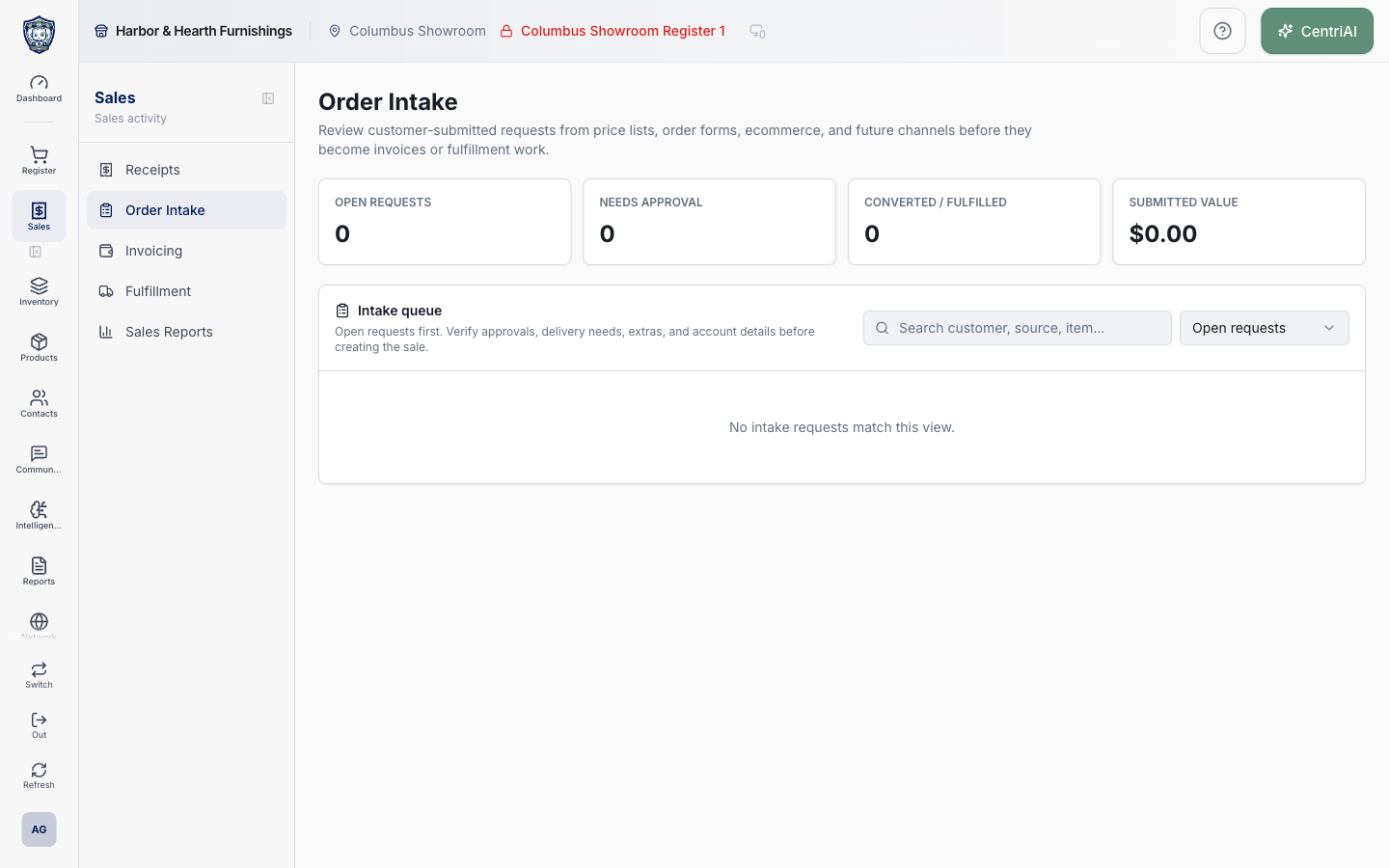
- Read the four summary cards across the full tenant queue. Open requests excludes Converted to sale, Fulfilled, and Cancelled. Needs approval counts only that status. Converted / fulfilled combines those two states. Submitted value adds every stored submission subtotal, including hidden-price, cancelled, and other statuses; it is not a filtered sales, payment, or revenue total.
- Use Search customer, source, item… to search the customer snapshot label, price-book name, source-template name, captured field labels/values, SKU, product, or variant. Search does not include the submission ID or status label.
- Use the status filter. Open requests is the default; All statuses includes terminal states; the exact choices are Submitted, Reviewing, Needs approval, Approved, Converted to sale, Fulfilled, and Cancelled. “No intake requests match this view” means the current tenant, filter, and search produced no rows.
- For each request, confirm the customer/company label, Submitted time and timezone, line count, total units, price-book badge, Source form badge, submitter email, requested copy recipients, and pricing state. Pricing hidden means staff should not treat the stored subtotal as a customer-approved displayed quote.
- Review Requested items. The card shows at most the first eight lines, with quantity, SKU/product/variant, and line total when the source template includes prices; a +N more message means the copied summary or source record must be checked for the remaining lines.
- Review Fields & approvals. Submitter email and copy recipients are shown separately; other captured custom fields and typed signature/approval values are listed here, up to eight displayed entries. “No additional fields captured” does not mean the customer approved terms that were never collected.
- Choose Copy intake to place a plain-text summary on the clipboard. It includes source price list/form, customer label, submitted time, current status, item quantities and identities, optional prices/subtotal, other order fields, and typed approvals. Review the text and recipient before pasting it because it can contain customer and order data.
- Choose Source price list to open the exact Customer Pricing record behind the request. Use it to verify the source catalog and form; do not change the source merely to make an old submitted snapshot look current.
- When clarification or authorization is still needed, choose Needs approval or select that status. This changes only the intake status and shows a confirmation toast; the button does not send an email, text, approval link, or notification despite its Mail icon. Contact the customer through an approved communication workflow and document the response separately.
- Use the status selector deliberately. A status change writes immediately—there is no separate Save or confirmation dialog—and refreshes the intake and price-book queries. Submitted, Reviewing, Needs approval, Approved, Converted to sale, Fulfilled, and Cancelled are tracking labels; changing one does not itself create, pay, fulfill, cancel, or edit a sale.
- Choose Review sale only when ready to work the request. Current behavior first updates its status to Reviewing and then opens /register/sell with the submission, price book, and customer IDs in navigation state. The current Sell implementation does not consume that state to load a cart or customer automatically.
- In Sell, confirm the active location, register, session, customer, current source price, tax, fulfillment, notes, approvals, inventory, and payment terms. Manually add and verify the approved items and quantities through the normal sale workflow. Do not promise the customer the submitted estimate until staff has validated it.
- Complete or save the transaction only through the applicable Sell workflow. Then return to Order Intake and set Converted to sale only after a matching sale actually exists, or Fulfilled only after the downstream fulfillment is truly complete. The intake record currently has no visible linked-sale ID, receipt link, conversion audit, or automatic status reconciliation.
- Use Cancelled only for a request the business has actually declined or withdrawn under its policy. Because status changes are immediate and the screen has no history/undo panel, verify the request before changing a terminal label and use operational records for any required reason or customer communication.
Screen and contract reference
| Control or area | What it means |
|---|---|
| Clipboard List icon | Exact CentriPOS navigation/page icon for Order Intake. |
| Open requests | Count/filter excluding Converted to sale, Fulfilled, and Cancelled; Approved remains open. |
| Needs approval | Count and status for requests awaiting clarification or authorization. It does not send a message. |
| Converted / fulfilled | Combined count of requests whose manually tracked status is Converted to sale or Fulfilled. |
| Submitted value | Sum of stored subtotals for the entire loaded tenant queue, not the visible filter and not booked revenue or collected payment. |
| Search customer, source, item… | Matches customer label, price book, source form, captured fields, SKU, product, and variant. |
| Status filter | Open requests, All statuses, or one exact tracking status. |
| Customer / company label | Uses captured company, then name, email, phone, or Online customer fallback. |
| Price list badge | Price book associated with the public submission. |
| Source badge | Public form template that produced the request. |
| Pricing hidden | The source template did not display prices; item prices and subtotal are suppressed in the queue summary. |
| Requested items | First eight captured lines with quantity and identity, plus price when the source included it. |
| Fields & approvals | Up to eight non-contact custom fields and typed approval/signature values captured by the form. |
| Copy intake | Copies customer/order content to the clipboard; verify privacy and destination before sharing. |
| Source price list | Opens the originating Customer Pricing record. |
| Needs approval button | Immediately changes the tracking status to Needs approval; despite its Mail icon, it sends no customer communication. |
| Status selector | Immediately saves one of seven tracking states without a separate Save button. |
| Review sale | Marks Reviewing and navigates to Sell with context only. It does not hydrate the cart/customer or create a sale. |
| Converted to sale | Manual tracking label to use only after a matching sale was actually created. |
| Fulfilled | Manual tracking label to use only after the downstream work was actually fulfilled. |
| Cancelled | Manual intake label; it does not void or cancel a separate sale. |
| No automatic linkage | The current intake UI shows no sale/receipt ID, automatic conversion, fulfillment reconciliation, status history, or undo. |
| Harbor & Hearth screenshot | Real Amelia Grant capture of /sales/order-intake in a fully rendered zero-request state. It accurately shows the Clipboard List icon, summary cards, search, filter, and empty queue without exposing customer data. |
Expected result
The incoming order is matched or flagged accurately and continues into the correct CentriPOS payment and fulfillment workflow without being duplicated.
Troubleshooting
- Keep the current receipt or order filters in place while opening details.
- Check the record status and activity before repeating a send, return, or fulfillment action.
- Use a safe receipt or order reference when contacting support.
CentriPOS API explorer · API Center administration
More guides
Build an itemized payment in MoneyUse Products or Amount & description to build one receipt, attach the customer, and follow the appropriate payment or service-estimate workflow.
Take a one-time payment in Virtual TerminalReview a one-time amount, tax and contact at the correct payment station, use its verified secure checkout, and recover the original receipt after an uncertain result.
Review booking payments, refunds and earned careKeep a booking’s customer payments, unused advances, completed care, cancellation fees and refunds distinct, then read a correctly scoped accrual report.
Configure booking properties and customer pagesSet accommodations, service packages, availability, required intake and payment terms, then review the correctly branded booking page before sharing it.