
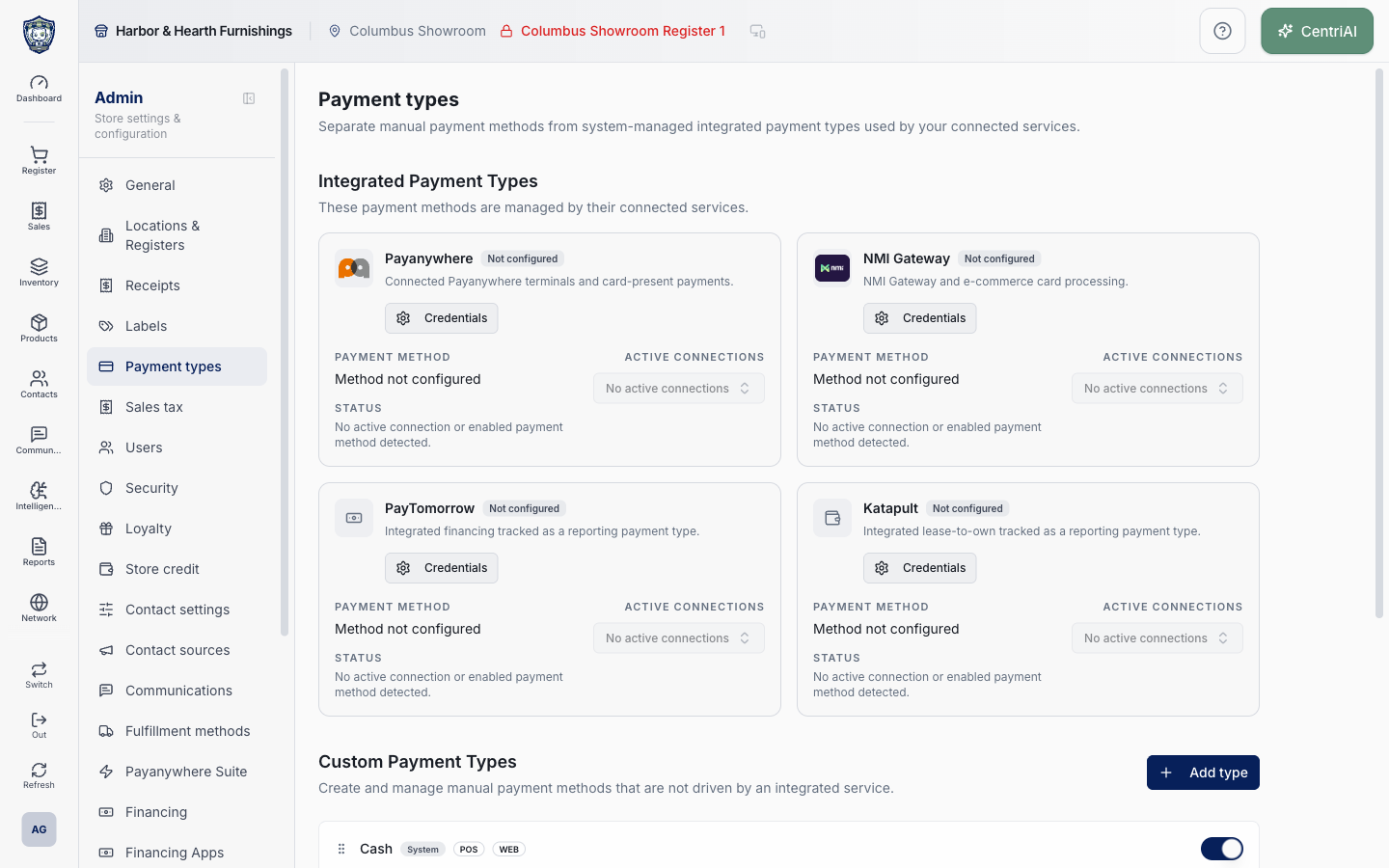
Go to Admin → Payment types only with settings.payment_types authority. Credentials, merchant IDs, API keys, terminal identifiers, and connection details are sensitive. The attached Harbor & Hearth screenshot is a real read-only capture showing provider names and not-configured states only; it exposes no credentials or transactions.
Before you beginUse an authorized administrator account and confirm the business shown in the top bar. Record the previous value before changing a live operational setting.
Step by step
- Open Admin → Payment types. Read the page’s central distinction: Integrated Payment Types are managed by connected services; Custom Payment Types are manual methods that are not driven by an integrated service.
- Review each integrated provider card: Payanywhere for connected terminals/card-present payments, NMI Gateway for gateway/ecommerce processing, PayTomorrow for financing reporting, and Katapult for lease-to-own reporting.
- For each card, compare Reporting payment type, Status, and Active connections. A provider is Active only when an active connection and an enabled matching reporting payment type both exist. The reporting row alone does not mean processing is connected.
- Interpret nonactive states precisely: Needs attention means saved/active service details are incomplete or its reporting row is disabled; Needs reporting type means a connection exists without an enabled matching row; Payment type only means the row exists without active connections; Disabled means the row exists disabled with no active connection; Not configured means neither was detected.
- Open Active connections only to inspect the location-level connection summary. Payanywhere derives it from active terminal devices; NMI uses master gateway settings or register overrides; financing uses provider settings on registers. Do not copy identifiers or credentials into support material.
- Use Credentials to open the provider’s dedicated secure setup page: in-store CentriPay for Payanywhere, online CentriPay for NMI, or Financing Apps for PayTomorrow/Katapult. Use Method to open the mapped payment-type detail. These are separate controls because a processor connection and reporting row solve different problems.
- Under Custom Payment Types, review the name, System status, POS/WEB badges, description, enabled switch, and row menu. An enabled custom row is still manual unless another documented integration actually invokes a processor.
- Choose Add type to select a preset or create a custom method. Presets include Cash, card labels, BNPL, digital wallets, Gift Card, Store Credit, Bank Transfer, QR Code, and Other, but choosing a preset creates a payment-type definition—not the third-party integration named by its label.
- Enter a unique, cashier-readable Name and optional Description. Choose POS and/or WEB channels, then choose at least one active location when locations exist. If every active location is selected, CentriPOS stores it as unrestricted; a subset becomes an explicit location list.
- Choose Add payment type. Success reports Payment type added and opens its detail page. If the new name overlaps an integrated alias such as CentriPay Cloud/Gateway, PayTomorrow, or Katapult, it can be classified into the integrated section; use the canonical reporting name intentionally.
- On the detail page, verify Payment information: name, immutable underlying type label, description, POS/WEB channels, and Locations. A Pay-screen method requires enabled status, POS support, current-location assignment, and—when noncash—Show in manual payment list.
- For noncash types, set Sell screen visibility. Keep manual exposure off for integrated/reporting/import-only rows unless cashiers truly need to record an already-completed outside transaction. Turning it on does not make CentriPOS call that provider.
- Configure Payment reference when the cashier must enter an external ID. Check forces reference collection. For other custom types, enable Collect a payment ID at checkout and set the exact Field label, Placeholder, and Instruction line staff can verify.
- For Cash, choose the rounding increment used when cash finishes a balance and decide whether to Conceal totals during register review. Conceal totals hides cash takings until the register is closed; it is not a substitute for permissions or reconciliation.
- For a noncash type, treat Gateway URL as an optional external-system endpoint field, not proof that a complete authenticated processor flow exists. Use the supported CentriPay/financing configuration for those named integrations. Terminal pairing for PAX/CentriPay/EPX-like rows is managed per register in Locations & registers.
- Use Enabled to make the type eligible under its other filters, then Save payment type. Success reports Payment type saved and refreshes POS/refund choice caches. Test from each allowed and disallowed location/channel; verify checkout visibility, reference requirement, receipt label, reports, refunds, register closure, and accounting export.
- Disable a custom type when it should stop appearing while preserving the definition/history. Edit can update name, description, channels, and locations. Delete is unavailable for system rows and permanently removes a custom row after confirmation; prefer disable when historical/reporting continuity is uncertain.
Screen and contract reference
| Control or area | What it means |
|---|---|
| Integrated Payment Types | Connected-service cards for Payanywhere, NMI Gateway, PayTomorrow, and Katapult. |
| Reporting payment type | CentriPOS row used to label/report the service’s transactions. |
| Active | Both an active service connection and enabled matching reporting row exist. |
| Needs attention | Saved or active service setup exists but required activation/credentials or enabled reporting row is missing. |
| Needs reporting type | Active connections exist without an enabled matching payment row. |
| Payment type only | Enabled reporting row exists without an active service connection. |
| Disabled | Matching payment row exists disabled with no active service connection. |
| Not configured | No active connection or matching reporting row detected. |
| Active connections | Location summaries derived from terminals, gateway master/overrides, or register financing settings. |
| Credentials | Navigates to the provider-specific secure setup; never expose the values. |
| Method | Opens the mapped reporting payment-type detail. |
| Custom Payment Types | Manual definitions not currently classified as integrated provider rows. |
| Add type | Preset search or custom-definition entry point. |
| Preset | Seeds name/description only; it does not connect the named processor. |
| POS / WEB | Channel filters; empty/unrestricted behavior differs from explicitly excluding POS. |
| Locations | All active locations stores no restriction; a subset stores explicit IDs; zero is rejected when locations exist. |
| System | Protected row whose delete control is unavailable. |
| Enabled | Master eligibility switch; other channel/location/manual-list filters still apply. |
| Show in manual payment list | Noncash control exposing a manual cashier record option. |
| Collect a payment ID | Adds an amount/reference step at checkout; Check forces it. |
| Field label / Placeholder / Instruction line | Cashier-facing reference guidance. |
| Rounding | Cash increment applied when cash completes the balance. |
| Conceal totals | Hides cash takings during open-register report review until closure. |
| Gateway URL | Optional external URL field; not evidence of credentials, authentication, or successful processing. |
| Terminal integration | Directs pairing to Locations & registers. |
| Save payment type | Persists configuration and refreshes payment/refund choice queries. |
| Disable vs delete | Disable preserves the definition; delete permanently removes a non-system row. |
| Real Harbor & Hearth screenshot | Read-only Admin → Payment types capture with unconfigured provider statuses and no sensitive credentials, identifiers, or transactions. |
Expected result
The payment type appears only at its allowed locations and channels, collects the intended reference information, and completes the controlled test correctly.
Troubleshooting
- Confirm you are changing the intended business and location before saving.
- Record the previous setting when a change affects live selling, payments, tax, or integrations.
- Use a controlled test record after saving before rolling the setting out broadly.
CentriPOS API explorer · API Center administration
More guides
Build an itemized payment in MoneyUse Products or Amount & description to build one receipt, attach the customer, and follow the appropriate payment or service-estimate workflow.
Take a one-time payment in Virtual TerminalReview a one-time amount, tax and contact at the correct payment station, use its verified secure checkout, and recover the original receipt after an uncertain result.
Review booking payments, refunds and earned careKeep a booking’s customer payments, unused advances, completed care, cancellation fees and refunds distinct, then read a correctly scoped accrual report.
Configure booking properties and customer pagesSet accommodations, service packages, availability, required intake and payment terms, then review the correctly branded booking page before sharing it.