
QuickBooks Historical Import uses the Arrow Down To Line icon and is separate from QuickBooks Online OAuth/synchronization. It is a direct-write migration tool with no row preview, dry run, duplicate detection, undo, purge, or rollback. Contrary to the screen description, the current function reports products_created 0 and customers_created 0: it creates completed sales, denormalized sale lines, payments, and missing payment-type labels; it only links existing products/customers when exact matching succeeds. Re-importing the same receipt can create a duplicate QB-<receipt> sale.
Step by step
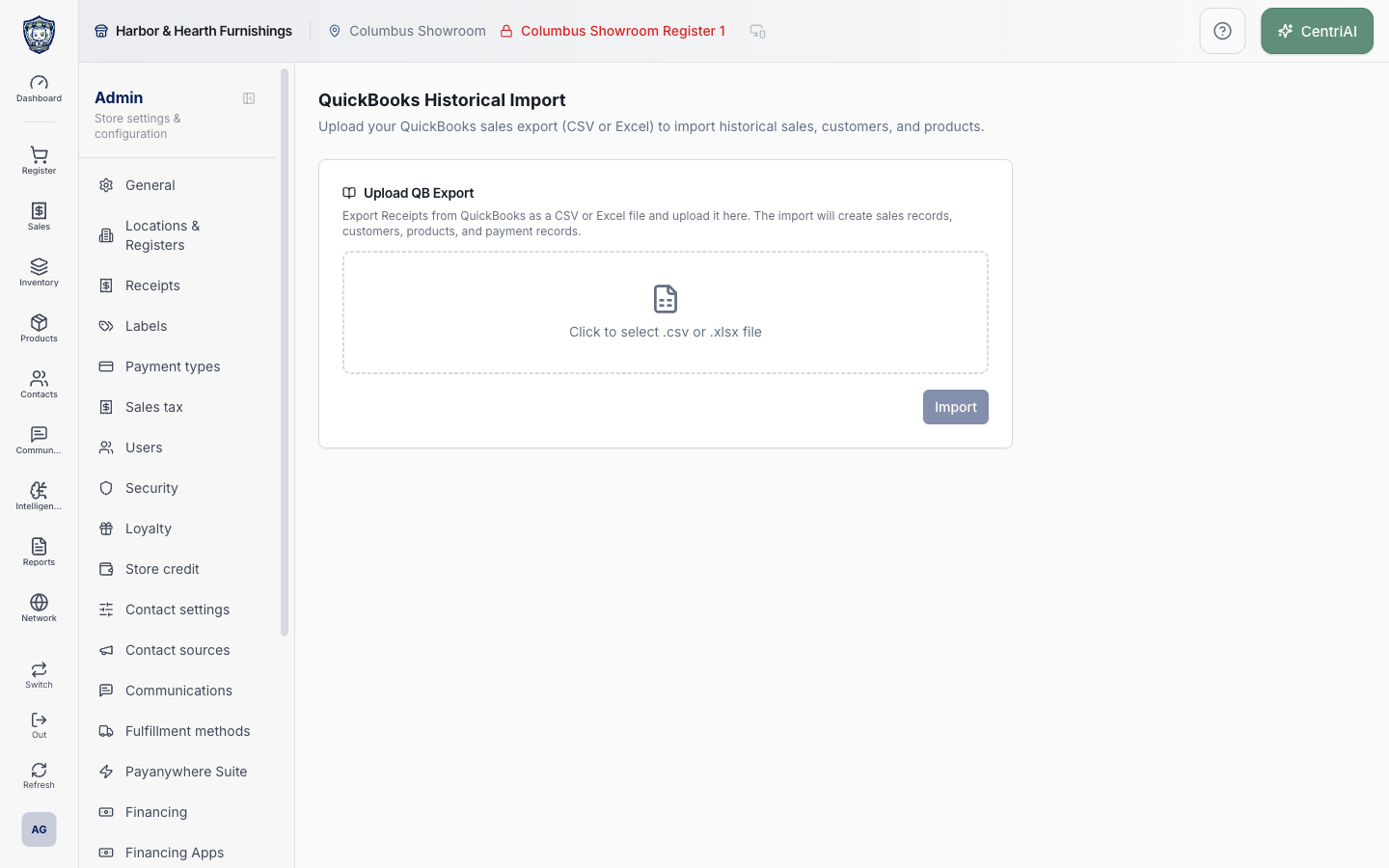
- Go to Admin → QuickBooks Historical Import in the intended business. Confirm the Arrow Down To Line navigation icon and Upload QB Export card. Do not confuse this with Admin → QuickBooks Online or the Lightspeed migration console.
- Prepare a reviewed export in the importer’s exact positional structure, not an arbitrary QuickBooks report. It reads only the first worksheet and skips the first row. A sale header must have Receipt # in column C and the literal Sales in column F; it reads Date A, customer G, total L, payment M, and store O. Following item rows read SKU D, product name E, quantity I, and line amount K.
- The file control accepts .xlsx, .xls, and .csv even though its visible prompt says .csv or .xlsx. Parsing loads SheetJS from its CDN in a browser worker, ignores formulas/styles/date typing, reads at most 200,000 worksheet rows, and uses only the first sheet. Confirm network/privacy policy permits this client-side parser dependency.
- Create a small controlled file externally containing a few representative receipts in the exact layout. The page has no date range, row selector, receipt preview, column mapping, header validation, company identifier, duplicate scan, or file-content redaction before import.
- Choose the file and wait for Reading, Parsing spreadsheet, Converting to rows, and Parsing sales to finish. The screen shows only parsed sale and line-item counts, not receipt/customer/item/payment details. “No sales found” means no qualifying headers with item rows were detected; do not import by changing random columns.
- Be aware that the UI’s cap toast says 100,000 rows while the current worker actually sets and detects a 200,000-row cap. Treat any capped result as incomplete and split/reconcile the source deliberately.
- Review Map QB store codes to locations. The importer detects nonblank store strings from parsed sales and may auto-map by case-insensitive substring against location names. Auto-match is a suggestion, not proof. Select the exact destination for every code; Import remains disabled unless at least one store was detected and all detected codes are mapped.
- Before Import, audit existing sales for each planned QB-<receipt number>. The importer does not check for an existing sale number/source receipt and the database write path does not upsert. Running the same file twice can create duplicate completed sales, lines, and payments.
- Understand customer matching. It normalizes the export name and existing customer/company names by lowercasing, changing & to and, removing punctuation, and collapsing spaces. Exactly one matched customer ID is attached. Zero matches leaves the sale customer null and records the raw name in the sale note; multiple matches also leave it null and report Ambiguous. No customer is created.
- Understand product matching. Each item first looks for an exact tenant product SKU, then an exact product name. A match links product_id. No match still creates a receipt line whose name is suffixed (QB Import), with the source SKU, but creates no catalog product. Variant matching is not performed and cost is always 0.
- Understand payment behavior. The importer matches payment types case-insensitively by name and creates an enabled payment_type row when none exists. It then creates one completed payment for the sale total or computed subtotal. Review unsupported/legacy tender names before import so they do not silently become new enabled reporting methods.
- Understand historical sale values. Each record is inserted Completed with sale number QB-<receipt>, destination location, subtotal from line amounts, discount and tax 0, total/amount paid from nonzero export total or subtotal, change and balance 0, and a QB Import note. Date text is parsed as M/D/YY or M/D/YYYY at local noon then stored as an ISO timestamp. No register, register session, tax reconstruction, discounts, returns, account balance, or inventory movement is derived here.
- Choose Import <N> sales once. The browser sends sequential batches of 50 to the function and updates a percentage. There is no cancel button. A failed batch or individual receipt does not roll back earlier successful batches/rows, and a sale can exist even if one of its later line/payment writes reports a problem.
- Read Import Complete as counts, not reconciliation: sales, line items, products created (currently 0), customers matched, unmatched, ambiguous, and up to 20 displayed warnings. The client aggregates batch warnings and appends up to 25 ambiguous/unmatched names; those names are customer data and must not be copied publicly.
- If any warning/error occurs, stop. Check whether the affected QB sale and partial child rows already exist before retrying. There is no Import History, job ID, undo, delete-import, or source-batch identifier on this screen beyond the QB sale number/note. Use an approved surgical data-repair process if rollback is required.
- After a clean controlled batch, reconcile source versus CentriPOS receipt count/IDs, location, customer link/unmatched note, item names/SKUs/quantities/amounts, subtotal/total, payment type/amount, timestamps, zero tax/discount/cost assumptions, and reporting behavior. Only then proceed with another nonoverlapping reviewed file.
- Choose Import Another File only after preserving evidence of the completed batch. It clears the page state; it does not undo or deduplicate anything already written. Maintain an external import ledger of company, file hash/name, row/receipt range, store mappings, time, operator, counts, warnings, and reconciliation signoff.
Screen and contract reference
| Control or area | What it means |
|---|---|
| Arrow Down To Line icon | Exact CentriPOS navigation icon for QuickBooks Historical Import. |
| Upload QB Export | Direct-write historical receipt importer, separate from QBO sync. |
| Accepted file control | .xlsx, .xls, or .csv; first worksheet only. |
| Expected header row | Date A, Receipt # C, Sales marker F, customer G, total L, payment M, store O. |
| Expected item row | SKU D, product name E, quantity I, line amount K beneath its header. |
| 200,000-row parser cap | Actual worker limit; the UI toast currently misstates 100,000. |
| Parsed counts | Sale/header groups with at least one product-name line; not a record preview. |
| Store mapping | Every detected source store must map to one current CentriPOS location; substring auto-map requires review. |
| Import button | Sends direct-write batches of 50; no dry run, confirmation, cancel, or rollback. |
| QB-<receipt> | Generated CentriPOS sale number; no existing-sale duplicate check is performed. |
| Customer matching | Exact one-result normalized name/company match only; unmatched/ambiguous sales have no customer link. |
| No customer creation | Current function returns customers_created 0. |
| Product matching | Exact SKU first, then exact name; no variant match. |
| No product creation | Unmatched items become denormalized sale lines suffixed (QB Import); products_created remains 0. |
| Payment type creation | Unknown nonblank method creates an enabled tenant payment-type label. |
| Imported sale assumptions | Completed, zero tax/discount/cost/change/balance, fully paid, no register/session or inventory reconstruction. |
| Batch partial-write risk | Earlier batches and parent/child writes are not rolled back when a later operation fails. |
| Import Complete | Aggregated counts and warnings; not proof of source reconciliation. |
| Import Another File | Clears local UI state only; previously imported data remains. |
| No built-in history/undo | Screen provides no import job ledger, batch ID, dedupe, purge, or rollback. |
| Harbor & Hearth screenshot | Real Amelia Grant capture of /admin/qb-import in the pristine upload state. It shows no selected file and exposes no accounting, customer, product, receipt, or payment data. |
Expected result
The reviewed historical import creates only the intended customer-safe accounting history, records source references and exceptions, and does not duplicate existing CentriPOS records.
Troubleshooting
- Confirm you are changing the intended business and location before saving.
- Record the previous setting when a change affects live selling, payments, tax, or integrations.
- Use a controlled test record after saving before rolling the setting out broadly.
CentriPOS API explorer · API Center administration