
Admin → Sales tax uses the Receipt icon. Tax configuration is legal and financial policy, not a recommendation from CentriPOS. ZIPTax location sync performs multiple sequential lookups and writes without an all-or-nothing transaction; a failure can leave earlier locations changed. Nexus and Always collect save immediately. Manual rate percentages lock after creation, while names remain editable. Confirm requirements with a qualified tax professional and test actual calculations in every channel.
Before you beginUse an authorized administrator account and confirm the business shown in the top bar. Record the previous value before changing a live operational setting.
Step by step
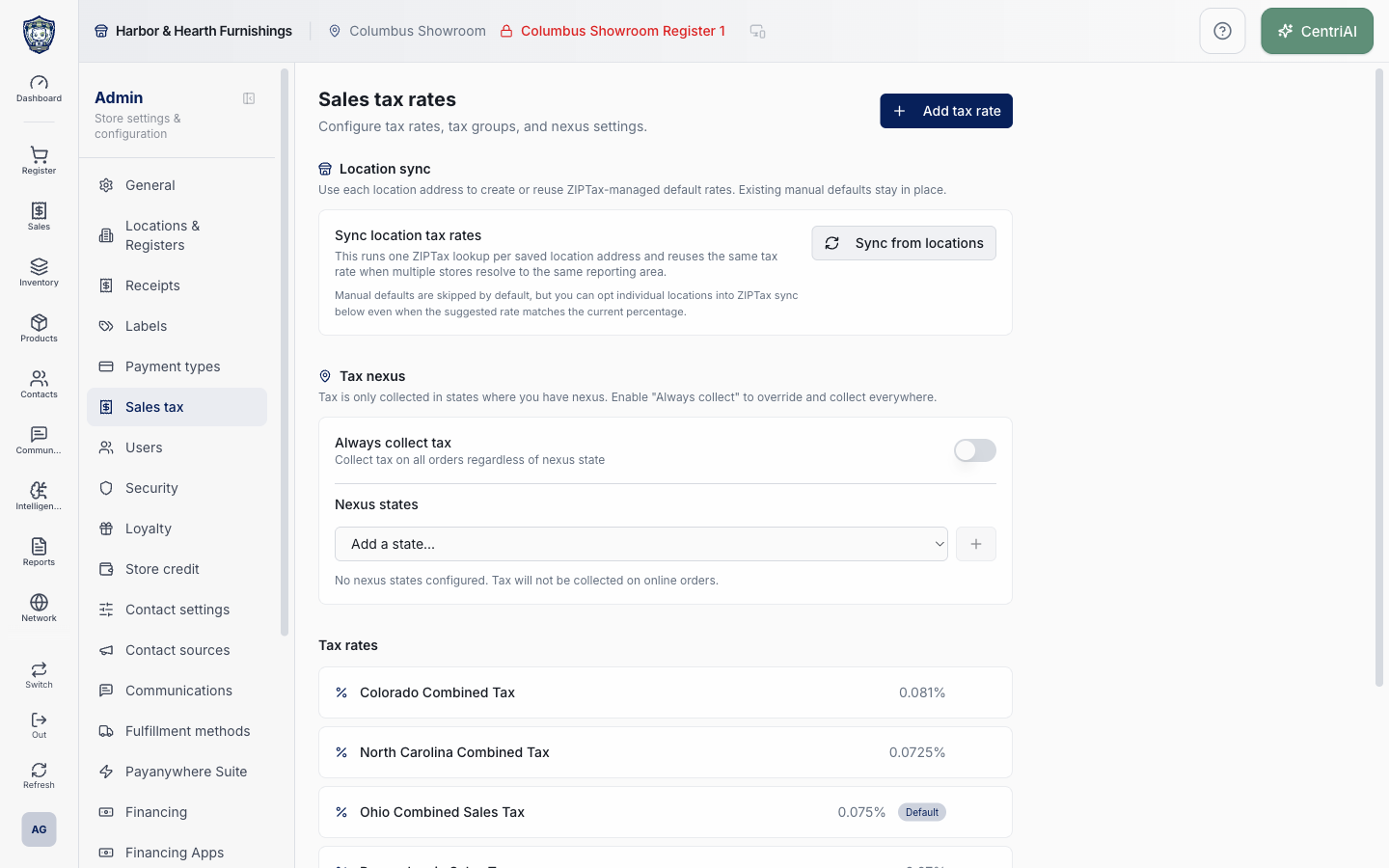
- Go to Admin → Sales tax, identified by the Receipt icon. Wait for Sales tax rates to finish loading, then inventory Location sync, Tax nexus, Tax rates, and Tax groups before changing anything.
- Before ZIPTax sync, go to Admin → Locations & Registers and verify every saved location address is complete, current, and geocodable. ZIPTax sync is enabled only when the tenant country is United States; non-US tenants see an availability message and a disabled button.
- Understand what Sync from locations does. It processes saved locations one at a time, looks up the address in ZIPTax, creates or reuses a ZIPTax-managed rate for the resolved reporting area, records provider/source metadata, and assigns that rate as the location default when allowed.
- Multiple stores resolving to the same ZIPTax source key reuse one managed rate. Existing ZIPTax-managed defaults can have their percentage, generated name, normalized address, source payload, and last-synced time refreshed after an address/rate change.
- A location with no address, an unresolvable/nonpositive lookup, a broken managed mapping, or an existing manual default is skipped. A manual default is not silently overwritten; the result shows Current and ZIPTax percentages and offers Use ZIPTax sync (same rate) or Replace with ZIPTax sync when applicable.
- Choose Sync from locations only after recording the current location defaults/rates and approving the change window. The operation is sequential and not transactional: earlier creates, updates, and assignments are not automatically rolled back if a later location throws an error.
- Read every result row, not just the summary badges. Created means a managed rate was created and assigned; Reused means an existing managed rate was assigned; Updated means managed rate/source or assignment changed; Skipped can mean already current, intentionally protected manual default, missing address, lookup failure, or broken mapping.
- If a manual-default result offers an opt-in button, compare Current, ZIPTax, and normalized address. Choosing it immediately creates/reuses and assigns a managed rate—even when the percentage is identical—so future sync can refresh it. There is no second confirmation or rollback button.
- After sync or opt-in, reopen Admin → Locations & Registers and verify each location’s Default sales tax. Check any register-specific tax override because it can continue to supersede the location default. Keep obsolete manual rates until assignments and downstream mappings are reviewed.
- Under Tax nexus, understand the current online-order rule: when Always collect is off, supported online checkout collects only when the destination state is listed as nexus, tax is not disabled, and the customer is not tax-exempt. No states means the page warns online orders will not collect tax.
- To add nexus, choose an unlisted US state/DC abbreviation and +. To remove one, choose X on its chip. Each action saves the entire sorted nexus list immediately and logs a settings update; there is no page-level Save or confirmation. Wait for Tax nexus settings saved and test before another change.
- Always collect tax immediately stores the override and hides the Nexus states editor while on. It instructs supported checkout to treat all destination states as having nexus; it does not determine the correct jurisdiction/rate, validate registrations, or make collection lawful. Enable only under approved tax advice.
- Choose Add tax rate to create a manual rate. Enter a required stable Name and Rate as a percentage, such as 8.25 for 8.25%. The UI currently has no min/max validation, so it can submit negative, excessive, or otherwise unreasonable numeric values. Enter only a reviewed finite nonnegative percentage.
- Choose Add tax rate once and wait for Tax rate added. The new rate is not automatically made Default or assigned to a location/register by this form. Assign it separately under Locations & Registers, then test the exact register and channel.
- A ZIPTax badge identifies a rate with provider source metadata. Default identifies the row’s global is_default flag, but this screen has no control to set/unset that flag. Location default and register override are separate settings and may matter more for the operational sale.
- Use Pencil to edit only Tax name. The displayed Tax rate percentage is locked after creation to preserve reporting accuracy. To change a percentage, create a new approved rate, reassign intended locations/registers/mappings, test, and only then consider retiring the old rate.
- Renaming a ZIPTax-managed rate can be temporary: future sync updates the generated name when the name is blank, still equals the prior provider label, or starts with ZIPTax. Use a deliberate custom name that does not start with ZIPTax only when operational policy requires it, and verify later sync behavior.
- Use Trash only after auditing location defaults, register overrides, products/tax groups, open carts/orders, saved/layaway/account receipts, online checkout, QuickBooks tax mappings, reports, and integrations. The confirmation says historical sales are unaffected, but current assignments or foreign-key constraints can make deletion fail.
- Confirm Delete only for the exact named percentage. There is no restore action. Preserve the rate when it remains necessary to interpret active configuration or reconcile historical/accounting evidence.
- Tax groups are read-only rows on this page. There is no create, edit, membership, rate assignment, or delete control in the current component. No tax groups configured is a completed empty state, not a failed load.
- Test a matrix after every change: location-default and register-override in-store sales; taxable/non-taxable products; tax-exempt and ordinary customers; discounts; returns/exchanges; pickup/delivery/shipping and shipping-taxability; e-cart/online destinations inside/outside nexus; Always collect; rounding; receipts; Sales Tax reports; register closure; and QuickBooks mappings/sync.
- For an unexpected amount, capture the business/location/register, customer exemption, destination, channel, item taxability, assigned rate ID/name/percentage, nexus/Always collect state, discounts, and receipt. Do not repair financial records or change a rate merely to make one receipt look right.
- Harbor & Hearth’s real Amelia Grant screenshot shows the loaded /admin/taxes screen at 1440×900 with the actual Receipt navigation icon and tax-configuration summary. No ZIPTax synchronization, nexus change, rate creation/edit/deletion, location assignment, or customer/transaction data was invoked or exposed.
Screen and contract reference
| Control or area | What it means |
|---|---|
| Receipt icon | Exact Admin navigation icon for Sales tax. |
| Location sync | US-only ZIPTax orchestration across saved location addresses. |
| Sync from locations | Sequential multi-location lookup/create/reuse/update/assignment operation; not an all-or-nothing transaction. |
| Created | New ZIPTax-managed rate/source created and assigned. |
| Reused | Existing managed reporting-area rate assigned. |
| Updated | Managed rate/source and/or assignment refreshed. |
| Skipped | Already current, protected manual default, missing/unresolved address, invalid lookup, or broken mapping. |
| Normalized address | Provider-resolved address evidence shown in a sync result. |
| Current / ZIPTax | Existing manual rate comparison with provider suggestion. |
| Use ZIPTax sync (same rate) | Switches a matching manual default to a provider-managed equivalent. |
| Replace with ZIPTax sync | Replaces a differing manual location default with the managed rate. |
| ZIPTax badge | Rate has provider source metadata and can be refreshed by later sync. |
| Tax nexus | Immediate tenant list used by supported destination-based online tax decisions. |
| Always collect tax | Immediate tenant override treating all destination states as nexus in supported checkout. |
| Add a state / X | Immediate full-list nexus save; no page-level Save. |
| Add tax rate | Creates a manual name and immutable percentage. |
| Rate (%) | Percentage units; current UI lacks reasonable range validation. |
| Default badge | Global is_default marker with no editor on this screen. |
| Pencil | Renames a rate only; percentage stays locked. |
| Trash / Delete | Confirmed permanent rate deletion; no restore and assignments may block it. |
| Tax groups | Read-only list in the current page. |
| Location default | Separate Admin → Locations & Registers assignment. |
| Register override | Separate register-level tax choice that can supersede location default. |
| Historical sales boundary | Deletion confirmation says historical sales are unaffected; still verify active dependencies and reporting. |
| Harbor & Hearth screenshot | Real Amelia Grant /admin/taxes capture; no tax mutation or transaction/customer data exposed. |
Expected result
Representative taxable, exempt, and non-taxable test carts calculate as expected for the selected location.
Troubleshooting
- Confirm you are changing the intended business and location before saving.
- Record the previous setting when a change affects live selling, payments, tax, or integrations.
- Use a controlled test record after saving before rolling the setting out broadly.
CentriPOS API explorer · API Center administration
More guides
Build an itemized payment in MoneyUse Products or Amount & description to build one receipt, attach the customer, and follow the appropriate payment or service-estimate workflow.
Take a one-time payment in Virtual TerminalReview a one-time amount, tax and contact at the correct payment station, use its verified secure checkout, and recover the original receipt after an uncertain result.
Review booking payments, refunds and earned careKeep a booking’s customer payments, unused advances, completed care, cancellation fees and refunds distinct, then read a correctly scoped accrual report.
Configure booking properties and customer pagesSet accommodations, service packages, availability, required intake and payment terms, then review the correctly branded booking page before sharing it.