
The current Inventory → Saved Reports screen can create, list, and deactivate inventory-summary records, but it does not save the filters, columns, grouping, location scope, or date logic from another report. Its Schedule automatic delivery fields are stored, yet no report-generation or email-delivery worker is present in the current customer-visible implementation. Open navigates to /inventory/reports?slug=…, a route whose approved Harbor & Hearth inspection did not resolve to a finished Inventory Reports view. Treat this screen as an in-progress registry, not a dependable reporting or delivery workflow.
Step by step
- Go to Inventory → Saved Reports. The navigation uses the Bookmark icon; the page describes itself as Manage scheduled and bookmarked reports.
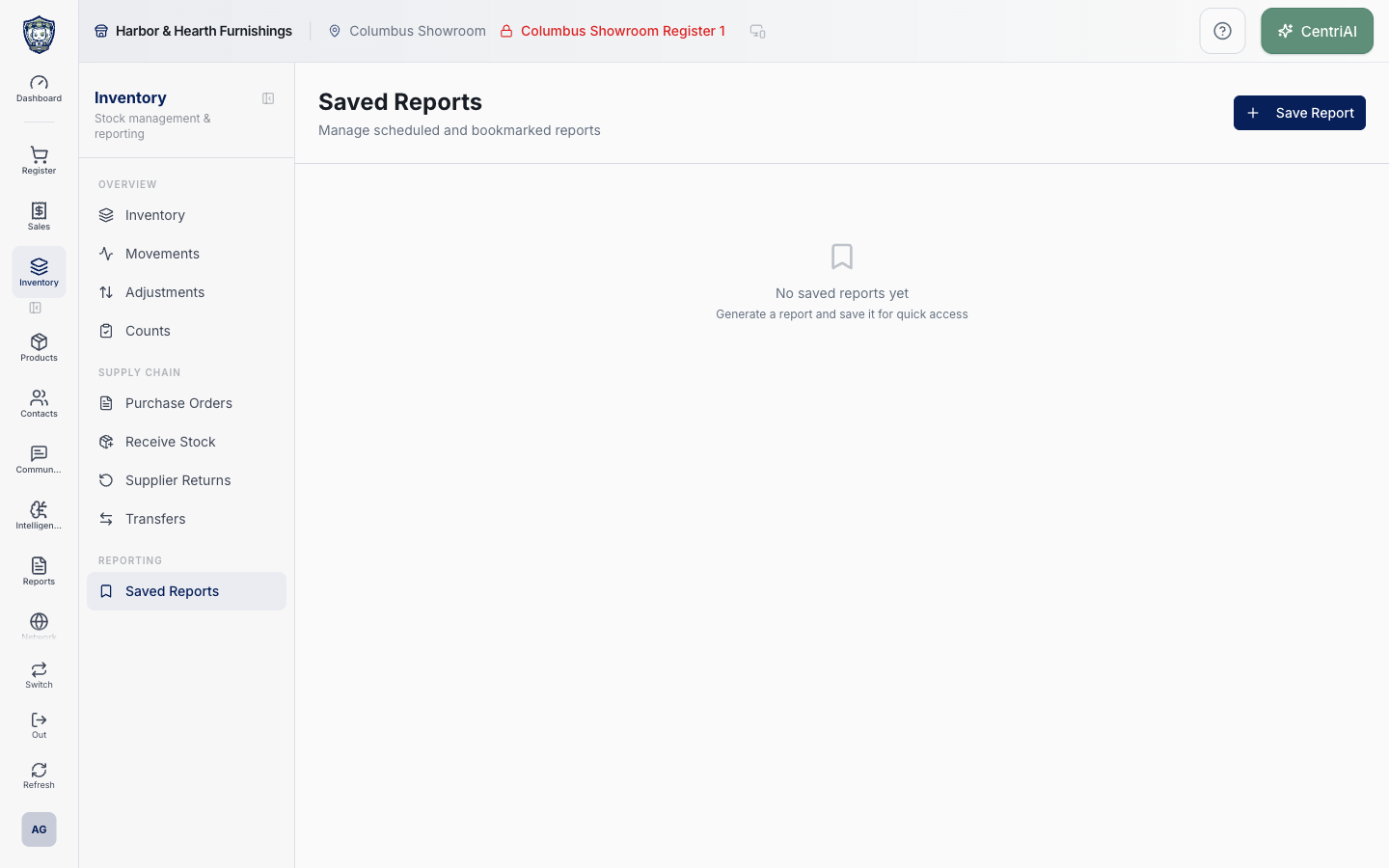
- Wait for the loading spinner to finish. The list is tenant-scoped, includes only active saved_reports rows, and orders newest records first. “No saved reports yet” is a fully rendered empty state, not proof that Inventory data is missing.
- If records exist, read the report name, type badge, creation date, Scheduled badge, recipient count, and creator name. These labels describe stored metadata; they do not prove a report has successfully run, refreshed, or reached any recipient.
- Choose Save Report only if you intentionally want to create a named inventory_summary registry record. Enter Report Name. The current dialog does not capture a source report, locations, products, filters, columns, grouping, date range, format, or timezone.
- Leave Schedule automatic delivery off unless CentriPOS support has separately confirmed an active delivery service for this tenant. Turning it on reveals a raw Schedule (cron) string and comma-separated Recipients field; the default string is 0 8 * * 1 and the UI labels it every Monday at 8:00 AM, but the page does not identify a timezone.
- If scheduling has been explicitly approved, confirm every recipient address and the intended schedule outside this screen before saving. The client splits recipients on commas and stores nonblank text; it does not visibly validate each address or send a test email. Never enter passwords, payment data, or customer lists into these fields.
- Choose Save Report once. A successful toast says Report saved and the new record appears after the list refreshes. This action currently saves report_type inventory_summary with an empty filters object; it does not snapshot or run a report.
- Use Open cautiously. It navigates to Inventory Reports with the saved slug, but the current Saved Reports code does not itself load, render, or verify a report result. If the destination is blank, mismatched, loading, or otherwise unfinished, return without repeatedly creating duplicate records and contact support.
- Use the trash icon only when you intend to remove the record from the active list. The action immediately sets is_active to false and shows Report removed; there is no confirmation dialog, visible restore action, or permanent-delete action on this screen.
- For an inventory count filter preset, use the supported Save filter inside the inventory-count creation workflow. Those presets also use saved_reports storage but have report_type inventory_count_filter and real filter snapshots; they are separate from the blank inventory_summary records created here.
- For dependable current inventory, use the working Inventory screens and exports described in their exact guides. For scheduled email reporting, confirm a supported reporting workflow with CentriPOS support instead of relying on the badges or cron fields alone.
Screen and contract reference
| Control or area | What it means |
|---|---|
| Bookmark icon | Exact CentriPOS navigation and empty-state icon for Saved Reports. |
| Saved report list | Active tenant-scoped saved_reports records, newest first. |
| Report type badge | Stored report_type with underscores displayed as spaces; it does not prove the report renderer is implemented. |
| Created date | Record creation date shown in the viewer’s date formatting. |
| Scheduled badge | Shows is_scheduled is true; it is not delivery evidence. |
| Recipient count | Number of stored recipient strings; no delivery status or address list is shown in the row. |
| Creator | Display name from the profile that created the record when available. |
| Save Report | Creates a named inventory_summary record with empty filters; it does not capture the current report setup. |
| Report Name | Only required field in the current creation dialog. |
| Schedule automatic delivery | Stores is_scheduled, a cron string, and recipients. No active generator/email runner was found in the current implementation. |
| Schedule (cron) | Raw technical schedule string; default 0 8 * * 1 is labeled Monday at 8:00 AM, with no timezone shown. |
| Recipients | Comma-separated strings stored with the record; the UI does not visibly validate individual email addresses or send a test. |
| Open | Navigates to /inventory/reports?slug=<saved slug>; it does not itself guarantee a rendered report. |
| Trash icon | Immediately deactivates the record without a confirmation dialog or visible restore. |
| No saved reports yet | Completed zero-record state in the Amelia Grant Harbor & Hearth account. |
| Inventory count filter | Separate saved filter preset created inside Inventory Counts with report_type inventory_count_filter and an actual filter snapshot. |
| Harbor & Hearth screenshot | Real Amelia Grant capture of /inventory/saved-reports in its fully rendered empty state. It safely shows the Bookmark icon, Save Report control, and zero-record message without exposing inventory or recipient data. |
Expected result
The named view reopens with the intended inventory filters, columns, grouping, and sorting while continuing to show current inventory data.
Troubleshooting
- Confirm the exact product variant and stock location before posting a quantity change.
- Use the movement ledger to identify the source workflow instead of correcting history directly.
- Avoid a manual adjustment when receiving, transfer, count, sale, or return is the correct workflow.
CentriPOS API explorer · API Center administration