
Inventory → Adjustments uses the Arrow Up Down icon. Posting changes stock immediately and can drive quantity below zero because the adjustment operation does not enable negative-stock prevention. Reason Increase/Decrease is descriptive and does not enforce the entered quantity sign. Multi-line posting runs sequentially rather than as one transaction, so earlier lines can succeed before a later error. Count first, make the smallest supported correction, and verify every line.
Before you beginConfirm the location, product, variant, and unit of measure. Inventory actions create an operational audit trail and can affect availability immediately.
Step by step
- Go to Inventory → Adjustments, identified by the Arrow Up Down icon. Start by reviewing history for the intended period and location so you do not duplicate an earlier correction.
- Choose 14 days, 30 days, 90 days, or 1 year. Custom uses its range only after both Start date and End date are selected; until then it falls back to 14 days. The timestamps sent to the query use the browser’s start/end of day converted to ISO.
- Use Search everything to filter the already loaded result by product name/SKU, variant name, reason, performer, performer role, notes, location, or quantity text. The history query loads at most 500 newest matching rows, so the displayed count is not proof that no older matching records exist.
- Use the Location filter carefully. Exactly one selected location is sent to the server query. Zero or multiple selected locations currently omit the location condition and therefore show all locations; do not interpret a multi-selection as an intersection/union limited to those choices.
- Expand an adjustment to inspect Stock before, Stock after, performer, captured role, reason and direction arrow, exact timestamp, product SKU, location, and notes. The adjustment_id URL parameter can deep-link the expanded row but does not change the underlying date/location query.
- Choose Reasons before posting. Create a stable required name and classify it as Decrease or Increase. The type labels audit intent and appears with the history record; the posting form does not force a negative quantity for Decrease or positive quantity for Increase.
- Rename a reason with Pencil and confirm it. Renaming changes the shared reason label displayed for historical adjustment references. Turn its switch off to hide it from new-adjustment selection while preserving existing records; there is no hard-delete control in this manager.
- Choose New Adjustment. Confirm the Location first. It defaults to the currently selected location when available; changing it refreshes each added line’s displayed stock for the new location. Recheck every line after a location change.
- Search by name or SKU and add the exact product. For a variable product, select one or more exact variants. Variant starting stock comes only from variant_location_stock and deliberately does not fall back to the product rollup; a missing row appears as zero.
- Do not add the same variant twice in one dialog; already-added variant IDs are disabled in the variant picker. Non-variant products use product_location_stock. Confirm name, variant, SKU, and current stock before entering a change.
- Enter Qty Change as a signed whole-unit delta: positive adds units and negative removes units. The code uses parseInt, so decimal input is truncated rather than treated as a fractional inventory quantity. Zero/blank/invalid lines are excluded from posting and shown in the ready count.
- Read the live Stock current → projected value. The operation permits a projected negative quantity because preventNegative is false. Do not post below zero unless the approved correction explicitly requires negative stock and downstream Sell/replenishment/reporting effects have been reviewed.
- Choose one required Reason for the entire adjustment batch. Make its direction match every line’s sign manually; the UI does not validate the match and one batch cannot accurately explain mixed positive and negative causes. Split different causes/directions into separate adjustments.
- If supplier price lists are available, choose the Cost basis for each applicable line. The first supplier price list becomes the initial unit cost even when no explicit selectedPriceListId is stored; selecting a list also attempts to update that list-specific stock after the main movement. Confirm valuation policy before choosing.
- Enter one Notes value for the entire batch. Blank notes are persisted as “No additional context given.” Use a clear, approved explanation with count/evidence reference; there is no effective per-line note editor despite the internal line shape having a notes field.
- Read “<n> of <m> items ready.” Only ready nonzero integer-parsed lines post. Remove unintended lines before submission; invalid/zero lines remain visible but are silently omitted from the posted count.
- Choose Apply <n> Adjustments once. Lines are processed one by one through the inventory movement operation, which updates location/variant stock and writes movement plus adjustment evidence. The batch is not atomic: if line 3 fails, lines 1–2 are not automatically rolled back.
- For a selected supplier price list, a separate product/variant price-list stock upsert follows the main movement. The current caller does not inspect the returned upsert error, so the dialog can continue without surfacing a failed price-list-stock alignment. Verify both general stock and the selected price-list stock.
- Wait for the success or error message. A success count reflects valid lines processed by the loop; after any error, inspect history and Movement Ledger line by line before retrying because partial prior success is possible. Never repost the entire batch blindly.
- Verify each posted row in Adjustments: exact product/variant, location, signed quantity, before/after, user/role, reason, and notes. Then verify Inventory current stock and Inventory → Movements adjustment evidence.
- Use Purchase Orders/Receiving for supplier receipts, Supplier returns for return-to-vendor work, Transfers for location movement, Counts for physical count reconciliation, Sell/Returns for customer transactions, and opening imports for approved migration. A manual adjustment should explain a variance, not erase the workflow that created it.
- If a correction itself was wrong, do not edit/delete the audit row—the screen has no such action. Perform an approved equal-and-opposite adjustment with a new note referencing the mistaken record, then verify the net movement and accounting/valuation effects.
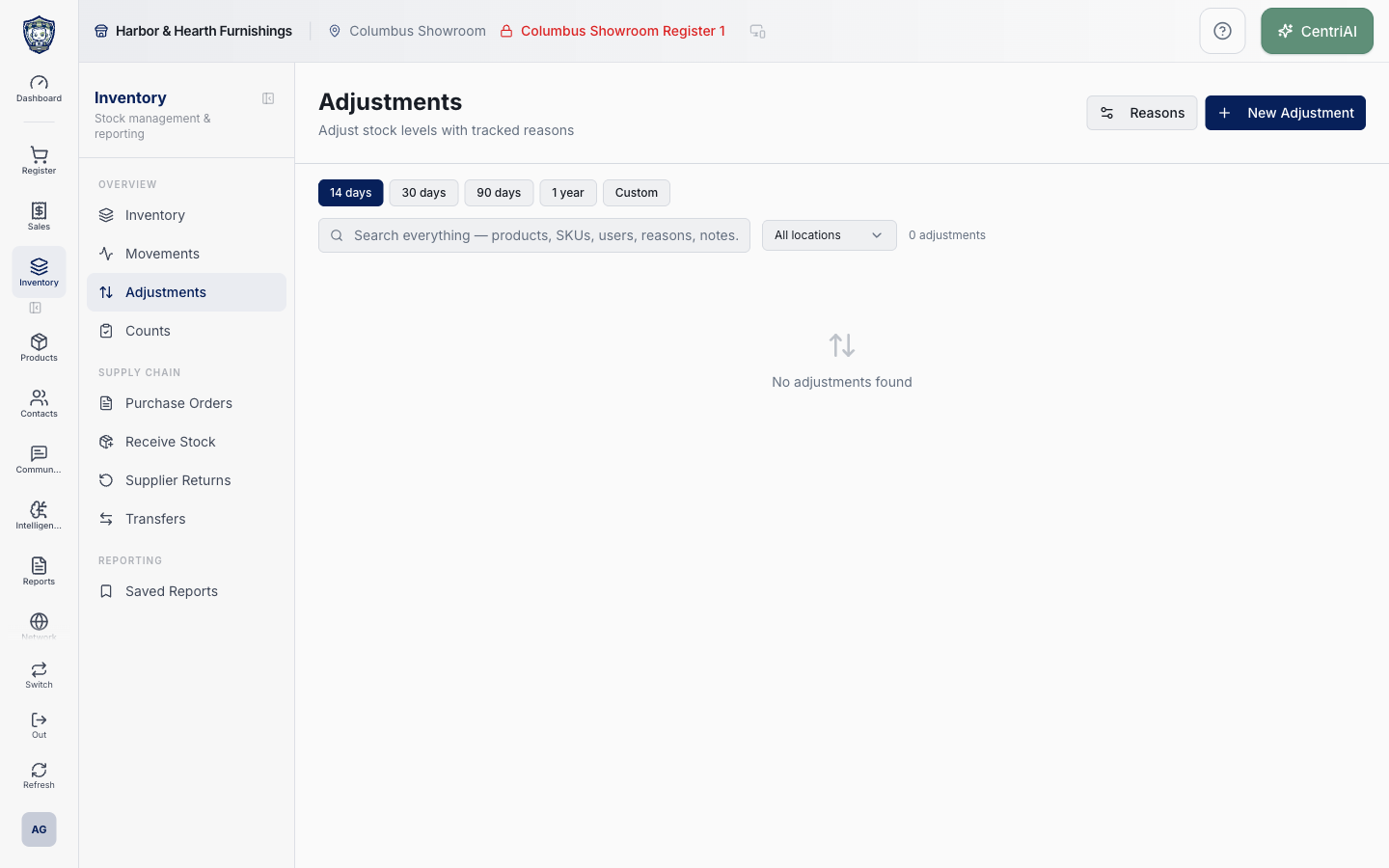
- Harbor & Hearth’s real Amelia Grant screenshot shows the fully rendered /inventory/adjustments empty state at 1440×900 for the selected date range. It exposes the actual Arrow Up Down icon, Reasons/New Adjustment controls, date/search/location filters, and zero results; no adjustment, product, cost, user, customer, or stock data was changed or exposed.
Screen and contract reference
| Control or area | What it means |
|---|---|
| Arrow Up Down icon | Exact Inventory navigation and empty-state icon for Adjustments. |
| Date presets | 14 days, 30 days, 90 days, 1 year, or Custom. |
| Custom range fallback | Uses 14 days until both dates are selected. |
| Search everything | Client-side search across the loaded adjustment rows. |
| 500-row limit | Newest matching server rows only; displayed count may omit older history. |
| Location filter caveat | Only exactly one selected ID filters; zero or multiple currently mean all locations. |
| adjustment_id | URL-controlled row expansion, not a server lookup override. |
| Reasons | Create, rename, enable, or disable shared adjustment reasons. |
| Increase / Decrease reason | Descriptive audit type; does not enforce quantity sign. |
| Disabled reason | Hidden from new selection while retained on existing records. |
| New Adjustment | Location-scoped multi-line stock correction dialog. |
| Variant stock | Reads variant_location_stock only, with missing row treated as zero. |
| Qty Change | Signed integer delta; decimal text is truncated by parseInt. |
| Stock preview | Current stock plus parsed delta; negative projected stock is allowed. |
| Ready count | Only nonzero integer-parsed lines will post. |
| Cost basis | Optional supplier price-list supply price used as movement unit cost. |
| Shared Notes | One batch note applied to every posted line; blank becomes a fixed fallback. |
| Apply Adjustments | Sequential per-line posting, not an atomic batch. |
| Inventory movement | Writes the stock change and movement; writeAdjustment also records adjustment audit evidence. |
| Price-list stock follow-up | Separate upsert after main movement whose returned error is not checked by this caller. |
| Expanded detail | Before/after, performer/role, reason, date, SKU, location, and notes. |
| No edit/delete | Posted adjustment history is immutable from this screen; correct with approved opposite evidence. |
| Harbor & Hearth screenshot | Real Amelia Grant loaded empty Adjustments capture; no stock or identity data exposed and no mutation performed. |
Expected result
The selected product and variant quantity changes by the intended amount at the intended location, and the named reason appears in inventory activity.
Troubleshooting
- Confirm the exact product variant and stock location before posting a quantity change.
- Use the movement ledger to identify the source workflow instead of correcting history directly.
- Avoid a manual adjustment when receiving, transfer, count, sale, or return is the correct workflow.
CentriPOS API explorer · API Center administration
More guides
Build an itemized payment in MoneyUse Products or Amount & description to build one receipt, attach the customer, and follow the appropriate payment or service-estimate workflow.
Take a one-time payment in Virtual TerminalReview a one-time amount, tax and contact at the correct payment station, use its verified secure checkout, and recover the original receipt after an uncertain result.
Review booking payments, refunds and earned careKeep a booking’s customer payments, unused advances, completed care, cancellation fees and refunds distinct, then read a correctly scoped accrual report.
Configure booking properties and customer pagesSet accommodations, service packages, availability, required intake and payment terms, then review the correctly branded booking page before sharing it.