
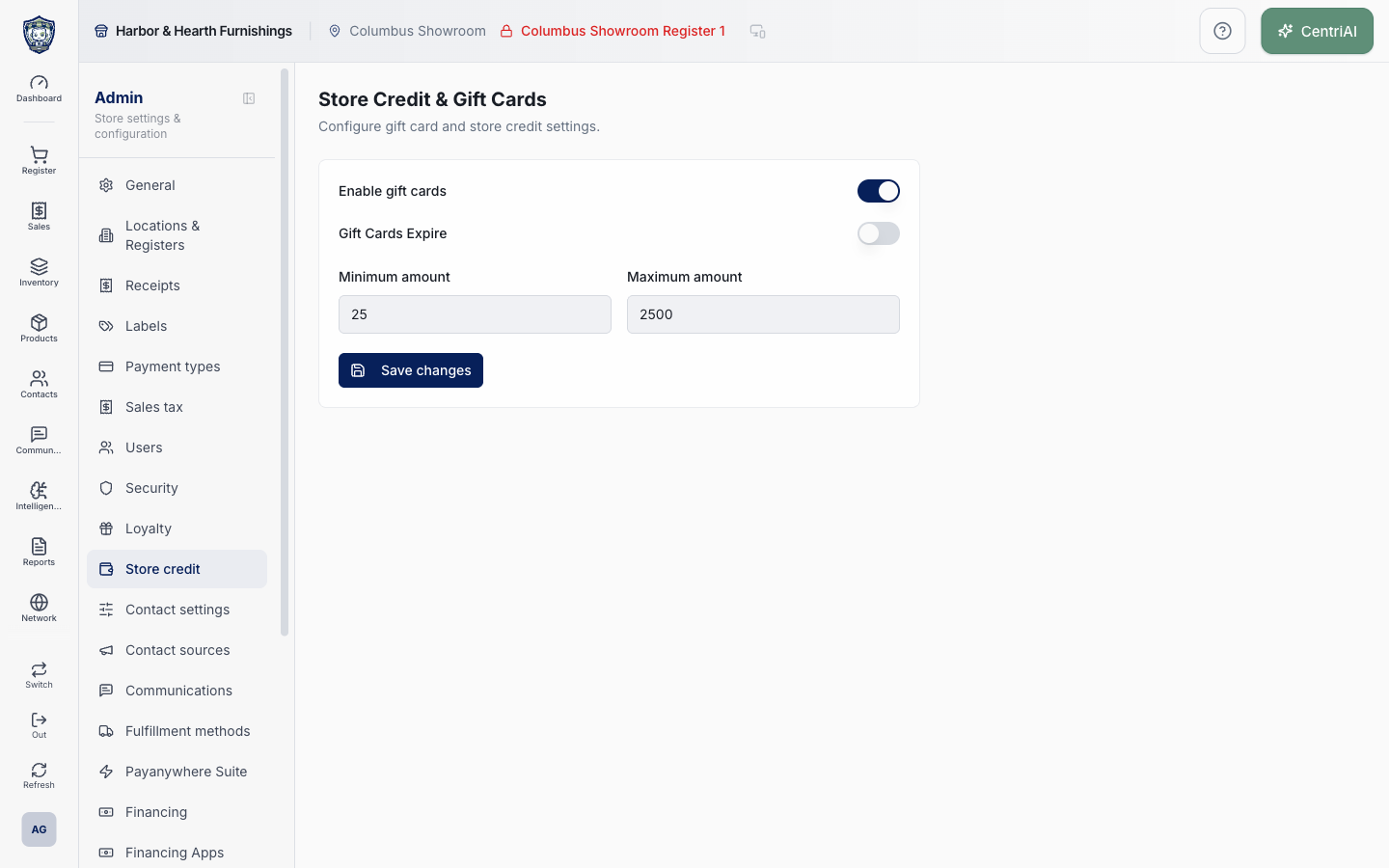
Admin → Store credit uses the Wallet icon and is the only current wired editor for gift_card_settings. Database policy permits the tenant owner to manage it. These values represent stored-value policy and potential financial liability, but this screen does not issue, reload, redeem, expire, search, or reconcile cards. Current UI validation does not prevent negative values, a minimum above the maximum, or other unreasonable combinations; review policy, law, accounting, and test evidence before saving.
Before you beginUse an authorized administrator account and confirm the business shown in the top bar. Record the previous value before changing a live operational setting.
Step by step
- Go to Admin → Store credit in the intended business. Confirm the Store Credit & Gift Cards heading and wait for loading to finish. Do not confuse it with Contacts → Store credit, which uses the Badge Dollar Sign icon and shows customer balance records.
- Verify that you are the tenant owner authorized to manage the setting. Other signed-in users can be allowed to read settings by database policy but should not assume the save is permitted.
- Read Enable gift cards. Changing the switch updates only the unsaved form state; choose Save changes to persist it. Disabling the flag changes the configuration summary but this screen does not show or resolve outstanding issued balances or accounting liability.
- Read Gift Cards Expire. This is only a stored Boolean flag. The page has no duration, expiration date rule, notice, escheatment, jurisdiction, grandfathering, or historical-card controls. Do not enable it until the business has a lawful, fully implemented expiration workflow outside this screen.
- Review Minimum amount and Maximum amount as currency-value policy even though the inputs are plain numbers without currency symbols. The current UI accepts negative values and does not enforce minimum ≤ maximum, decimal precision, or a reasonable cap. Enter only reviewed nonnegative values with minimum no greater than maximum.
- Be aware of input fallback behavior: clearing Minimum stores/display-updates as 0; clearing Maximum or entering numeric 0 changes the local value to 10000 because of the current parser fallback. If a zero maximum is intended, this screen cannot reliably enter it.
- If no settings row exists, the page displays in-memory defaults: enabled, no expiry, minimum 0, maximum 10000. Save changes does nothing until a field is changed because the underlying settings state is still null. Toggle or edit an intended field, recheck all four values, then save to create the tenant row.
- Choose Save changes once and wait for Settings saved. The upsert writes the current settings object for the tenant. There is no confirmation dialog, change preview, activity summary, effective date, or rollback control on this page.
- Open Products → Gift Cards after saving. Its read-only summary should reflect enabled state, stored sales channel, and limits. The Products page cannot edit the values, and its disabled-state Enable gift cards button is currently inert.
- Do not claim end-to-end gift-card readiness from a successful settings save. Current customer-visible POS source has no issuance, reload, balance lookup, redemption, or card-management component. Confirm with CentriPOS support and complete a controlled end-to-end implementation test before launching the program.
- For accounting, separately verify QuickBooks gift-card liability and breakage/revenue mappings, payment-type policy, receipt-template gift-card display, and Gift Cards reporting. A settings toggle does not configure those surfaces or prove their records reconcile.
Screen and contract reference
| Control or area | What it means |
|---|---|
| Wallet icon | Exact Admin navigation icon for Store credit. |
| Badge Dollar Sign icon | Different Contacts → Store credit navigation item for customer balance records, not this settings editor. |
| Enable gift cards | Unsaved is_enabled switch; requires Save changes. It does not settle outstanding balances. |
| Gift Cards Expire | Unsaved has_expiry Boolean without duration, legal-policy, notice, or historical-card controls. |
| Minimum amount | Plain numeric min_amount input; blank becomes 0 and the UI does not reject negative values. |
| Maximum amount | Plain numeric max_amount input; blank or numeric 0 falls back to 10000 in current UI. |
| Missing-row defaults | Enabled, no expiry, minimum 0, maximum 10000 are displayed in memory when no tenant row exists. |
| Save changes | Owner-policy upsert of the current shared settings object. It does not run a gift-card transaction. |
| Shared configuration | Products → Gift Cards reads the same tenant row as a summary. |
| Sales channel | Stored on the shared row and displayed on Products → Gift Cards, but not editable on this Admin page. |
| Predefined amounts | Exists in the underlying settings schema but has no control on this page. |
| No validation guard | UI does not enforce nonnegative values, min ≤ max, decimal precision, legal caps, or liability review. |
| No card operations | No issuance, reload, redemption, balance lookup, expiration processing, or card list exists in this settings screen. |
| Accounting boundary | QBO mappings, reporting, payment types, and receipt display are separate configurations. |
| Harbor & Hearth screenshot | Real Amelia Grant capture of /admin/store-credit showing only program settings, with no customer balances or gift-card records exposed and no values changed. |
Expected result
A controlled issuance and redemption follow the configured location and usage rules, and the remaining balance updates correctly.
Troubleshooting
- Confirm you are changing the intended business and location before saving.
- Record the previous setting when a change affects live selling, payments, tax, or integrations.
- Use a controlled test record after saving before rolling the setting out broadly.
CentriPOS API explorer · API Center administration
More guides
Build an itemized payment in MoneyUse Products or Amount & description to build one receipt, attach the customer, and follow the appropriate payment or service-estimate workflow.
Take a one-time payment in Virtual TerminalReview a one-time amount, tax and contact at the correct payment station, use its verified secure checkout, and recover the original receipt after an uncertain result.
Review booking payments, refunds and earned careKeep a booking’s customer payments, unused advances, completed care, cancellation fees and refunds distinct, then read a correctly scoped accrual report.
Configure booking properties and customer pagesSet accommodations, service packages, availability, required intake and payment terms, then review the correctly branded booking page before sharing it.