
Suppliers uses the Truck icon in CentriPOS navigation. A supplier is an operational vendor, not a customer contact. The editor contains private business contact data and purchasing rules. Deletion is immediate with no confirmation; dependent purchasing records can block it, while other linked data may cascade away. Audit products, price lists, contacts, surcharge rules, purchase orders, receipts, returns, and accounting links first.
Before you beginSearch first to avoid duplicate products or reference values. Confirm whether the change is business-wide or location-specific.
Step by step
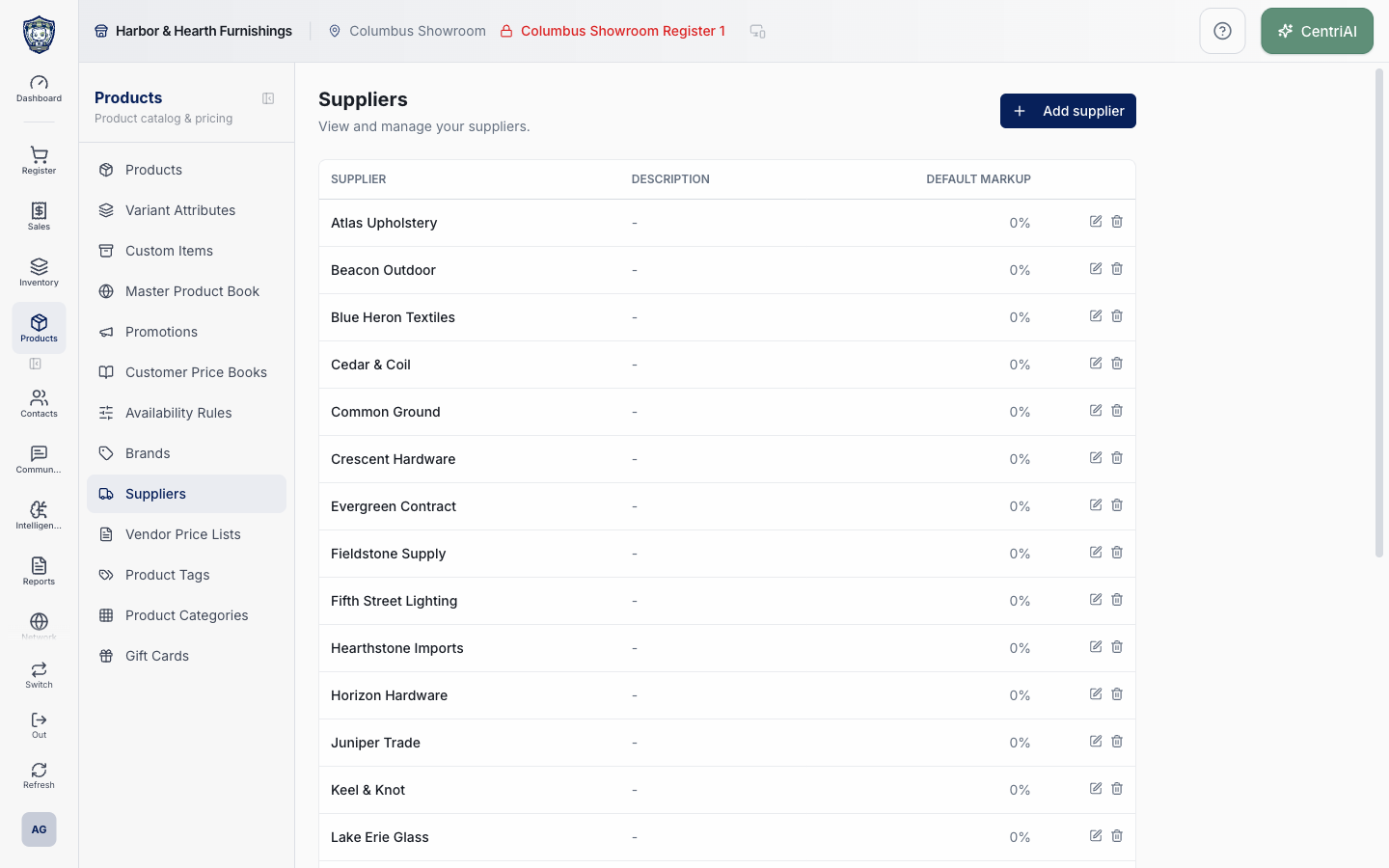
- Go to Products → Suppliers. Wait for loading to finish, then review the alphabetized Supplier, Description, and Default markup table for the current business. The real Harbor & Hearth screenshot is a read-only list capture; it does not expose contact details or open an editor.
- Before adding a vendor, compare legal name, trading name, punctuation, and existing QuickBooks or purchasing identity. The list has no search, duplicate merge, assignment count, or dependency preview. Supplier names are unique within the business.
- Choose Add supplier. Enter the required Supplier name and review Default markup %. The field accepts a number and defaults to zero. Treat it as a supplier default, not proof that existing product prices were recalculated; verify the exact product or vendor-list workflow that uses it.
- Add an optional Description, primary contact first/last name, company, corporate email, corporate phone, mobile, fax, website, and postal address. The primary corporate email becomes the default To address for purchase-order emails. Verify it belongs to the intended vendor before sending a PO.
- Under Sub-contacts, choose Add contact for buyers, representatives, accounts-payable contacts, or email-only CC recipients. Each draft can store name, title, email, phone, mobile, and notes. Blank drafts are discarded when the supplier is saved.
- Enable CC this contact on PO emails only when that recipient should be prefilled on purchase-order messages. A CC-enabled sub-contact must have an email address or the entire supplier save stops with a validation error. Confirm sensitive PO pricing and terms are appropriate for every To and CC recipient.
- Choose Add supplier once. On success, Supplier added appears and the editor closes. The supplier record is created first, then its nonblank sub-contacts are written; if contact saving fails after supplier creation, inspect the resulting supplier before retrying so a duplicate is not created.
- To edit, choose the supplier row or pencil. Review all fields before Save. The current save process deletes that supplier’s existing sub-contact rows and recreates them in displayed order, so remove or alter a contact only when the complete replacement list is correct.
- For an edited supplier, read QuickBooks Online vendor. View on QBO appears only when a saved external vendor URL exists. An absent link means no link is shown; it does not authorize creating a duplicate QBO vendor. QuickBooks supplier sync behavior is controlled in the separate integration settings.
- Review Account fee / surcharge rules. These are rules saved from purchase orders for the supplier and can auto-apply a dollar or percentage fee to all supplier products or category-, tag-, or brand-scoped products. Use Turn on/off deliberately; each action saves immediately.
- Choose Delete on a surcharge rule only when it should stop existing. This action soft-deletes the rule and turns auto-apply off immediately, with no confirmation. Create new surcharge rules from a purchase order after selecting the supplier and an account fee/surcharge; the supplier editor only reviews, toggles, or deletes existing rules.
- Choose Manage vendor price lists for <supplier> to open the supplier-specific price-list area. Use that workflow for uploaded or maintained vendor pricing rather than placing pricing data in Description or Notes.
- Assign a supplier to products through Product Details or the supported Products workflow. A product can have supplier relationships separate from the supplier’s Default markup. Verify primary-supplier selection, cost, SKU, lead time, and price-list effects in the product/purchasing workflow rather than assuming the supplier record supplies every value.
- Before deleting a supplier, inventory all dependent products, supplier contacts, vendor price lists, active surcharge rules, open and historical purchase orders, receipts, returns, and QuickBooks mappings. Reassign or close them according to policy and retain any legally required purchasing history.
- Choose the supplier-row trash icon only after that audit. It issues a delete immediately with no confirmation or visible undo. A foreign-key error means retained dependent records block deletion; stop and resolve them correctly. A successful Deleted toast means the supplier row is gone and cascade-configured links such as contacts, product-supplier associations, or surcharge rules may also be removed.
- After any change, verify representative Product Details, purchase-order supplier selection and email recipients, vendor price lists, surcharge behavior, receiving/return history, and QBO link. Supplier maintenance alone does not send email, create a PO, change inventory, update product price, or create a QuickBooks vendor unless the separate workflow does so.
Screen and contract reference
| Control or area | What it means |
|---|---|
| Truck icon | Exact CentriPOS navigation icon for Suppliers. |
| Supplier table | Alphabetized current-business list showing Supplier, Description, and Default markup only. |
| Supplier name | Required trimmed canonical vendor name, unique within the tenant. |
| Default markup % | Numeric supplier default; verify where it is applied before expecting product prices to change. |
| Primary corporate email | Default purchase-order To recipient for this supplier. |
| Primary contact and address | Vendor identity/contact fields stored on the supplier; they are not customer records. |
| Sub-contacts | Ordered optional vendor contacts recreated as a complete set each time the supplier is saved. |
| CC this contact on PO emails | Prefills the sub-contact in PO CC; requires that contact to have an email address. |
| Add supplier / Save | Writes the supplier, then replaces its saved sub-contact rows with the nonblank drafts. |
| QuickBooks Online vendor | Read-only link status in the editor; View on QBO appears only for a saved external vendor URL. |
| Account fee / surcharge rules | Supplier-specific PO fee rules with dollar/percent value, scope, and auto-apply state. |
| Turn on / Turn off | Immediately toggles an existing surcharge rule’s auto-apply state. |
| Delete surcharge rule | Immediately soft-deletes the rule and disables auto-apply without a confirmation dialog. |
| Manage vendor price lists | Opens /catalog/supplier-price-lists/<supplier id> for the selected supplier. |
| Product-supplier assignment | Separate relationship managed from the product/purchasing workflow; may include primary supplier and supplier-specific details. |
| Trash icon | Immediately attempts supplier deletion with no confirmation or visible restore. Dependencies may block deletion; cascade-configured related rows can be removed on success. |
| No suppliers yet. | Fully rendered empty state when the tenant has no supplier rows. |
| Not an operational transaction | Saving a supplier does not itself email a vendor, issue a PO, receive stock, return goods, recalculate product prices, or create QBO activity. |
| Harbor & Hearth screenshot | Real Amelia Grant capture of /catalog/suppliers in a loaded list state. It shows supplier names and public catalog metadata only; no vendor contacts, credentials, costs, or dialogs are exposed. |
Expected result
The supplier appears in the Suppliers list and is selectable on the intended product and purchasing workflows.
Troubleshooting
- Confirm whether you are editing a product, variant, shared master record, or location-specific value.
- Search for an existing product, SKU, UPC, attribute, or tag before creating a duplicate.
- Preview labels, pricing, and availability in the intended location before broad publication.
CentriPOS API explorer · API Center administration
More guides
Build an itemized payment in MoneyUse Products or Amount & description to build one receipt, attach the customer, and follow the appropriate payment or service-estimate workflow.
Take a one-time payment in Virtual TerminalReview a one-time amount, tax and contact at the correct payment station, use its verified secure checkout, and recover the original receipt after an uncertain result.
Review booking payments, refunds and earned careKeep a booking’s customer payments, unused advances, completed care, cancellation fees and refunds distinct, then read a correctly scoped accrual report.
Configure booking properties and customer pagesSet accommodations, service packages, availability, required intake and payment terms, then review the correctly branded booking page before sharing it.